EN
Blog
- Having a better RSS feed.
- Making the current
/rss.xmladdress point to that better feed. - First you have to find you Kindle serial number.
- Then you can follow this instructions to instal the DeDRM_tools plugin
After hacking my own RSS feed for my Obsidian Publish site, it is now time to try some ideas. The first one is automating my blog posts via Mastofeed. I just created a rule that will compose a Mastodon post using the Title, Summary, Link, and Image from my RSS feed.
This first post/test has two goals. Make sure the automation is working and understand what will happen if one of the items, in this case an image, is not present in the original feed.
If you are fed up with Obsidian Publish's limited RSS, here's how I hacked a better feed.
If you’re an Obsidian Publish user, you’ve probably stumbled upon its default RSS feed by adding /rss.xml to your domain. And if you’re like me, you quickly realized how incredibly limited it is – so limited, in fact, that it’s practically unusable for serious blogging.
I completely get the problem here. As Obsidian Publish doesn’t offer a standard blog feature, there isn’t an actual blog feed. However, that hasn’t stopped us users from hacking our way to a solution. So, I decided to also hack a better RSS feed.
The Problem
As I write this, the official RSS feed is not time-based and doesn’t even have a description for each item, even though there is a “description” property that Obsidian-Publish can read. Anyway, I understand the hurdle of going beyond the simplicity of the meta-information available on our notes, especially if one doesn’t use properties.
What I never got, though, is why it doesn’t display the items chronologically, matching the date a note was posted as a web page. I can’t share something like this with people willing to follow my blog posts.
However, even if I avoid sharing it, many modern feed readers look for and find the feed for the user. So, the two problems I have to solve are:
I’m not a specialist in any of the fields below. I’m sharing the steps I went through as a way to inspire you. Please do your own research and remember to always make backups of your work before trying the directions below.
How an RSS Feed is Created
I’m not a developer, but along the way I was, let’s say, forced to learn some things. When I started podcasting back in 2005—yes, yes, you read that right—I had to learn how to write a feed. Back then there was no such thing as a tool or AI.
The way I see it, a feed is split into two parts. The top part is like the ‘header’ of your blog, containing essential details like its title, overall description, and your website’s address.
Take a look at mine below, and you’ll notice that it’s easy to guess what is what.
<rss xmlns:atom="http://www.w3.org/2005/Atom" xmlns:media="http://search.yahoo.com/mrss/" version="2.0">
<channel>
<title>vladcampos Blog</title>
<link>https://vladcampos.com</link>
<description>Thoughts and articles from one enthusiast to another.</description>
<language>en-us</language>
<lastBuildDate>Tue, 17 Jun 2025 10:12:00 GMT</lastBuildDate>
<atom:link href="https://social.vladcampos.com/rss.xml" rel="self" type="application/rss+xml"/>
<image>
<url>https://social.vladcampos.com/favicon-196x196.png</url>
<title>vladcampos Blog</title>
<link>https://vladcampos.com/blog</link>
</image>
Below this header are the individual entries, or ‘items,’ for each of your blog posts. Think of each item as a mini-summary of a single post, including its title, a brief description, a link to the full post, and the publication date.
<item>
<title>📃 Things you should know about Obsidian Publish —my struggles and how I'm dealing with them.</title>
<link>https://vladcampos.com/2025-06-16-things-you-should-know-about-obsidian-publish</link>
<guid isPermaLink="true">https://vladcampos.com/2025-06-16-things-you-should-know-about-obsidian-publish</guid>
<description>Obsidian Publish has been a game-changer for my online presence, but like any powerful tool, it comes with its quirks. Here are the hurdles I’ve faced and how I’m jumping them.</description>
<pubDate>Tue, 16 Jun 2025 11:32:00 GMT</pubDate>
</item>
<item>
<title>📃 Turning Bluesky into Instagram - my unexpected workflow.</title>
<link>https://vladcampos.com/2025-06-14-turning-bluesky-into-instagram-my-unexpected-workflow</link>
<guid isPermaLink="true">https://vladcampos.com/2025-06-14-turning-bluesky-into-instagram-my-unexpected-workflow</guid>
<description>Apps like Pinksky transform your Bluesky feed into a visual, Instagram-style experience, but there's a catch.</description>
<pubDate>Sun, 15 Jun 2025 10:31:00 GMT</pubDate>
<media:content url="https://publish-01.obsidian.md/access/54a5cde44e33737dbd9582dc8b12cf1f/vladcampos.com/_files/2025-06-14-pinksky-post-cover-art.png" medium="image" type="image/png"/>
</item>
</channel>
</rss>
Basically, every time there’s a new post in the blog, a new item representing it needs to added ti the feed. And that’s it; whatever software is reading that feed will see that new item.
Building my RSS Feed
This is where the magic happens and where my struggles with manual updates finally ended! I partnered with Gemini to create a simple web app I’m calling the RSS Item Generator.
For that I created another website and assign a subdomain to it using a GitHub repository. It’s a free and easy way to host static websites and you can learn all about it here and here. All I had to do after that was use that space to manually write and publish my own feed. I post frequently, but not that much per week. “It will be fine,” the naive me thought.
It is, indeed, kind of fine, since all I had to do was copy the last content inside <item></item>, paste it at the top of the previous one, and replace the old information with the new one. However, after a few manual updates, I quickly realized how prone to errors this approach was. I searched for a basic app that could generate new items but couldn’t find one.
Like I said, I’m not a developer, but since forever I’ve been having these ideas that I could never put into practice. Until now!
That’s when I turned to Gemini. I explained my needs in detail and asked for help creating a web app to automate the process. The first version was not exactly there but super close to what I envisioned. So, I kept chatting with it, and we came up with what I’m calling an RSS Item Generator.
How it Works
First, you need an RSS file, which is a fancy name for a text file with a .xml extension. Usually rss.xml. Copy the initial section of the RSS code (the ‘header’ part) to a new text document and replace my blog/site information with your own.
Below that, you need to start building the items list. Go to my RSS Item Generator, fill in the blanks with the information from your latest blog post, and click on Generate RSS Item. Now copy that and paste it to the rss.xml file. The most recent <item></item> should be at the top of the list. Make sure it looks like the example below.
<rss xmlns:atom="http://www.w3.org/2005/Atom" xmlns:media="http://search.yahoo.com/mrss/" version="2.0">
<channel>
<title>vladcampos Blog</title>
<link>https://vladcampos.com</link>
<description>Thoughts and articles from one enthusiast to another.</description>
<language>en-us</language>
<lastBuildDate>Tue, 17 Jun 2025 10:12:00 GMT</lastBuildDate>
<atom:link href="https://social.vladcampos.com/rss.xml" rel="self" type="application/rss+xml"/>
<image>
<url>https://social.vladcampos.com/favicon-196x196.png</url>
<title>vladcampos Blog</title>
<link>https://vladcampos.com/blog</link>
</image>
<item>
<title>📃 Things you should know about Obsidian Publish —my struggles and how I'm dealing with them.</title>
<link>https://vladcampos.com/2025-06-16-things-you-should-know-about-obsidian-publish</link>
<guid isPermaLink="true">https://vladcampos.com/2025-06-16-things-you-should-know-about-obsidian-publish</guid>
<description>Obsidian Publish has been a game-changer for my online presence, but like any powerful tool, it comes with its quirks. Here are the hurdles I’ve faced and how I’m jumping them.</description>
<pubDate>Mon, 16 Jun 2025 11:32:00 GMT</pubDate>
</item>
<item>
<title>📃 Turning Bluesky into Instagram - my unexpected workflow.</title>
<link>https://vladcampos.com/2025-06-14-turning-bluesky-into-instagram-my-unexpected-workflow</link>
<guid isPermaLink="true">https://vladcampos.com/2025-06-14-turning-bluesky-into-instagram-my-unexpected-workflow</guid>
<description>Apps like Pinksky transform your Bluesky feed into a visual, Instagram-style experience, but there's a catch.</description>
<pubDate>Sun, 15 Jun 2025 10:31:00 GMT</pubDate>
<media:content url="https://publish-01.obsidian.md/access/54a5cde44e33737dbd9582dc8b12cf1f/vladcampos.com/_files/2025-06-14-pinksky-post-cover-art.png" medium="image" type="image/png"/>
</item>
</channel>
</rss>
But there’s a final touch. Each post item has the publication data inside <pubDate></pubDate>. If you take a look at the top of the feed, there’s also a date inside the <lastBuildDate></lastBuildDate>. That date and time has to be the same as or after the last post you added to the list. So, remember to always copy the date section of the last post published and paste it to the top of the feed.
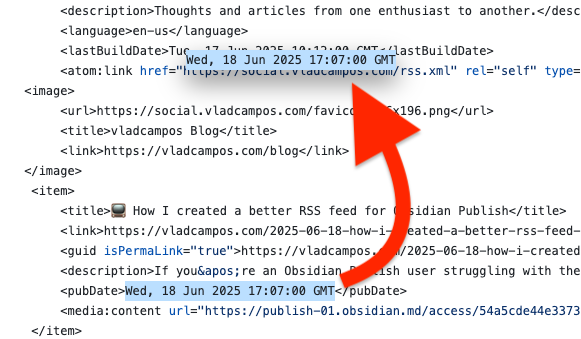
That’s it. All you have to do from now on is keep adding the new <item></item> code blocks and updating the date at <lastBuildDate></lastBuildDate>.
Publishing the RSS Feed
But an RSS feed is only useful if the entire web can see it. So, you need to publish it.
Remember the GitHub repository I mentioned above? That’s where you’ll do it, and to make both of our lives easier, I suggest watching the video below where I go through each step.
Redirecting the /rss.xml
The last item in our list is to redirect the /rss.xml address to the new feed address. You have to do this because there’s no way to unpublish that rss page created by Obsidian Publish. At least I never figured out how.
The redirect will make sure everyone gets the correct feed, including feed aggregators trying to guess it. In my case, it is a redirect from vladcampos.com/rss.xml to social.vladcampos.com/rss.xml . If your website is powered by Obsidian Publish, you are probably using CloudFlare for your domain.
As for the address, share whatever is best for you. I’ll keep sharing vladcampos.com/rss.xml because it is easier to remember. As for aggregators trying to figure out your site’s feed, as long as you have the redirect running, they will always land at the one you’ve created.
One thing to keep in mind is that you’ll need to manually update your rss.xml file with each new post using the generator. While not fully automated, it’s a small price to pay for a fully functional blog feed.
Things you should know about Obsidian Publish — my struggles and how I'm dealing with them.
Obsidian Publish has been a game-changer for my online presence, but like any powerful tool, it comes with its quirks. Here are the hurdles I’ve faced and how I’m overcoming them.
A few days ago, I converted my blog to the Timeline System. If you are interested in more details, there’s a walk-around video that you can watch.
Photos Page
The “Photos page” was inspired by how Micro.blog handles our pictures. When there’s a JPG image in a post, that image will be displayed in a Photos page with a link back to the post.
My solution is more manual, like many other things on the website, but that’s okay. As all this AI buzz grows, I’m trying to find comfort in actually doing things with my type of AI in mind: Attention & Intention.
But don’t get me wrong, I use AI, the other type, all the time. For example, I had this long conversation with Gemini to help me come up with the CSS responsible for the /photos page layout.
Obsidian Publish Limitations
I am delighted with the progress I have made thus far. However, I have also encountered a few bugs and issues during the process.
Since I came back to Obsidian-Publish, I’ve been working hard on creating this mix of a blog and learning center. It has to be something useful for you, but, at the same time, I need a system that will make my life easy. Otherwise, I’ll just stop sharing.
You know that thumbnail when people share posts on social media? There’s a way to set an image to do that on Obsidian Publish. Although it’s a fairly straightforward setting, I never found it to be successful. And because of all the other work going on in the process of building my website, I never took the time to report this and investigate the matter.
Yesterday, I finally reported it on Obsidian’s official forum, which ended up leading me to mxstbr’s post about it.
The problem is some sort of incompatibility with the Permalink setting. I tested it on my website, and he is right. So, let’s hope the Obsidian team comes up with a fix to this.
The other issue is a site behavior that, in my opinion, doesn’t make any sense. As you already know, formatting notes in Obsidian is done with Markdown. But it’s also possible to use regular HTML.
What I found out is that any link that points to an external site will open that site in a new tab. First, I thought that I could solve that using a HTML link, but it keeps opening on another tab even if I use target="_self", which is a way to force the link to open on the same page.
After almost going crazy, I decided to inspect my website code, and, to my amazement, Obsidian Publish replaced the target="_self" with target="_blank", which is how we tell the browser to open the site on a new page.
Why? That doesn’t make any sense. We, the site owners, should be the ones deciding where the page should open.
Anyway, there’s also a complaint about this on the forum. So, let’s hope they fix it. For now, be aware that that’s the reason you’ll be sent to another tab when you click on one of my pictures on the Photos page.
No rel=“me”
This is another HTML attribute that is used by Mastodon and other services to make sure the owner of the website is the same person claiming to be that owner on another site.
It’s such a simple and easy setting, but because of the way Obsidian Publish code works, the rel="me" is not visible, and services cannot use it to verify ownership.
I’ve been complaining about this for a long time, but after being ignored for so long, I decided to come up with a workaround. Because I also needed a Linktree-style page, I created social.vladcampos.com on GitHub and that’s where I included the rel="me code.
Not everyone has time or knowledge to do this, not to mention that it’s not ideal. An official way to solve this would be to provide us with access to the <head> of the site via a file, just like we can do with the publish.css and publish.js files.
That, by the way, would address another issue. The Author Attribution verification. For that, regrettably, I could never come up with a workaround.
The Terrible RSS Feed
Finally, there’s the terrible RSS feed. I can relate to the challenges here, but there is already a feed, which, unfortunately, doesn’t make any sense. For starters, I don’t understand what the criteria used to order the notes are. If they could at least make it ordered by last created note, it would already be at least usable.
The workaround I came up with was to |manually create my feed. Unbelievable, right? It’s 2025! Anyway, I’ll do it again on my GitHub page and share the link on my Obsidian site and on the Linktree-style page.
But, please, don’t get me wrong; I’m thrilled with what Obsidian Publish is enabling me to do. It’s something I have tried and failed on so many other platforms, and it’s now a fascinating work in progress.
Turning Bluesky into Instagram - my unexpected workflow.
Apps like Pinksky transform your Bluesky feed into a visual, Instagram-style experience, but there’s a catch.
When creating a Pinksky account, you have the option to either subscribe using your current Bluesky account or create a new profile. There are advantages and disadvantages to both options. In my case, I have decided to use my current account.
If that’s what you choose to do, remember to create a specific App Password to protect your Bluesky account.
I went with that route because of my experience with another decentralized protocol, ActivityPub. In addition to my Mastodon account, I ended up creating profiles for Flipboard, Pixelfed, PeerTube, and many others. Long story short, it was a big mess, and, after a while, I had to invest some time reorganizing everything.
That said, the problem with using my current Bluesky account is that the Pinksky feed will include every single image people post. However, an image is not always equivalent to a picture. For example, news profiles usually include a cover image with the link to the article they are posting.
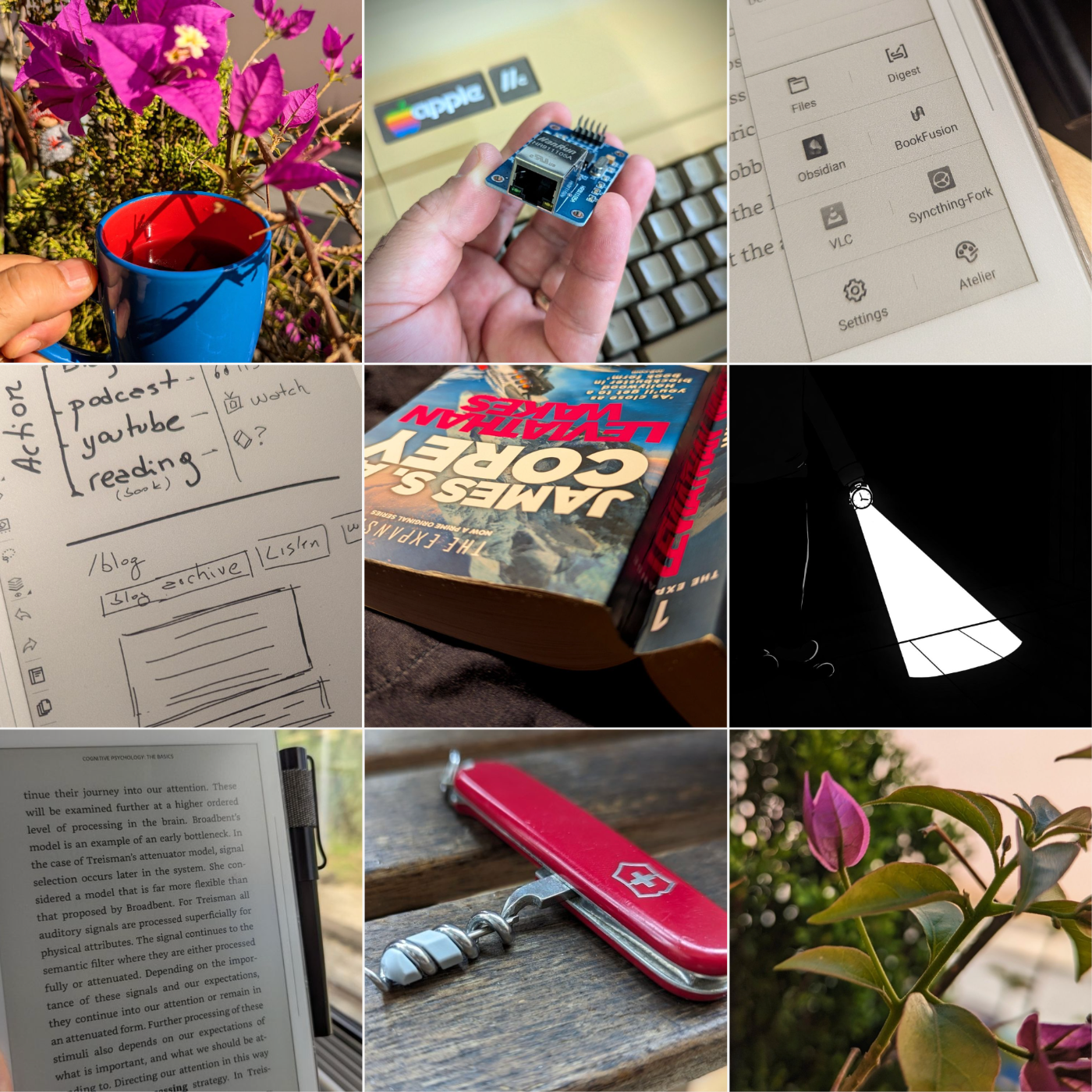
There’s a filter in the top-left corner of the screen (a) where you can choose the option to see only photos, but that will not do it. At least it didn’t change anything on my feed, probably because of what I explained in the paragraph above.

Ideally, I would appreciate it if Pinksky had a setting to allow us to hide some profiles from our feed there, and I did send a suggestion to the developer. But you know me, I had to come up with an Unexpected Workflow, right? So this is what I did.
On Bluesky, I created a new List, which I titled Pinksky Feed, and added some of the people I follow. Specifically, the ones who frequently post pictures I like. Since Pinksky will only show me their posts with pictures, the next step was to set that list as my feed on Pinksky.
If you need help creating a List, check the video below. If you already know how to do it, keep reading to learn how to select it as your default feed on Pinksky.
On Pinksky, tap on the hashtag icon at the top right corner of the screen (b). Now, at the bottom of the screen, you can see all the ones you created on Bluesky. In my case, one of the options is the Pinksky Feed, which is the one I’ve chosen. The hashtag icon at the top right corner of the screen (b) now has a small blue dot on it, as a reminder that you are seeing pictures from a specific feed.
And that’s it! From now on, as I go about my Bluesky browsing, I’ll simply add any cool, photo-focused accounts I find to that list.
How to create a specific Bluesky password for each App
By creating a specific password for each app, you not only avoid sharing your Bluesky password, but you can also easily revoke access if you need to.
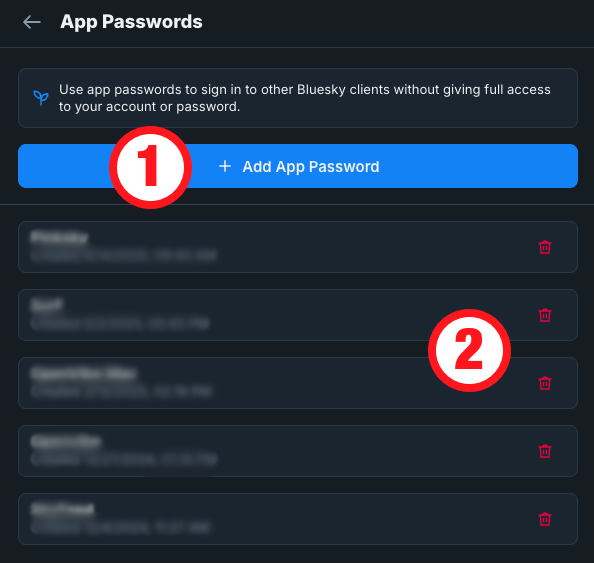
Go to Settings and then click on Privacy & Security. The option we are looking for is App Passwords. Click on it, and if it’s your first time there, you’ll only see the Add App Password button (1). However, as shown in the image below, in my case, there are already some passwords that can be revoked by clicking the trashcan icon (2).
To create a password, click on the Add App Password button and type a name in the box. I always type the name of the app where I’m using that password. It will help me remember where you used that password, in case I want to revoke it in the future.
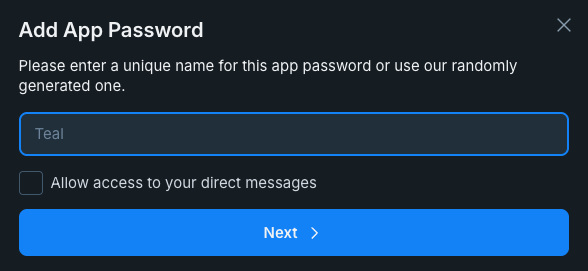
There’s also a box to Allow access to your direct message. This is precisely what it says, and that’s why I prefer to never check that box. But, of course, it’s up to you.
Caliban's War
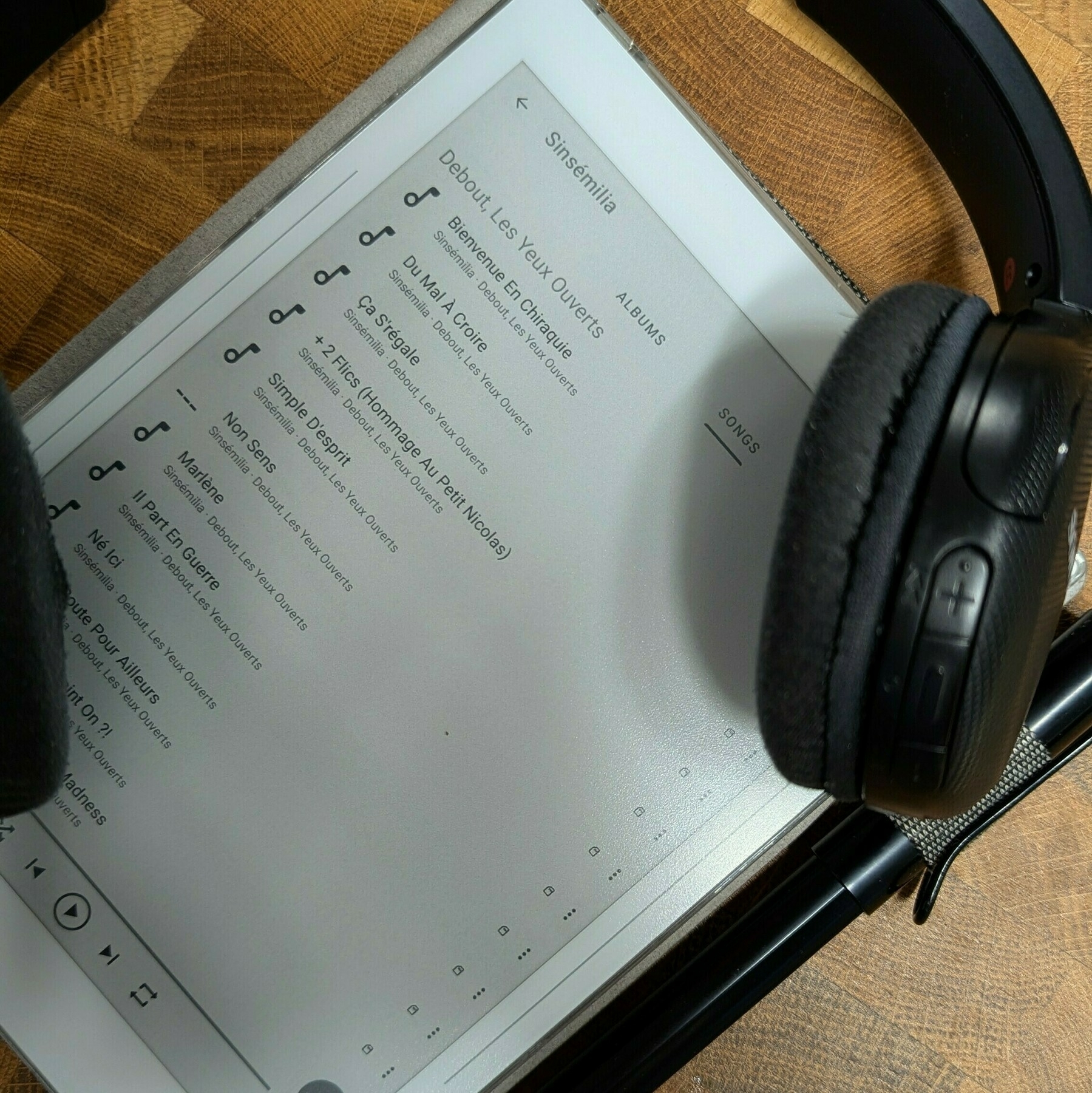
When was the last time I read a fiction book as quickly as Leviathan Wakes? I don’t even remember. Even before finishing it, I bought Caliban’s War, which I’m also enjoying very much. But this time I’m reading it on my Supernote.
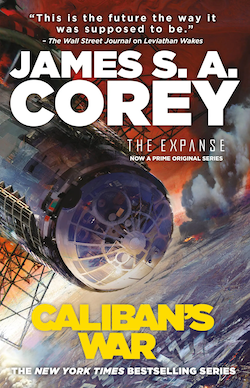
I started reading it using the Supernote’s ePub reader, but after learning about the amazing BookFusion plugin for Obsidian, I had to install the BookFusion app on my Supernote, and that’s where I’m currently reading it. By the way, a video about all these tech adventures is coming soon.
What is Syncthing-Fork
After the Syncthing Foundation decided to discontinue the Android client, I’ve been using Syncthing-Fork, which is non-official open-source version based on the original Syncthing for Android.
Leviathan Wakes
I don’t remember the last time I couldn’t stop reading a book. Better yet, when I was reading Leviathan Wakes, the first book in The Expanse series, it was comforting to know that I would be able to keep enjoying more stories set in that universe.
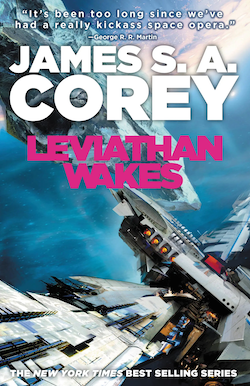
I developed a more in-depth understanding of the characters, and the most delightful aspect of this was that it occurred naturally as I was enveloped in the adventure narrative. It’s time to find out if the next books are as good as this one. However, if you like the TV show, you should probably read at least this first book.
I purchased it in paperback while on a recent trip to Ireland, but I chose to go digital for the second book, Calvin’s War. And I’m not using a Kindle or Kobo device or apps. This reading is happening in my Supernote.
I seriously need to use the bathroom…
“… anyway, what time is it?”
I am aware that I should not have done so, but I pressed the upper-left button on my Garmin to illuminate its display.
Every time this happens, there are two possible outcomes. When I see that it is about 2 or 3 in the morning, it’s so difficult to fall asleep again. Yes, I know, that’s why we should never check the time. Anyway, when it is past 5 a.m., I magically sleep seconds after checking the time or coming back from the bathroom. Our brains are so weirdly wired.
But this time I got a strong beam of light coming from the watch. Everything in the display was gone, but a flashlight icon. I had no idea this feature existed, but the moment I saw that, my brain went like: “wow, I can use this instead of turning on the bathroom light. Cool.”
Yes, that was a neat feature, but none of the buttons on the watch worked anymore.
“Okay, how do I turn this off?”
Because there are so many features on this watch, a long time ago I had created a shortcut to bring the display back to the main screen. Well, you guessed it. Holding the bottom-left button for a few seconds didn’t do anything either.
I was already back in my sheets at that point, wide awake and still trying to figure out what to do. “How do I turn off this beam of light coming out of my wrist? I can’t believe I’ll have to get up and look this up online.”
I don’t sleep with my phone nearby, so I would have to go get it in the other room. Then, my dog would wake up and want to play with me. “Definitely a terrible idea.”
“And, what time is it?”
Click, click, click, and it was finally dark again. “How did I do that?” In any case, I could finally check the time. “Two something in the morning! Oh, no!”. But, it immediately clicked when I pressed the upper-left button to turn on the screen. “I bet it turns on and off by double-clicking the light button. I must have done that accidentally earlier.”
“Cool, that’s it. Now, all I need is a way to double-click to turn myself off.”
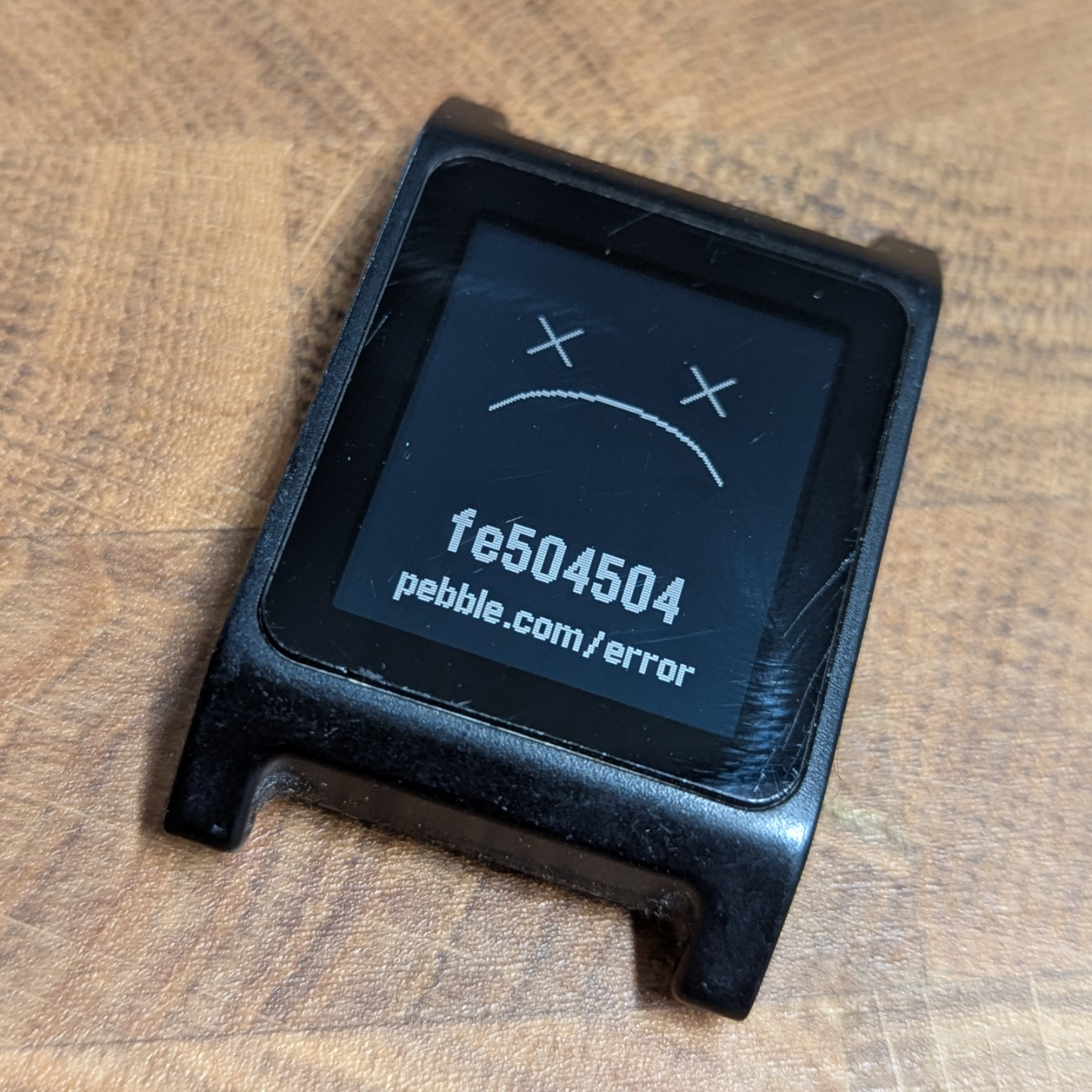
Pebble fe504504 error
Yesterday I charged my old Pebble 2, and it seems to want to work. But before troubleshooting this error message, I have to fix the completely melted plastic buttons. And, of course, there’s a 3D file available to solve this. Pebble resurrection project here we go!
My super simple Google Calendar hack for Obsidian
Having both Obsidian and Google Calendar constantly open, was driving me a little crazy because of all the back and forth. Now, one click and I’m there. So simple, so helpful.
Yes, I’m aware of the calendar plugins, but, after trying several options, I’m not happy with any of them. So, I came up with a temporary solution that, to be honest, I’m using for a while and, at least for the moment, it made me stop pursuing other alternatives.
Despite its simplicity, it’s been a game-changer for me, and that’s why I decided to share this hack with.
What I did was use the relatively new Web View feature to open Google Calendar inside Obsidian. But there’s more. I also set the Google-Calendar tab as pinned, which makes it always open when I open Obsidian. And because I use Obsidian in dark mode, I also set Google Calendar to dark mode, and it now blends perfectly as if it is an integral part of Obsidian.
If you are having a hard time visualizing all this, you can watch the video below. In my case, I had to also change some setting on another plugin, the ‘Hompage’, which I also explain why and show in the video.
I freed my Kindle library and have it synchronized with all my devices
First, I converted the books to ePub using Calibre. Next, they joined my Timeline System in Obsidian for automatic synchronization across all devices, Supernote included.
Like many other modern conveniences, the Kindle ecosystem is built to keep us locked in. As you know, I’ve been taking down walls around digital goods I won, and now it’s time to do it with my books. This project has been on my list for a long time, but it was a recent feature removal from Amazon that motivated me to finally pull the trigger.
We used to be able to go to Amazon.com and download our Kindle books, but that’s not possible anymore. A while ago, when Amazon announced the policy change, I downloaded all my books. If you haven’t done that, I believe you can still have access to them by connecting your Kindle to a computer and manually coping the books.
But having the books is just part of the process, as the majority of them are linked to your account via what’s called DRM. Additionally, Amazon uses a proprietary format instead of ePub, which is more widely adopted by e-book readers. In other words, it’s like having your books locked in a box that is locked in another box.
Calibre is the master key that can help us with all of these locks. Additionally, it works as a library management software, keeping all the books in a folder on our computer. That’s just perfect for the Digital Caveman project, right?
When you are first installing the app, it will suggest a folder for your library, but you can change it to what better suits you. In my case, I created a new Static Container (folder) called ‘eBooks’. And because the files in my Timeline System structure synchronize with multiple devices, my library is now widely available. But I’m getting ahead of myself.
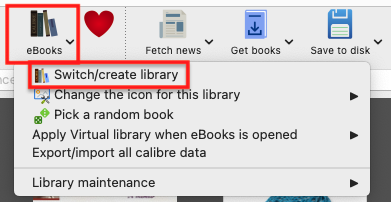
As a tip, you can also move the library to a different folder in the future. Just click on the ‘eBooks’ button on the toolbar to choose a new location.
Next, we need to prepare Calibre to be able to remove the DRM from our books. This is done in two parts. First, we need to install and set up a plugin. It’s only after doing this that we’ll be able to tell Calibre to remove the DRM and convert the books to ePub.
Preparing Calibre
Add the serial number to the box and that’s it.
Converting to ePub
With all the above done, go to Calibre’s main window and click on the ‘Add books’ buttons. Select one or more books, and they will be added to your library’s folder.
Next, select one or more books in the list and click on the ‘Convert books’ option. You’ll see a new window with countless details that you can tweak on each book. There are even several formats available in addition to ePub, which is the pre-selected on. In my case, I kept everything as it was and clicked on the button to convert.
The Supernote
To understand how my books are being automatically sent to my Supernote, I suggest watching the video below.
But remember, the books are in my Obsidian Vault. And looking at how Calibre creates folders for each author, I’m already having insights about making those folders somehow connected to other content I have in Obsidian. Especially the ‘Knowledge Base’ notes, which share a strong relationship with the books I read. And that’s one of the reasons I chose to set the ‘eBooks’ folder as a Static Container.
The Digital Caveman Project
There are plenty of details I still would like to adjust, but all the digital content I create and own is now local first and free from walled gardens. In other words, 100% under my control.
In addition to my notes and website being created in Obsidian, my music, photos, now my books, every single file I use for my personal life and work, and even my passwords, are on my computer first. I even have my own ‘cloud’ system and a backup strategy.
🪨 I did it!
How to instal the DeDRM_tools plugin
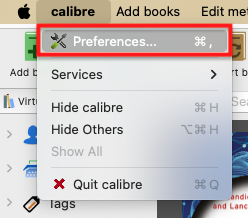
Download the DeDRM_tools plugin, unzip the folder, and set it apart. Next, go to the Preferences under the Calibre menu option. At the bottom of the page, you’ll see the Plugins button. Click on it. Next, click on the button Load plugin from file.
Navigate to the DeDRM_tools folder on your computer, find and select the DeDRM_plugin.zip file. Click on Open, and you’ll see a dialog box asking if you are sure. Click on Yes and in the next dialog box, also on OK.
Now we need to provide the plugin with your Kindle serial number. There are many plugins already installed, so if, for some reason, you can’t see the one we just installed, simply search for DeDRM. Select it and click on the Customize Plugins button and then on Kindle eink ebooks.
You will be asked for your Kindle Serial Number. Add the serial number to the box, and that’s it.
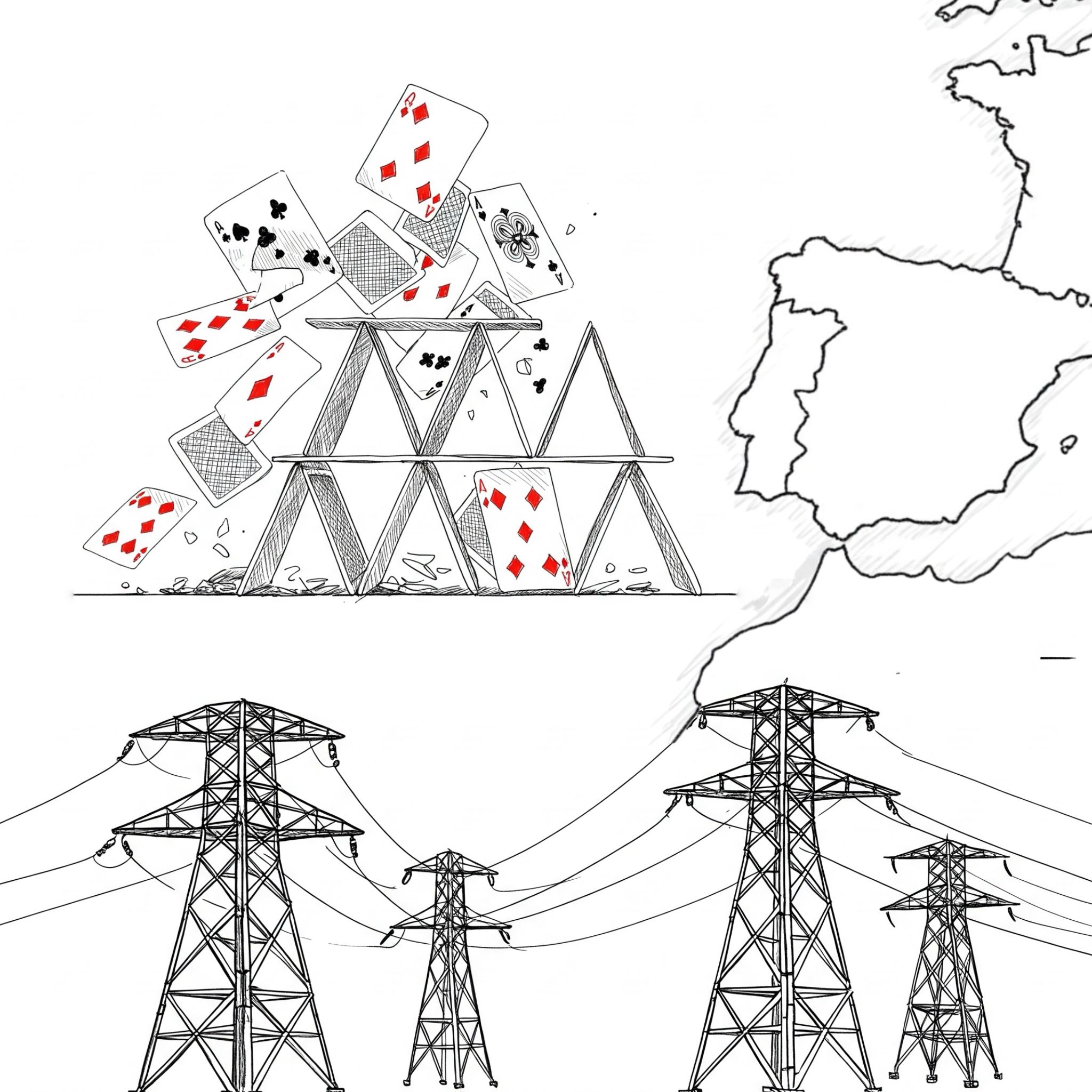
Our modern society is nothing but a delicate house of cards
If you don’t live in Portugal or Spain, it will be impossible for you to understand the feelings I’m trying to convey below. And I sincerely hope you never have to deal with it.
Around 11:30 a.m., the external monitor I have hooked to my laptop went black while I was editing a video. If the room’s light hadn’t also been shut off, I would think it was a simple connection issue. This type of incident is such a rare phenomenon that at first I thought it was related to my apartment or building and decided to go for a walk with my dog.
Heading to the dog park, I grabbed my phone to share the “morning event” with my wife. Yes, we keep in touch all the time using Signal.
This was the moment I sensed something bigger was happening, but I still thought it was a local thing. My phone data connection was down, and as someone who has worked for 10 years in the telecommunications sector, I know that something like that rarely happens. There are so many contingencies and backups. Something else must be going on.
Maybe the entire neighborhood lost power, and, for some reason, the backup generator at the mobile phone tower closest to me didn’t kick off, I thought, trying to rationalize the situation.
I don’t know if it was instinct, but I immediately sent my wife an SMS: “I have no idea what’s happening, but we lost power and I have no data on my phone”. Again, because of many years of experience, I know how SMS works and how it is such a robust feature of the network.
The SMS took longer than expected to be sent, and that was another undesired sign. Perhaps she didn’t get it. My wife is currently on an overseas trip, so I text a friend here in Portugal: “We lost power, and I have no data on my phone. What about you?” “We also lost power, and I can barely use data. It looks like it’s affecting the entire country.”
This is when I started having very unwanted thoughts. Instant communication is a crucial element that we take for granted. But if you think about it, modern society has been building on top of this core infrastructure since the invention of the telegraph.
Let me provide you with further context of the situation I found myself in at that moment. Every single appliance and piece of equipment in my house is electric, so there’s no way to cook or take a hot shower. The TV cable is an Ethernet connector that plugs into an Internet hub, so there’s no way to watch the news. I also just sold my car, so no analog radio as well.
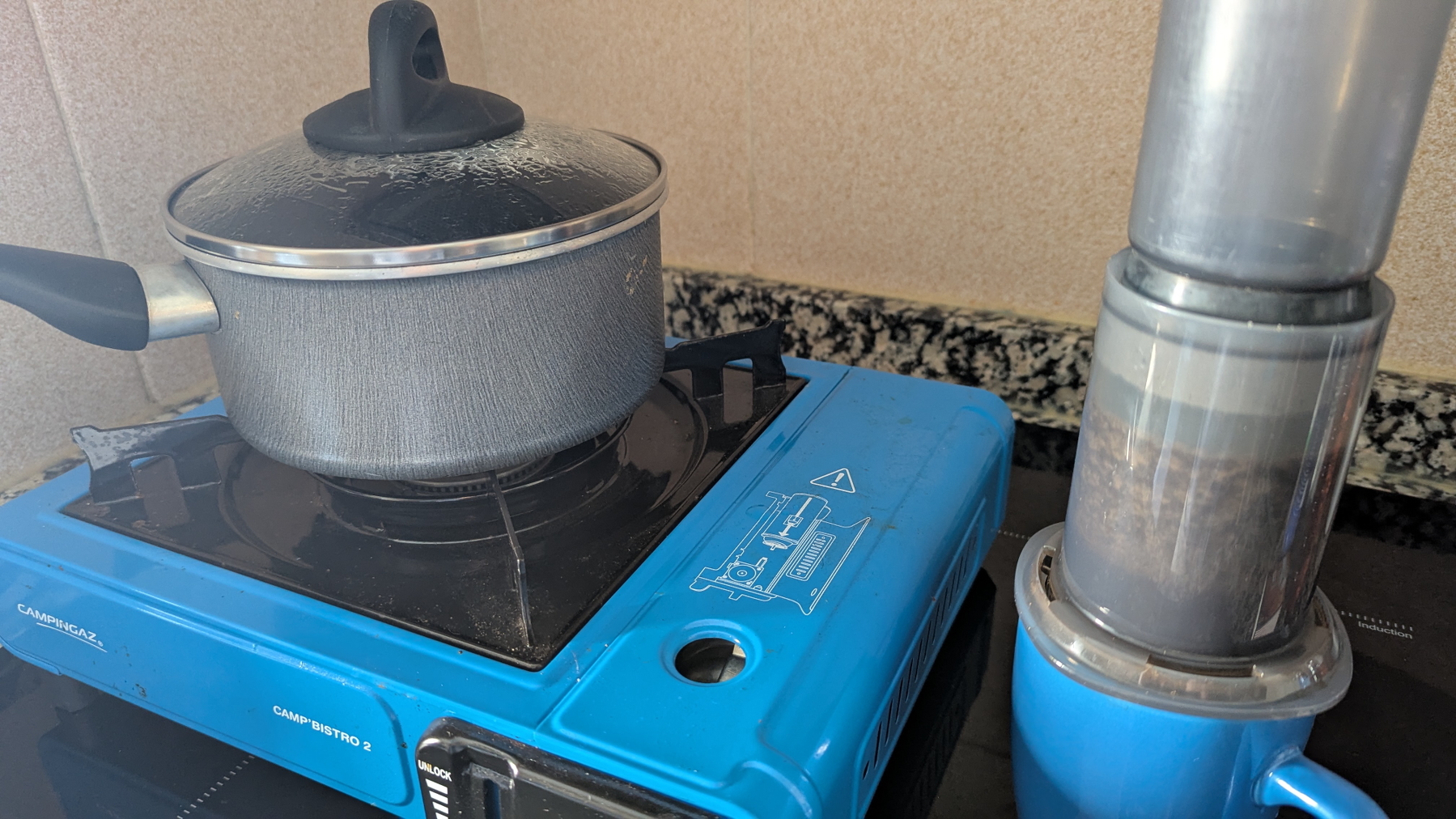
To make coffee that day, I used my gas-powered camping stove, which I ironically set up on top of its modern induction successor.
Okay, this is a national situation. A big one because the phones went down. If there’s a positive side to this, it’s that there are probably dozens of people working tirelessly to fix it. Again, little did I know.
Here’s when I decided I had to stay calm. I ate the rest of yesterday’s salad, grabbed my iPod, a book (the paper type), and thought to myself, If this is not solved until 4 p.m., I’ll go buy some extra supplies.
I read for two hours, but at some less engaging parts, I couldn’t help but stop and think about this unusual and unexpected situation. Looking around, I began to see all these wonderful sparks of beauty in the midst of the chaos. From my balcony, where I was reading, I could see all the other people on their balconies, kids playing on the street, and neighbors having fun conversations on their doorsteps.
I remember it now. This is how the world used to be when I was a kid, and even a teenager. This is how people used to behave before mobile phones existed.
Back to reality. “It’s 4 p.m. Time to buy some supplies,” I reminded myself.
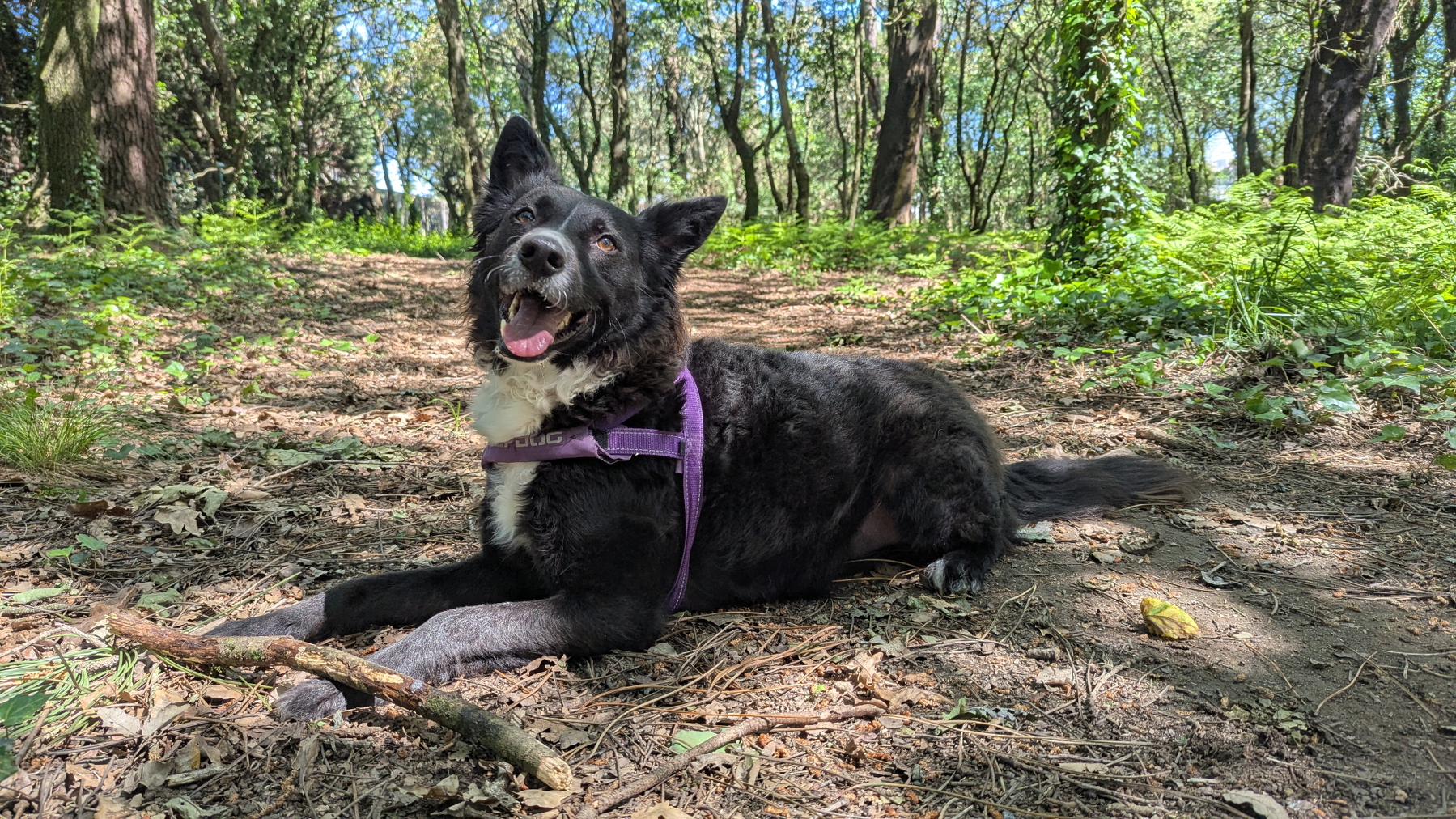
I decided to bring my dog to a nice place we usually go together to relax, before heading to the supermarket. If there was one happy soul in the house, that was my dog. Ignorance is bliss.
Going to another dog park on the same day must be winning the dog’s lottery, right? It’s a somewhat hidden micro forest on the way to the supermarket. We stayed there, going back and forth from having fun to relaxing for a while. Then we headed to our main mission.
With no shopping carts available and so many people inside, the outcome couldn’t be different. The number of shelves empty was impressive. To give you some context, something like this never happened during COVID-19. Thankfully, I don’t need much, but that’s one more unwelcoming sign to add to my list, I thought to myself.
On the other hand, I kept seeing all these kids playing on the streets and so many adults in front of houses having conversations face to face and laughing without looking at their phones. Those scenes were absolutely beautiful.
As all of this was going on, I still didn’t have any mobile data and, shortly after texting my wife and my friend in the morning, the SMS system stopped working. If you haven’t guessed yet, there was no calling as well.
All the information I had, was collected here and there, talking to others on the street. But because most people didn’t have access to the rest of the world, it was impossible to know what was really happening. Moreover, all the ones I talked to would start the sentence with something like “I heard that…”
Experience, or perhaps hope, was telling me to keep sending journaling messages to my wife, and so I did. At this point, I was already back to using Signal, where I started narrating everything I was doing. That was the only app I kept opened all the time, hooping for momentarily breaths of the network.
If, for some reason, the network comes up for a few seconds or minutes, she’ll get all the updates. I didn’t know it at that moment, but she was doing the same on her side, and at about 7 p.m., a relieving exchange happened. I saw a burst of messages from her, and the read update pop-up on all the messages I had previously sent here. That would never happen again until the power and network came back to life at about 11 p.m. But at least she was now aware of what was happening to me.
I don’t know if this applies to everyone, but as I grew older, I started understanding that many things in life were never supposed to be about me. At some point, I learned that it’s about what I mean to other people, and that’s why I have to take care of myself. That’s for them! And it goes both ways, of course. Anything we do is always affecting the ones who love us, and this perception became so important to me that I’m constantly more worried about the feelings of the others, the loved ones. It’s like going to a funeral. Our main responsibility there is to comfort the ones that are still alive. We are there for them. Loving is seldom about us, and I wish I had learned this early in life.
Anyway, back to my ordeal. You know me, I’ve been detaching my digital life from the cloud for a long time. And I do have equipment to survive in a situation like this for a few days. Of course, I learned some new lessons with this test the world just tossed at me, and I’ll do my homework.
However, as a society, I think we are digging our own grave. Why are we increasingly relying on the cloud for everything? Why do all things have to have an app that has to be connected to the Internet to work? The more I think about it, the more I see unreliable digital conveniences replacing the so-called “outdated” gadgets that are still working so well. This is nothing more than building a gigantic house of cards. And to further add more salt to the injury, it is probably being built on top of a single point of failure.
This digital modern life of ours is so bizarre. Among all the real and relevant concerns I was having yesterday, it also occurred to me that I would lose my 775 streak on Duolingo if I couldn’t do my lesson today. Seriously?! The simple fact that something as futile as that crossed my mind is so absurd!
Today, I woke up feeling slightly stressed from my adventures, and I still have a bit of a headache. Nothing terrible or distressing happened yesterday. Thankfully, I was working from home, and everything was calm in my neighborhood. But, in retrospect, I think the real burden I felt was the thought of possibly not being able to connect with my loved ones living in different parts of the world. That, and the fact that nobody knew exactly what was happening or how many days would be like that. I didn’t miss anything else related to the Internet, just that connection with others and the real-time information that comes with instant communication.
By the way, I’m old enough to say that most of what we did at the beginning of the web was communicating via email, forums, blog comments, etc. It was a lot of fun!
I’m grateful to have power and communication back, but, when walking with my dog this morning, I saw people quickly resuming their lives just like if nothing had happened, and, in a way, that made me sad. Yesterday’s flourishes of harmony and beauty are now gone, like busted soap bubbles.
The insane society we are building for ourselves is now back on track, and the house of cards is sitting there waiting for the next breeze. Until then, the only sign of the now gone problems was a possible bug that kept the public lighting still on during this morning.
Inside my Obsidian Homepage-a portal to what matters most.
Do you have an Obsidian homepage? What’s on there? 🤔 Mine gives me instant access to tasks, trips, projects, and family info. It works as an efficient dashboard to what matters most.
First things first. My homepage is basically a note, automatically updated with dynamic information from other parts of Obsidian. In other words, it’s a dashboard created using the Homepage plugin, as demonstrated in the video below.
Since it is the first thing I see when I open Obsidian, I expect the information there to be what I’ll be looking for most of the time. And what could be more relevant than my next tasks?
Using the Tasks plugin and some basic configuration that you can learn in the video below, I created four dynamic lists: Overdue, Today, Tomorrow, and Upcoming. There’s also a fifth one that is mostly for groceries, but I also use it for anything I need to buy. That’s why it’s called Purshases.
Next is a world map widget with pins on every place I’ve been. It’s a backup of what I have on Google Maps and is built and automaticity updated using the Map plugin. There’s also a short list with links to the itinerary notes of my next trips. I could have this list dynamically built like the tasks, but I don’t travel that much and manually creating it is easier and, as you soon see, more useful.
The dashboard information is ordered by how often I need or use each module. That explains my tasks at the top, but why the trips section is right below it? Well, there are at least two parts to a trip: planing and the trip itself. In my case, there’s also a third part. I love to keep a journal during the trip, and when I return, I adjust the details here and there.
Planing and organizing a trip is more than a list of tasks. So, having the link to the itinerary note means that I can constantly go there to monitor what I have already done and what I still need to do. Then, during the trip, I can easily open the itinerary, and inside that note, find invaluable information, like a link to the hotel on Google Maps.
Since I see the Homepage every time I open Obsidian, there’s almost zero friction. It’s just a matter of scrolling a little bit to get to the links right below my tasks and click or tap.
When I come back, it’s time for some fine-tuning, and that’s when not having the next trips list automated is helpful. If links to past trips have not yet been removed, it means that I still have some work to do. By the way, this is a strategy I use all the time. Keeping things in an undesirable place is a constant reminder.
And it also works for physical objects too. For example, I recently kept a giant bicycle lock on top of my desk to remind me that I needed to make a copy of its key.
Back to the Homepage.
Next is a Canvas widget of my Knowledge Base. It used to be the only one, but below it, I now have another one with all the information related to my Apple IIe project. That project was dormant for more than a year, and it wouldn’t make sense to keep it on the Homepage. Now that I’m working on it again, having a direct link to all that information is very welcome. This demonstrates how dynamic the Homepage is.
And speaking about the Canvas, it has become my go-to feature for visually organizing all the information I have in my Static Containers. My Family Documents container is probably the next contender to be displayed like that. But for now, they are embedded notes on my Homepage.
It’s a long list that sits as the last segment because it is definitely something I frequently use, but it’s the least needed when compared to the other items.
Having a Homepage like this is a game-changer, but it has to meet your needs and reality. If you could see the ones I help my clients build, you would be impressed by how different they are.
Another important detail is that your notes have to be organized using a system that works for you. Of course, I use the Timeline System, but regardless of which one you choose, there must be some sort of predictability to have a good dashboard. Without that, your dashboard will only be adding more friction to your life.
Switching to Proton or similar alternatives is much harder than I thought
Proton has come a long way since I first tried it, but…
The last time I was a Proton subscriber, it was known as ProtonMail, and the calendar feature was still in beta. They have come a long way since then, but for a while, I have been putting off giving it another try. However, the current situation of the world is an invitation to do exactly that.
Based on my early experience, I knew that ProtonMail would work perfectly for me, as I could set up my domain name and the aliases I currently use. That’s why my initial plan was to try the other features first, starting with the calendar. If things go well, I can move away from Google Workspace, which I have been using since 2015.
My first task was to create two calendars: personal and work. Everything went exactly as expected, including the synchronization with the Android app, which, by the way, also offers a minimalist yet useful widget.
Import and export
I don’t remember this option in the menu before, but as I said, it has been a long time since I’ve been there. Anyway, clicking on “Import from Google” revealed three options: Emails, Contacts, and Calendar.
I kept only the Calendar option checked, but I couldn’t go past the Google Authentication page. This issue was probably related to the Obsidian Web View feature (aka, browser) I was using, so it was time to switch to Google Chrome. Problem saved, the connection was established and everything looked fine until… Well, my Google Calendar database was apparently too big for the free account storage, and the process was aborted.
Fine, I moved on to trying the import feature on my contacts, which ended up highlighting another problem I now remember having had in the past.
Although it is possible to start a call from a contact inside the ProtonMail app, there’s no Contacts app for Android. And as far as I could understand, the alternative is to import the contacts from the ProtonMail app to the Android address book. But since this will not keep both apps in sync, it will forever be an inconvenience, as new contacts will have to always be added to both apps. If you know of other options, please let me know in the comments below.
Proton Alternative
A friend suggested Infomaniak, which has a different approach to the above. The kSync app synchronizes Contacts and Appointments with the Google apps we already use on Android. I ran some tests and it works!
Although I haven’t tried it yet, I noticed that there’s also a way to synchronize emails, calendars, and contacts with the corresponding Mac apps. Another point in favor of them is the fact that there’s a videoconferencing tool. Not to mention that it is a cheaper option when compared to Proton. At least I thought so.
But one detail that I cannot stop thinking about is who came up with the Infomaniak name.
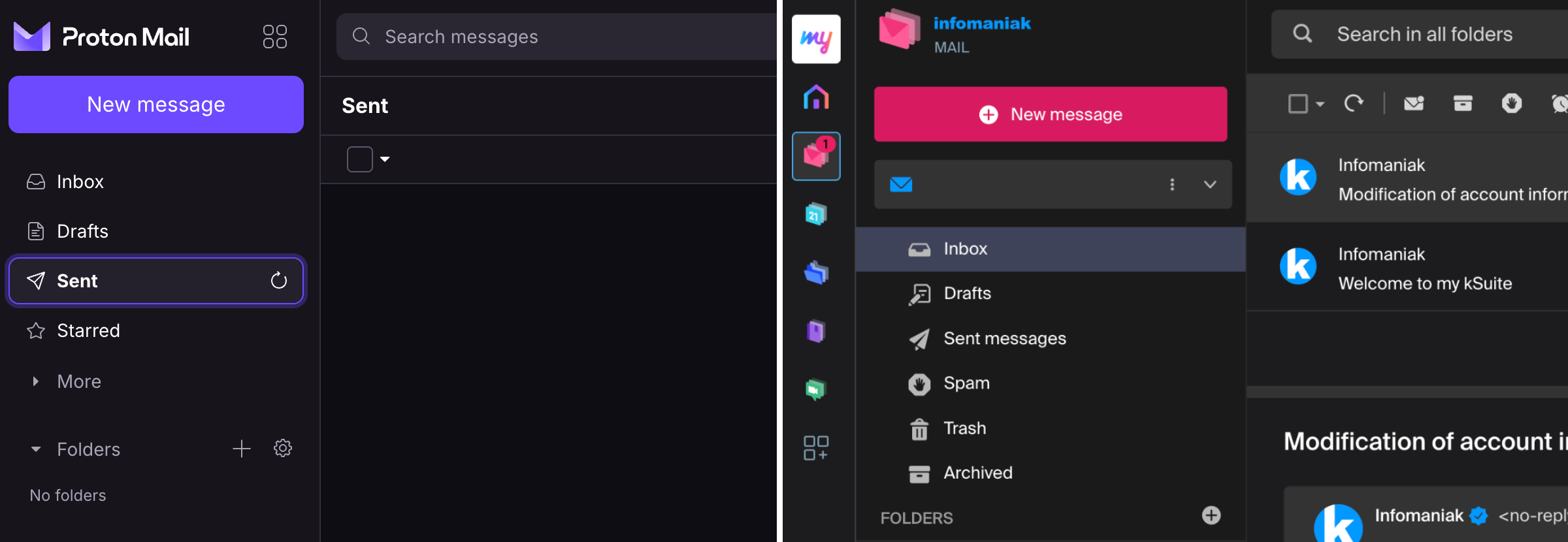
Another aesthetic detail to consider is the user interface. It’s not intuitive, and even the dark mode has too much color to it. Proton feels much more comfortable to use.
Too Good to be True?
They are also a Swiss-based company and offer a 30-day free trial, which I enrolled in to fully try the service. And that’s when I faced a major roadblock.
After spending hours on this, I think I finally got it. To have a custom domain, one has to also pay for the “Custom Brand” service. There’s even a “Custom Brand + kSuite” offer for 6.21€ per user/month.
Anyway, I contacted support to make sure my understanding is correct and will update this post when they reach back to me. After all, there’s a 3.99€ per month Proton offer that covers everything I need. Well, not exactly everything. I need videoconferencing, and I’m still puzzled by the annoying Contacts app problem.
PS. Believe it or not, the above is how I spent the majority of this Sunday.
Obsidian is great, but learning is inherently hard
If you are looking into switching to Obsidian, maybe my journey can help you.
The very first video about Obsidian was published on my YouTube channel on March 14, 2023. What some of you may not know is that I had been using it for longer than that to help clients here and there.
However, that amount of time is nothing when compared to the muscle memory I have developed from using Evernote for every little thing in my life for 16 years. The problem with the new is that it is always unwelcoming. It’s not only the different way of doing things; it’s also the constant uncertainty about doing anything. And at that point, Obsidian was not only new to me, but there’s also the sheer number of settings and plugins making it feel so overwhelming.
To make matters worse, I decided to bring my YouTube audience along with me on that new journey. For a long time, I have had the idea of creating a vlog-style productivity series on my channel that would show how I organize life and work. I thought that learning Obsidian would be a great opportunity to try that, but it ended up creating unnecessary confusion, as it is challenging to film myself figuring out things happening in real time.
Back to my point. After so many trials and errors, I’m now much more comfortable with how Obsidian works. Some of the setups I came up with, like the homepage demonstrated in the video below, are now running for a considerable amount of time and working so well. Furthermore, my Timeline System has matured to the point where it allows me to seamlessly navigate my daily activities.
Don’t tell anyone, but because of all of that, I feel like recording many of my past videos again. Anyway, you are not here for this. Let’s go through my tips for switching to a new app.
Before that, a disclaimer is needed, right? The following is how I did things. It’s also based on the strategy I use to help my clients, but it may not be suitable for you. So think of the suggestions below as just that, suggestions.
From Evernote to Obsidian
First, I didn’t abandon Evernote. I knew how things worked there, which mad it my safe haven during the transition period.
With that in mind, the first actual homework was to learn the basics about the mysterious Obsidian. Because of my clients, I had already done part of that before. But now I needed to move a step further and see how things would work in real life. To accomplish that, I created the first of many local vaults on my Mac to work as a sandbox.
Once that was done, I copied, I repeat, copied, not moved, parts of my notes. In some ways, Obsidian is so similar to Evernote, but in others, like how files are stored, it’s an entirely different approach. However, it works in such a way that you can have as many vaults as you wish and easily delete the ones that didn’t work. As long as you are coping your files, you can consider the multiple vaults to be a process of prototyping and iterating.
Like I mentioned at the beginning of the article, there’s a universe of settings and plugins. I suggest avowing all plugins as you are getting to know your way around. As for the settings, try to look for the answers as you need them. For example, when you feel like you have to learn how to format text, go look for tutorials on how to do that.
As you get used to it, move some more parts of your system, but I would still think of what you are doing on the new app as in experimental mode. It will take a while for you to get used to the numerous new things that are still making you uneasy.
If you followed my progress on YouTube, you know that I was constantly changing my setup and being frustrated by all the new ways of doing things. And let’s not forget that I was doing all the above while still using Evernote. So much so that at a certain point, I had a good portion of my activities being managed with the help of both apps, and that was driving me crazy.
To make things even more miserable, Evernote decided to redesign its mobile app. Now, on top of learning a new system, I had to adapt to a new way of doing things on the app I was so familiar with.
It was a lot, but it was worth it. It felt like a final partnership with my old friend, Evernote. The new design and new ways to do things helped me eventually find a way to implement the Timeline System that had been brewing in my head for so many years. Yes, the Timeline System I use in Obsidian and in the Supernote came to be because of my struggles with Evernote.
With that settled, the next step was to replicate the system in Obsidian and start moving all my files. But I did it one notebook at a time. I would export an Evernote notebook, import it to Obsidian, organize all the mess, and, just as a last resort, keep the exported notebook as a backup. In case you are wondering, yes, I still have them in a backup drive.
Plugins
But we are not done just yet. As I have already mentioned several times, Obsidian is full of settings and plugins. My strategy here is the same as at the beginning of this process. Whenever I need something that Obsidian cannot do, I start looking for a plugin.
I try to stick with the ones that do one of a few things, but every so often that’s not possible. For example, the Tasks plugin is too much for my needs, but I couldn’t find a lighter alternative that would work for me. Templater and all its features is one that I’m avoiding, as the Auto Template Trigger does almost everything I require. But when it comes to having fun, it looks like that rule doesn’t apply. I love using and tweaking every detail possible on the Map plugin.
Which brings us to one of the reasons I switched to Obsidian. Evernote has been on a downward trend of removing features since version 10 was released. I thought for a moment that Bending Spoons was going to bring old features back, but they kept removing them.
Guess what, many of the removed features I used to love in Evernote exist on Obsidian as a setting or are available as a plugin. And in most cases, these are better variations of what existed on Evernote. And that makes me so full of joy! It’s like being in a parallel universe, where Evernote evolved to what Obsidian is today. Back to reality, I’m definitely happy. So happy!
In summary, what I’m trying to say is first, have a safe haven. Second, take your time. Really, take your time. This will be a long project. Third, you already have a lot on your plate, don’t create more problems for yourself. Go look for settings and plugins only when you genuinely need to fulfill a specific requirement.
Evernote's new PDF viewer is beautiful, but it's like a new skin over old problems
Perhaps it is time to remove Evernote from the toolbox of options I suggest to my clients.
Let’s start with the toolbar, which was beautifully redone, but as far as I can tell, there’s nothing new there. Actually, I’m missing an important detail — that, to be honest, I’m not sure if existed before or not.
Where is the undo button?

Using cmd+z (Mac) works fine, so the function exists. If they forgot about it, I hope they bring it back as soon as possible. If it wasn’t there, it seems to me that this was a missed opportunity to add it.
Meanwhile, the options Select all annotations and Clear annotations in the dropdown menu help circumvent that. But keep in mind that all means only those on the page being displayed.
By the way, I think the dropdown menu is a pleasing addition. The quick access to the Fit to page width option is a great start to making this a viable PDF reader. Which brings us to a problem so many of you have been complaining about to me over so many years.
It’s a view, not a reader
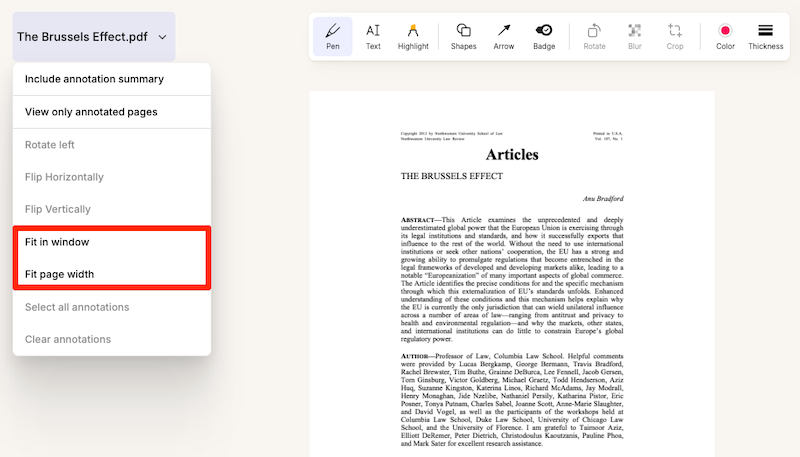
If the tool doesn’t remember the page we were on when we closed the PDF, it’s just a viewer, not a reader. And that is only one of the details that has been preventing me from using Evernote to read long documents. When reading and taking notes, I was used to relying on a PDF reader instead, but that came with an inconvenience. Evernote couldn’t be the place to store the PDFs.
It’s true that one can use the ‘open with’ option to open the PDF using another reader. But as far as I know, this is only available when using the desktop client, and we’ve been living in a mobile-first world for a long time now.
When the Files feature was added, I presumed that the final goal was to give us direct access to the files we keep in Evernote, but that never happened. Actually, even after all the time that has passed since it was released, it is still a half-backed feature causing more confusion than anything else.
Another step towards Obsidian
A long time ago, I moved all my PDFs to Google-Drive , but that ended up creating all sorts of inconveniences. Ironically, the idea was inspired by how Obsidian stores our files. Fast-forward to today, I gave up on the workarounds. I’m now reading my PDFs using whatever app I feel like, and, at the same time, the files are kept organized in Obsidian. Having the PDFs visible in the computer file structure creates a lot of freedom to do many things.
Bugs, bugs, and more bugs
Back to Evernote. Another nice touch in the dropdown menu is the Include annotation summary option, which in the past used to be a buried checkbook that many people didn’t even know was there.
This is a nice feature, which adds new pages to the beginning of the PDF, including all the annotations. Unfortunately, something is now broken. As illustrated by the video below, many of the PDFs I tried, created a messed up page. Furthermore, the summary now seams to only be visible in the note view. In the past, these notes were also visible in the PDF view mode.
There’s another inconvenience that makes Evernote challenging to use as a PDF reader. If you watched the video above, there’s an annoying flicker happening every time a page is turned. And I’m pretty sure this was not there before. On that same note, if we use the thumbnail to jump to a specific point in the document, that page opens in the middle of the text. And that’s precisely where starting at the top of the page would be a much better option.
I would like to end this post with a more optimistic view for the future of this feature and Evernote in general, but I’m not entirely convinced that that’s possible. The new Files feature is not the only one half-backed. Many of the new features are simply not useful as they are, and more often than not, they arrive with new bugs.
Frankly, I’m tired of trying to tell Evernote’s team that the ‘moving fast and breaking things’ strategy should not apply to something so important as our personal notes. This will deeply sadden me, but maybe it is also time to take Evernote out of the toolbox of options I recommend to my clients.