How to create a specific Bluesky password for each App
2025-06-13 12:12
By creating a specific password for each app, you not only avoid sharing your Bluesky password, but you can also easily revoke access if you need to.
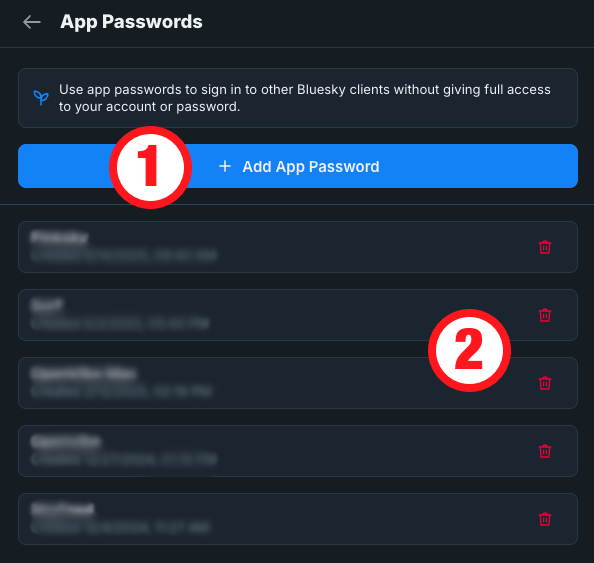
Go to Settings and then click on Privacy & Security. The option we are looking for is App Passwords. Click on it, and if it's your first time there, you'll only see the Add App Password button (1). However, as shown in the image below, in my case, there are already some passwords that can be revoked by clicking the trashcan icon (2).
To create a password, click on the Add App Password button and type a name in the box. I always type the name of the app where I'm using that password. It will help me remember where you used that password, in case I want to revoke it in the future.
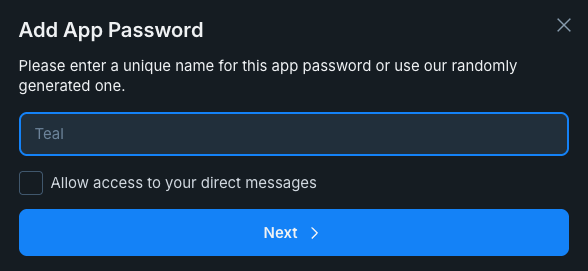
There's also a box to Allow access to your direct message. This is precisely what it says, and that's why I prefer to never check that box. But, of course, it's up to you.