EN
Blog
- Home
- Shortcuts
- Note
- Notebooks
- 2024–09–19 Paris Itinerary
- 2024–09–19 Flight OPO-PAR-OPO
I was jogging as if nothing had happened, and suddenly I saw this big tree blocking the path I usually take.
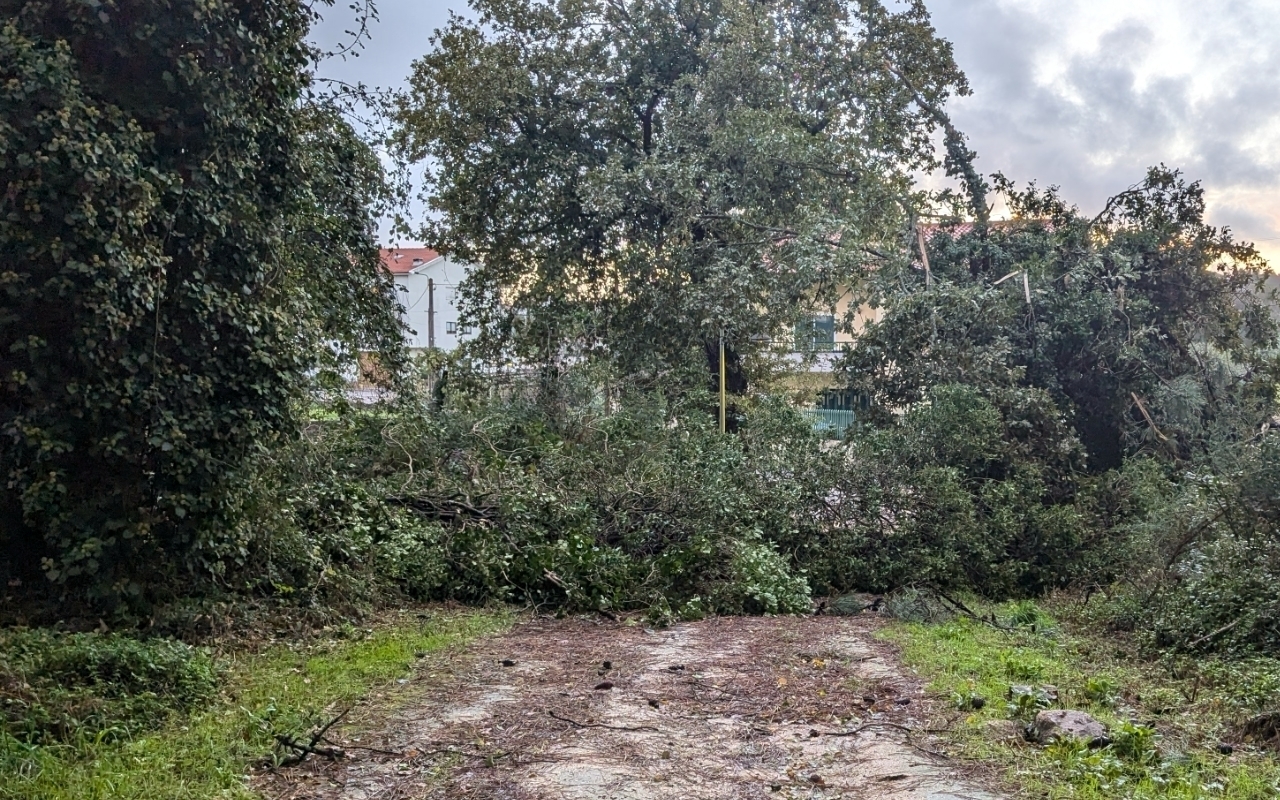
We’ve been getting “Severe Weather” and “Coastal Event” warnings for a few days, and today we woke up to severe winds. Then, about noon, the weather started to return to the norm, and I could even run at the end of the day. Things were not so normal, though. There were branches and scattered materials everywhere.
Porto went from wildfires to storms and strong winds in the span of a few weeks. It seems to me that Mother Nature is pretty unhappy with us humans.
First, explain what it is, then make it look nice
Picasso once said, Inspiration exists, but it has to find you working. In other words, one must be doing it — putting itself into the zone — to finally find the solution.
This is evident in Picasso’s museum in Málaga, Claude Monet’s house and garden in Giverny, or Van Gogh’s museum in Amsterdam, where you can see these master’s art in a chronological order, starting from the beginning of their careers.
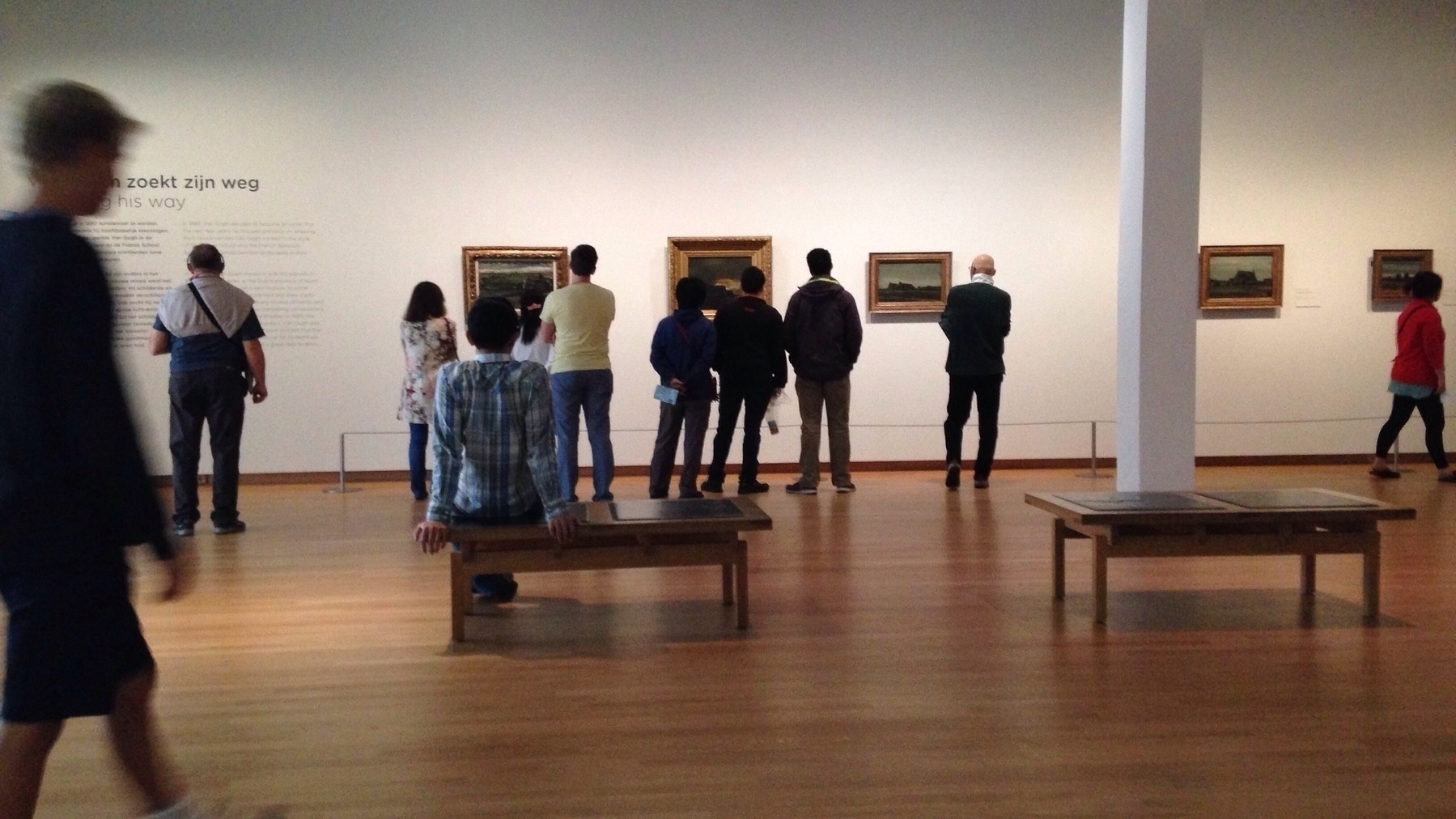
It’s been a while since I’ve published anything on my blog, but this doesn’t mean I’m not writing. On the contrary, I’ve been incessantly working on my book. But that, on the other hand, doesn’t imply that I’ve made a lot of progress. In reality, it was only today, after starting the third draft, that I was finally happy with the book format.
In addition to Picasso’s mantra, what helped me find my way was a strategy I use when I can’t figure out a solution. What frequently helps is to first explain what it is, then make it look nice. Ironically, that doesn’t seem like it applies to understanding art.
Anyway, when I restarted the book for the third time, I did it from the middle, explaining what the Containers of Information are. It was then that I gradually began noticing that parts of it connected to many things I had already written in the two previous drafts, which I started repurposing.
Another strategy I tried was to use Obsidian Canvas to create a simple diagram of how the book should be structured. That’s what you see at the beginning of this video, but that was also a first draft. I moved those boxes around a lot and created new ones until I finally found the structure I was looking for.
Some people might see it as working twice or three times, as it was in this case, but if that means a book structured in a way that’s easier to understand, I’m fine with it. Furthermore, the parts that have already been written are being put to good use in a different order in this new version, which leaves me with a mystery to solve: how could authors do it with typewriters or, before that, pen and paper?
Those were the real geniuses.
✍️ PS. If you are not familiar with the Containers of Information concept, you can learn more about it by watching the first part of the video below. Even if you are not an Obsidian user.
My cluttered workspace 🫣
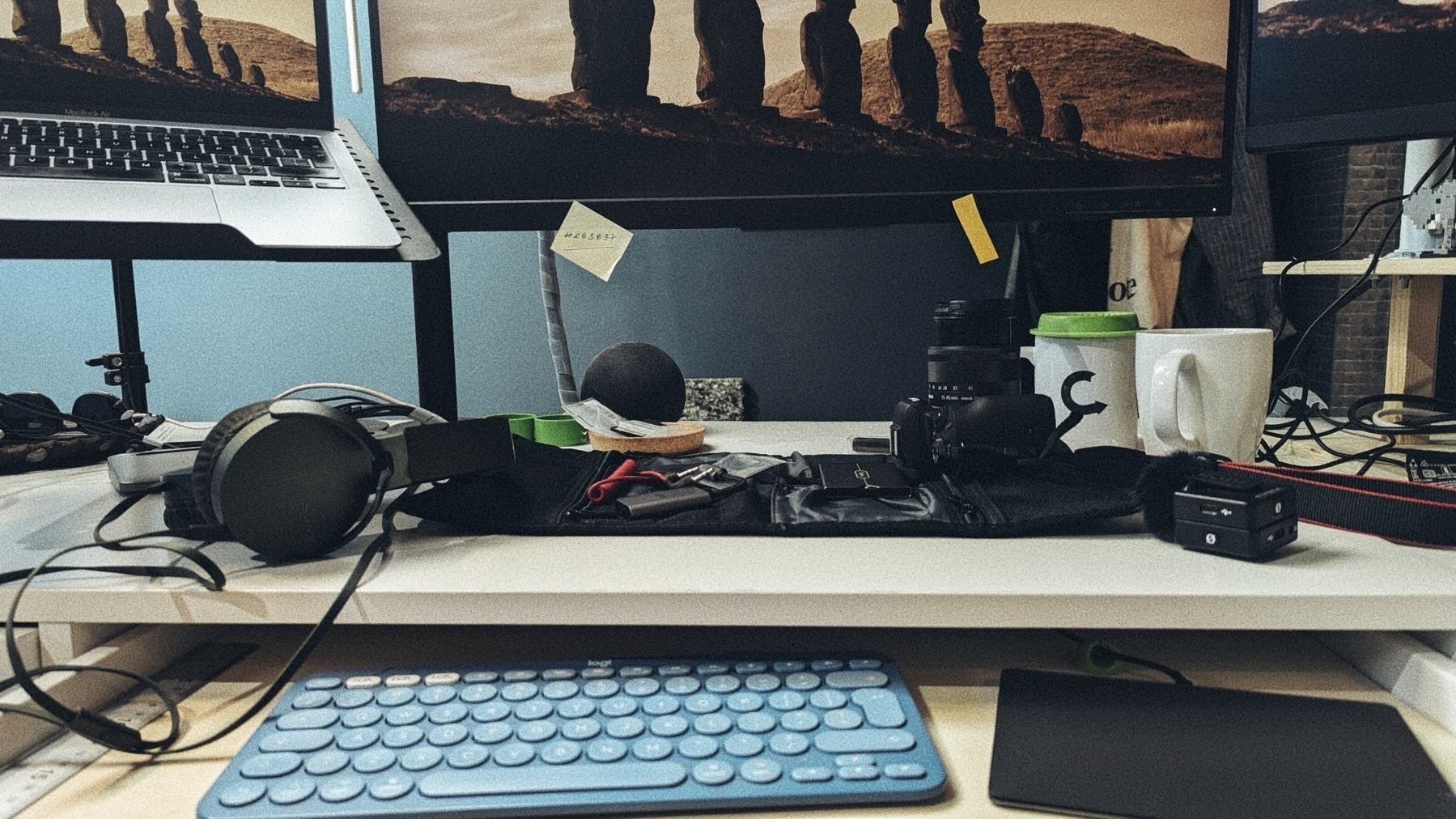
I took the pictures below to illustrate a point in a conversation I was having on Mastodon, but something unexpected ended up happening.
I arranged my desk so that I can comfortably type on the K380 and, at the same time, easily reach the Touch ID sensor on my MacBook Air. At my right, not visible, there’s a Mac Mini and another screen where I produce my videos. I use the same keyboard and trackpad through Apple Continuity.
It took me many trials and errors, but I love this arrangement. Not only that, I’m proud of my creation. I built several of the parts, including the sliding extension for the keyboard. Everything is easily accessible and highly efficient. Now, can you guess how the AI-generated captions of the pictures start the description of my desk?
“A cluttered workspace”. 🤪


The video below will give you an idea of my workspace. It’s from 2023, and I have made minor adjustments, as predicted at the end of the video. Nevertheless, the computers and most of the items remain the same.
Apple is still in a much better position
Based on the videos I watched, the Orion AR glasses appear to be a huge step in the right direction. However, when I look at the entire kit, I cannot help but think that Apple is still in a much better position.
All the data processing being done by that little brick can probably be handled by an iPhone. As for the wristband, guess what? There’s an Apple Watch that, by the way, already knows a thing or two about gestures. Additionally, I’m pretty sure Apple is gathering a lot of data from its own AR headset users. But, the most important element is the well-known walled garden.
If Apple feels threatened by a future commercial version of Meta’s product, I bet they will release a kit similar to the one I described above.
Strip down Evernote and go back to basics to focus on notes.
Tired of Evernote’s clutter? Too many features overwhelming you? This is how you can strip it down to a pure note-taking app.
Those of you who have already watched the video at the end of this article, know how happy I was when I first tried that new Sidebar Configuration feature. I was both nostalgic and overjoyed to see my decade-old companion working as a note-taking app again.
If that’s also your goal, here are some tips to convert Evernote into a plain, simple note-taking app. But first, make sure you have the correct version. The settings below are only available on version 10.107.3 or later.
Removing Distractions
Click on your name in the top-left corner of the screen, open the Settings menu and go to the Sidebar tab.
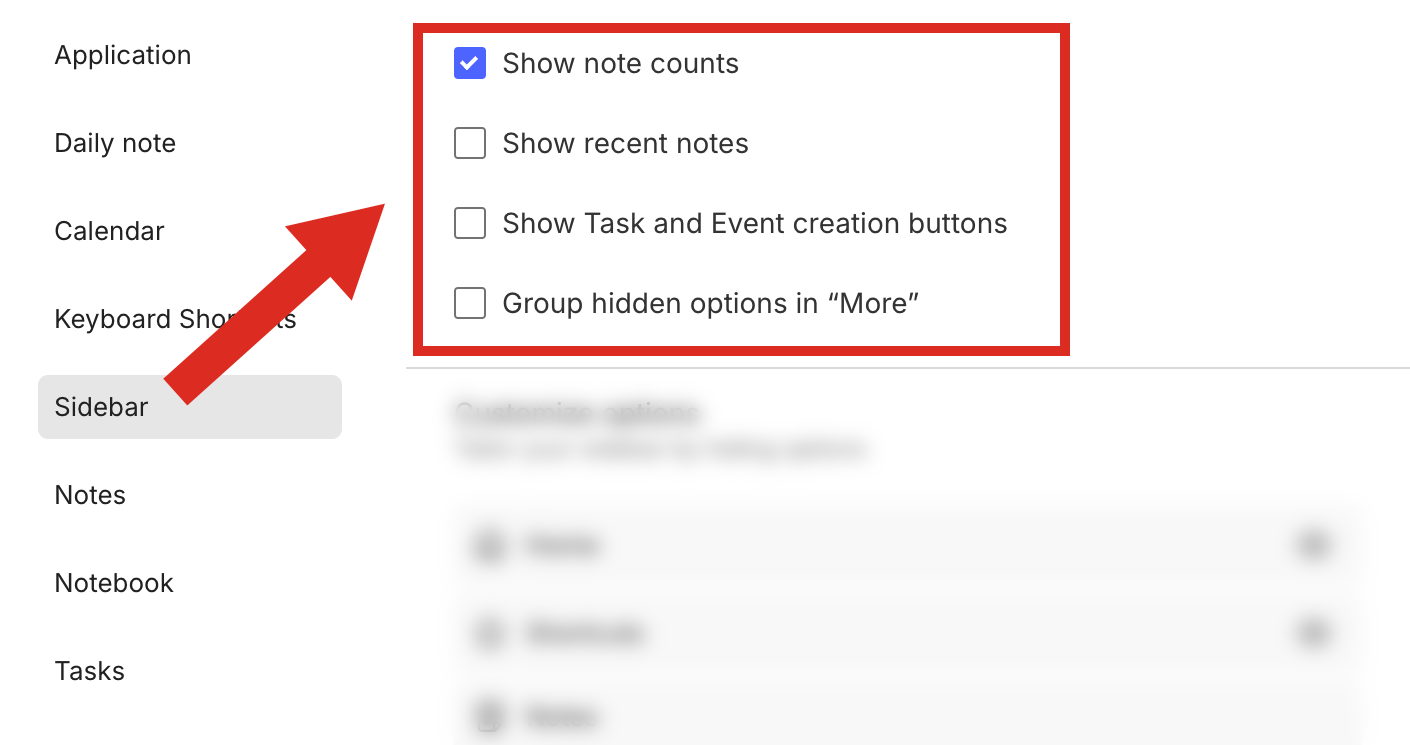
Uncheck the Show Task and Event Creation buttons option to remove the big, super-distracting purple and red buttons from below the Note button. However, as a reminder—or tip—they are still accessible by clicking on the three dots.
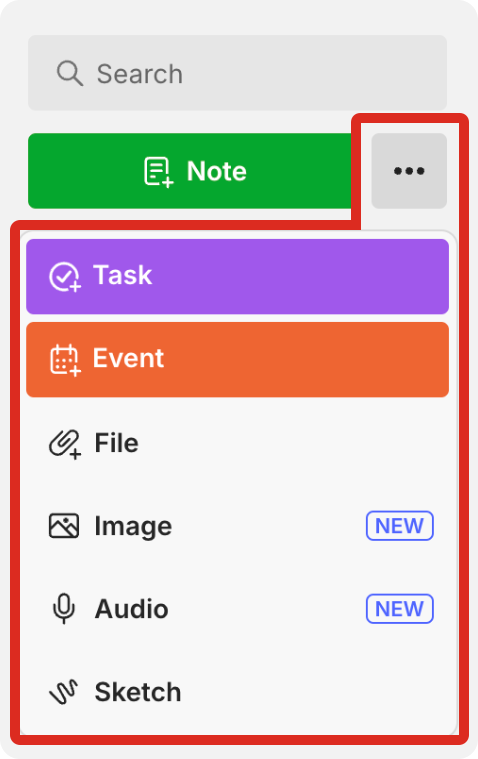
The Show note count is an important element in my Timeline System and I kept it checked. As for Show recent notes, I prefer them on the Home page because I can see the thumbnails. As a side note, both of these settings have always existed.
We’ll soon get back to the last option on that list. For now, scroll down to the section below and click to close as many eyes as possible 🤣. Jokes apart, here’s what I left visible on my sidebar:
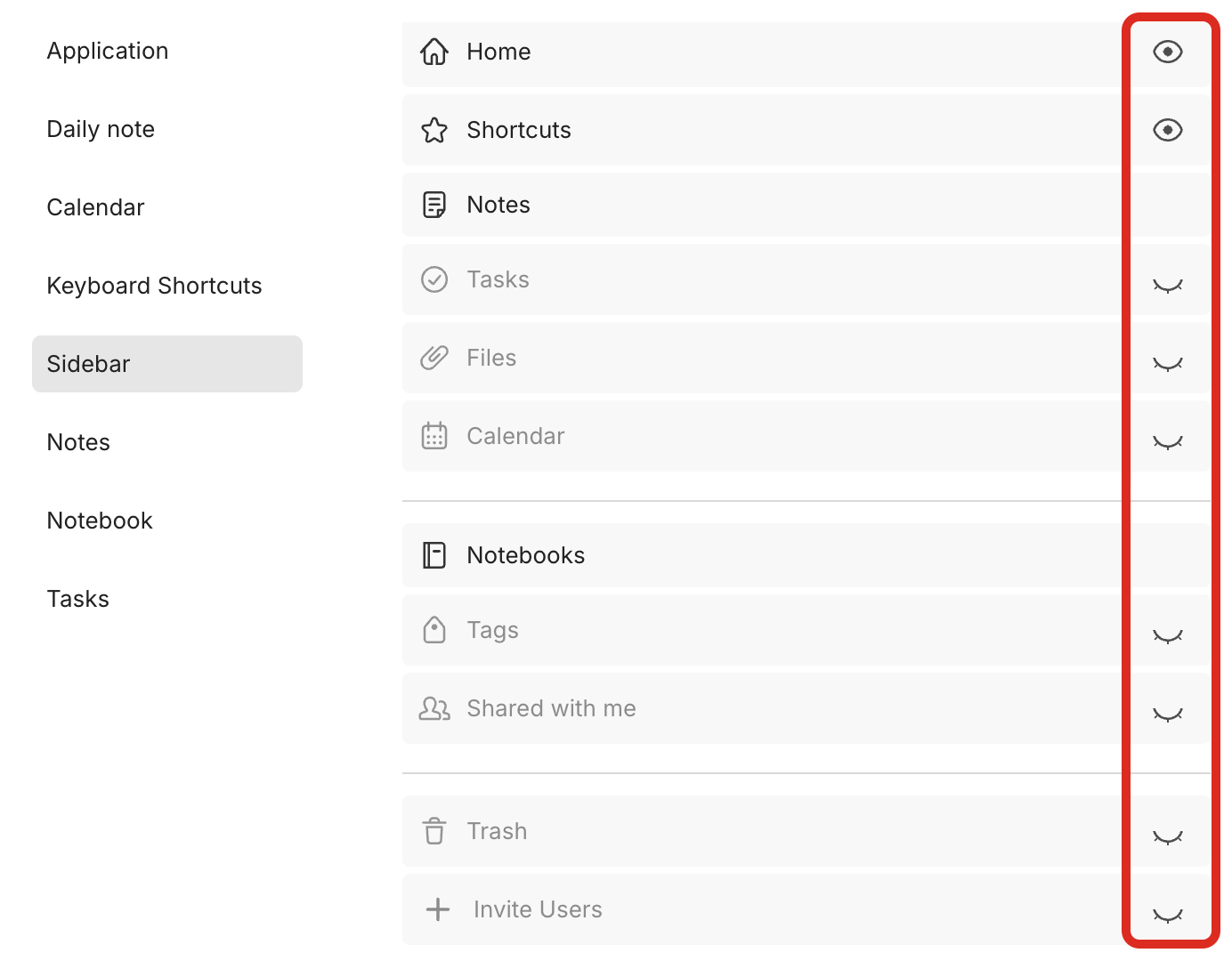
We are not done yet, but I need to take a moment to share a tip with those of you who love keyboard shortcuts.
Keyboard Shortcuts
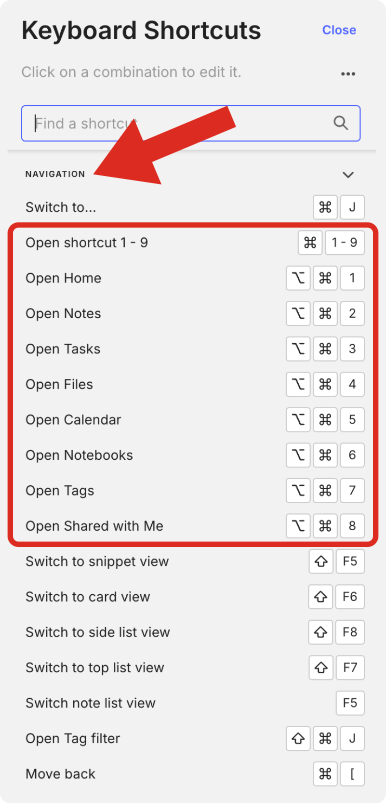
Even if you remove, for example, Home from the side menu, you’ll still be able to use the option + command + 1 keyboard shortcut on a Mac to open Evernote Home. And that’s true for many other items. To open the Tasks page, you can use option + command + 3. The Calendar is option + command + 5.
To see all the available shortcuts (Mac or Windows), click on the keyboard icon on the lower-left side of the Evernote desktop app and go to the Navigation section.
Hiding Everything
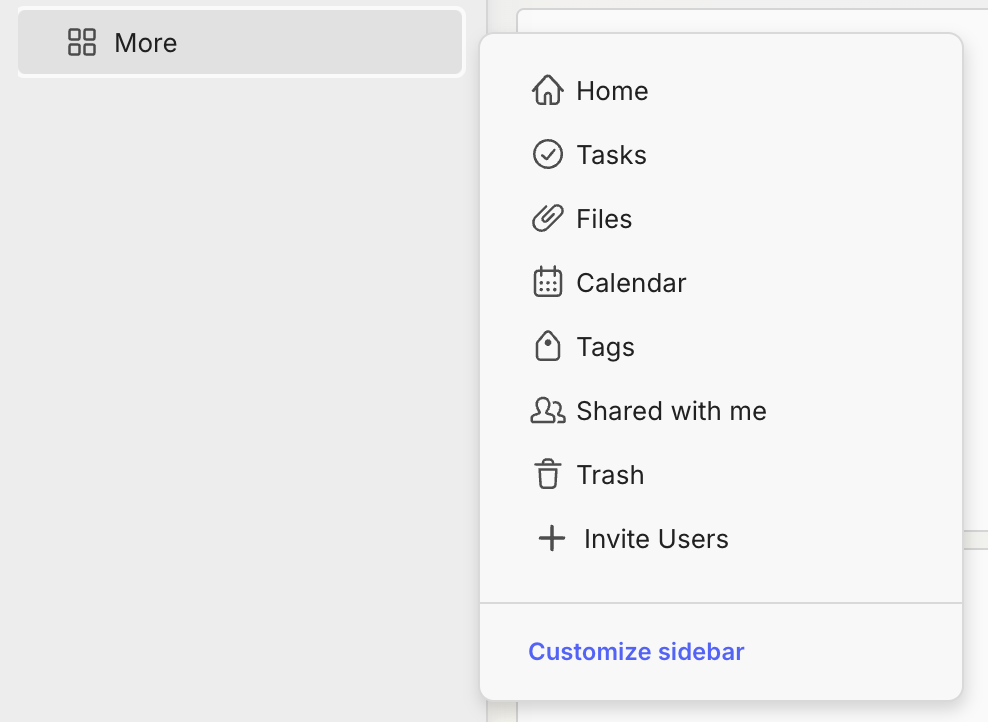
Let’s return to the top section of the Sidebar tab and discuss the Group hidden options in More. This will create a four-square icon that will provide you with access to the items you just made hidden.
I want the cleanest sidebar possible, and, in my case, I also unchecked this option. But, as with everything else in this article, this is just how I’m doing things on my Evernote. There are many combinations that you can and should explore to find what’s the best for you.
Only Notes
We are almost there. If note-taking is your focus, go to the Application tab, and select Start on Notes under the When opening Evernote section. This will open Evernote on your notes list as it used to be before Evernote 10 was introduced.
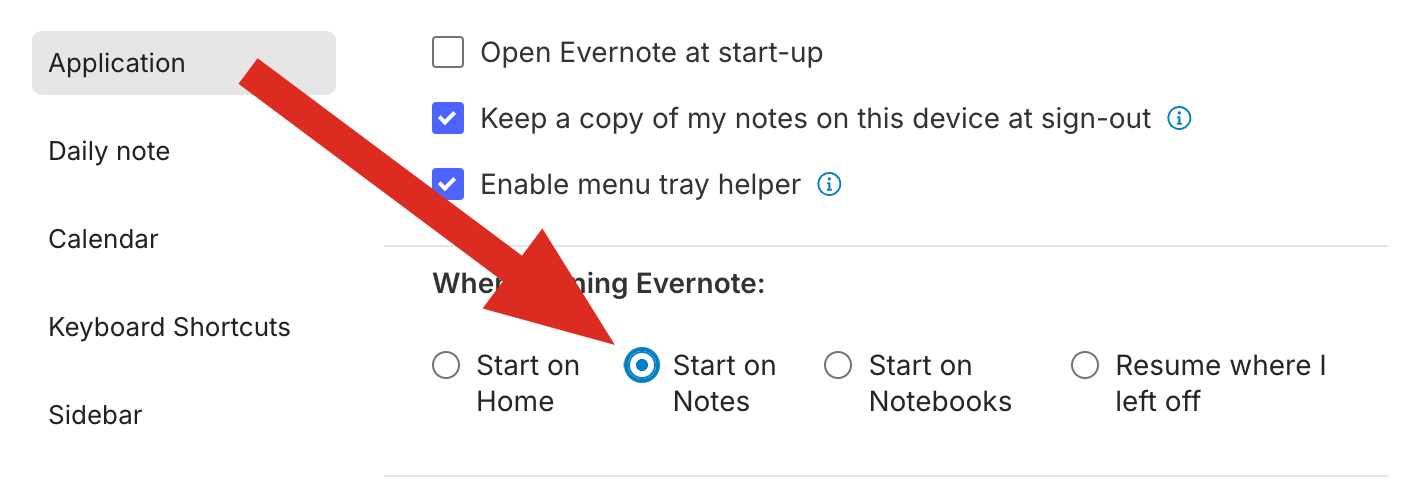
Congratulations! Your Evernote is back as a note-taking app now. But if you need it, there’s always a calendar and list of tasks a click away on Home. To learn how I set up a minimal Evernote Home, you can watch this other video.
Express Your Love
Now, if you truly love Evernote and take many notes every day, why not automatically open the app when you turn on your computer? Since you are already on the Application tab, check the Open Evernote at start-up option. That’s how you show your true love 💚
Have Fun 😆
Finally, go watch the video below to make fun of me trying to find the Show Task and Event Creation buttons option.
Of course, I’m always trying to convince my family and friends. But whenever I work with a company or any organization, I invite them to create a Mastodon or other Fediverse account. I must admit that the conversion rate is fairly low, but I’m happy to be doing my small part in promoting such a great space.
Reading e-books is much more comfortable than paper books
Recently, I realized why I find reading e-books to be much more comfortable than paper books. I thought it was something related to weight, shape, size, etc., but it turns out to be something that makes more sense.
Reading the electronic version of Mountbatten has proven to be considerably more comfortable and fluid, and that’s what prompted me to start exploring this situation. The pages in the real book are pretty big, and the book itself is super heavy, but none of that is related to the act of reading.
The customizable font and line spacing make all the difference. I noticed this the other day while I was flipping through a book at a bookstore. My eyes were uncomfortable with the lines. Picking up a random book off the shelf confirmed my theory. Again, the lines seemed to be too close together.
Maybe I got used to spacing the lines, maybe my eyes are getting worse, whatever the reason is, it doesn’t really matter. What matters is how simple it is to fix this when reading e-books 😉
Have a lovely week, Vlad.
PS. If you’re looking for some inspiration for books to read, you can always check out my library.
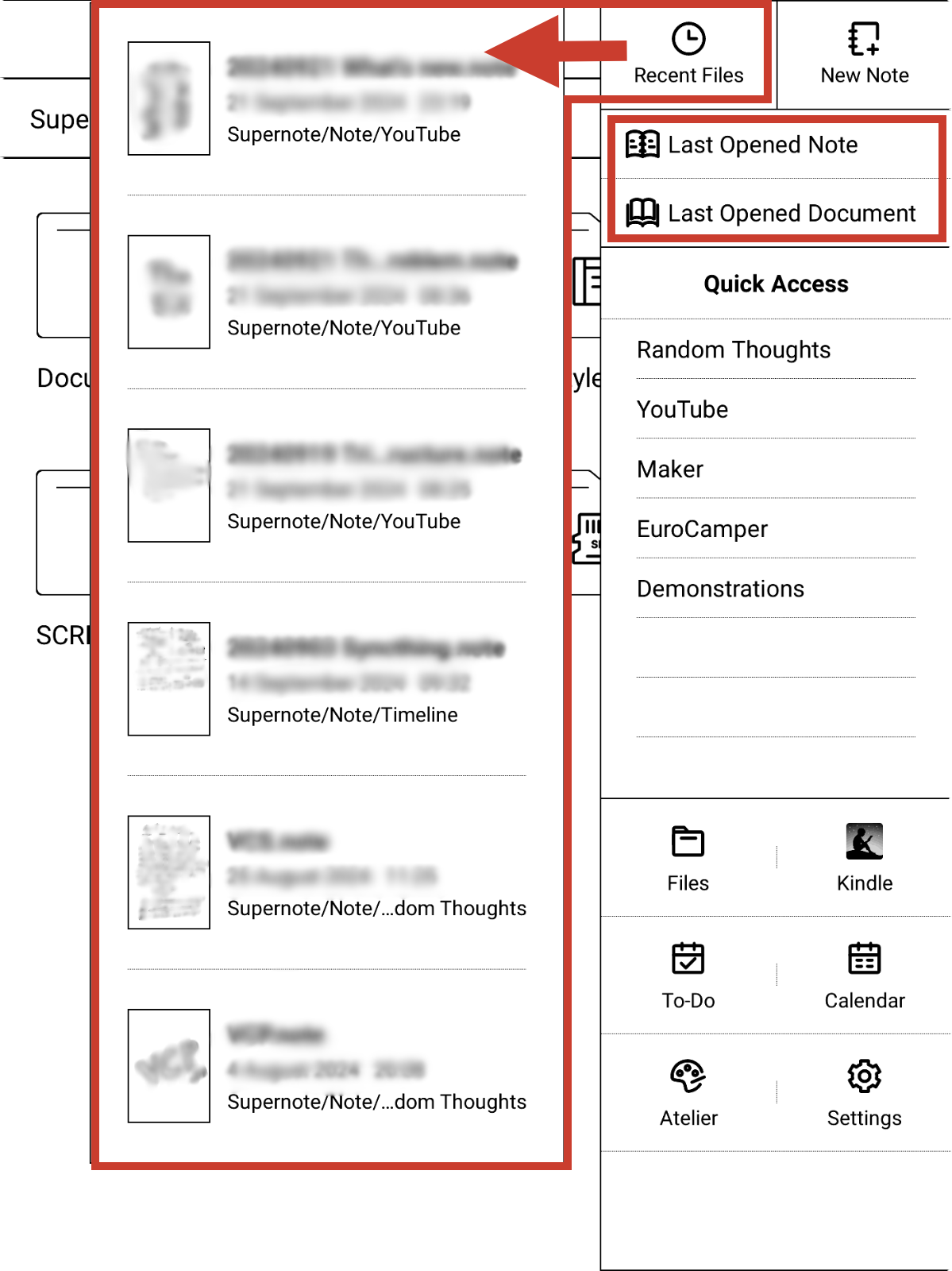
The more I use the Supernote, the more I appreciate how the system incorporates chronology everywhere. Check out the Recent Files section. It fits perfectly with my Timeline System. How cool is that? Not to mention the Last Opened Document/Note. I use these three buttons all the time.
I'm often surprised by how simplifying things can end up being a daunting task
Several months ago, I got stuck trying to code a complicated set of rules to try to automate the process of building my newsletter, while also making it more intuitive for readers to understand. That turned out to be a huge task because I’m not a developer, and I went back to the laborious manual process.
However, for some unknown reason, my brain refuses to let go of some projects and continues to secretly work on them. After a few days, years, or hours, when I’m lucky, these bursts of insight begin to emerge in no particular order or interval. For example, In June, I was here doing something completely unrelated, and my brain asked me this:
🧠 “—Why don’t you just send an email for each article you post?”
It was indeed a good idea. It’s not only much easier technically speaking, but Substack, the platform I was already using, had that feature. So, it was just a matter of copying the post from my blog and pasting it on Substack. In hindsight, I don’t even remember why I decided to send a monthly compilation of posts.
Of course, the new plan came with its own set of problems. Because that made things so much easier, at some point I decided to post the articles across more platforms, which led me back to a time-consuming task. Not to mention that I’m unsure if it’s worth the effort.
Little did I know, my brain had been secretly plotting to automate the process I gave up many months ago, and today it came up with another brilliant insight:
🧠 “—Compared to what you attempted to do in the past, I’m pretty sure it is much easier to create an automation on your blog platform to send a single article instead of that compilation.”
That’s a great idea, I thought. And here we are. This is a test article to make sure posts like this get sent automatically. If everything goes as planned, I will be able to centralize all the processes of posting and sending the newsletter in a single place. And it will all be done on its own. Finally!
Update: It worked!
It is amazing that, while trying to simplify a situation, we often end up making things even more complicated. As I mentioned in yesterday’s post, sometimes it’s just a matter of turning things around a little to see how simple a solution can be.
Bending Spoons has a vision for Evernote
As a longtime Evernote user and frequent collaborator with the team, I’ve always felt a deep connection to the app. But a recent Vergecast episode with David Pierce and Federico Simionato made me see things from a different perspective.
However, before that, “The Great Evernote Reboot” episode title evoked a wave of nostalgia. It made me remember all the years I went to the Evernote Conferences and when the company and its products were on the news all the time. Ironically, that nostalgia made me freeze for a moment and skip that episode. I wanted to listen to it with attention and give it the deserved respect and treatment. In honesty, it felt like a special moment.
The features discussed didn’t surprise me, though. For example, I just published a video about the sidebar customization. But Pierce’s approach was like turning things around just enough to give me a new perspective on Evernote’s direction after the Bending Spoons acquisition.
The goal is not to give users all the features they’ve been asking for quite some time. That’s great, but the main goal seams to be re-examining many things, from what Evernote is about for its users to the company’s revenue model. It is about focus and making the company sustainable for years to come. In a way, it feels like a reboot of the “100-year start-up” mantra, and I love it.
But listening to this episode also taught me a valuable lesson: sometimes, all it takes is a well-crafted question to gain a fresh perspective, even on something as familiar as Evernote.
Tidying up my mess is inspiring me to create delightful memories on Obsidian
One important element of my Timeline System is what I call the Containers of Information, which can be created using any grouping feature, even tags. However, I typically opt for folders, such as in the case of Obsidian and Supernote, or Notebooks, when utilizing the system on Evernote.
One of the Containers is the Timeline, which may initially appear to be an archive, but in reality it is a dynamic part of the system that also serves as a temporary storage space.
The others, known as Action Containers, are where I keep notes about activities in progress. When an activity is completed, the note is moved to the Timeline. But since information kept there, may need to be accessed or used again in the future, it has to be easy to find.
Since there is a book explaining the system coming soon, I am not going into further details about it in this post. I just wanted to give you a brief overview of how I use the Containers to convey a sense of doing or being done. My goal today is to tell you what the videos “Preparing Obsidian to Set Up My Timeline System” are about.
Preparing Obsidian for the Timeline System
When I start using a new device or app, I often don’t spend much time organizing things. My main focus is to learn how the information I’m saving there can benefit from some of the features I’m still figuring out how to use.
However, one thing I usually do is set up Containers, as they provide a dedicated space to intuitively save all the notes and files related to a specific ongoing topic. And that’s what I did when I started using Obsidian.
When the moment came to implement my Timeline System, I had to first figure out a categorization scheme that would allow me to find all information moved to the Timeline Container. I’m not 100% there yet, but it’s already good enough, and I started moving several notes, as shown in yesterday’s video. In other words, I’m currently tidying up the mess I left behind.
As I said in the video, I am now focusing on the Trips folder. But before I talk about that, here’s how I first organized my trips on Obsidian.
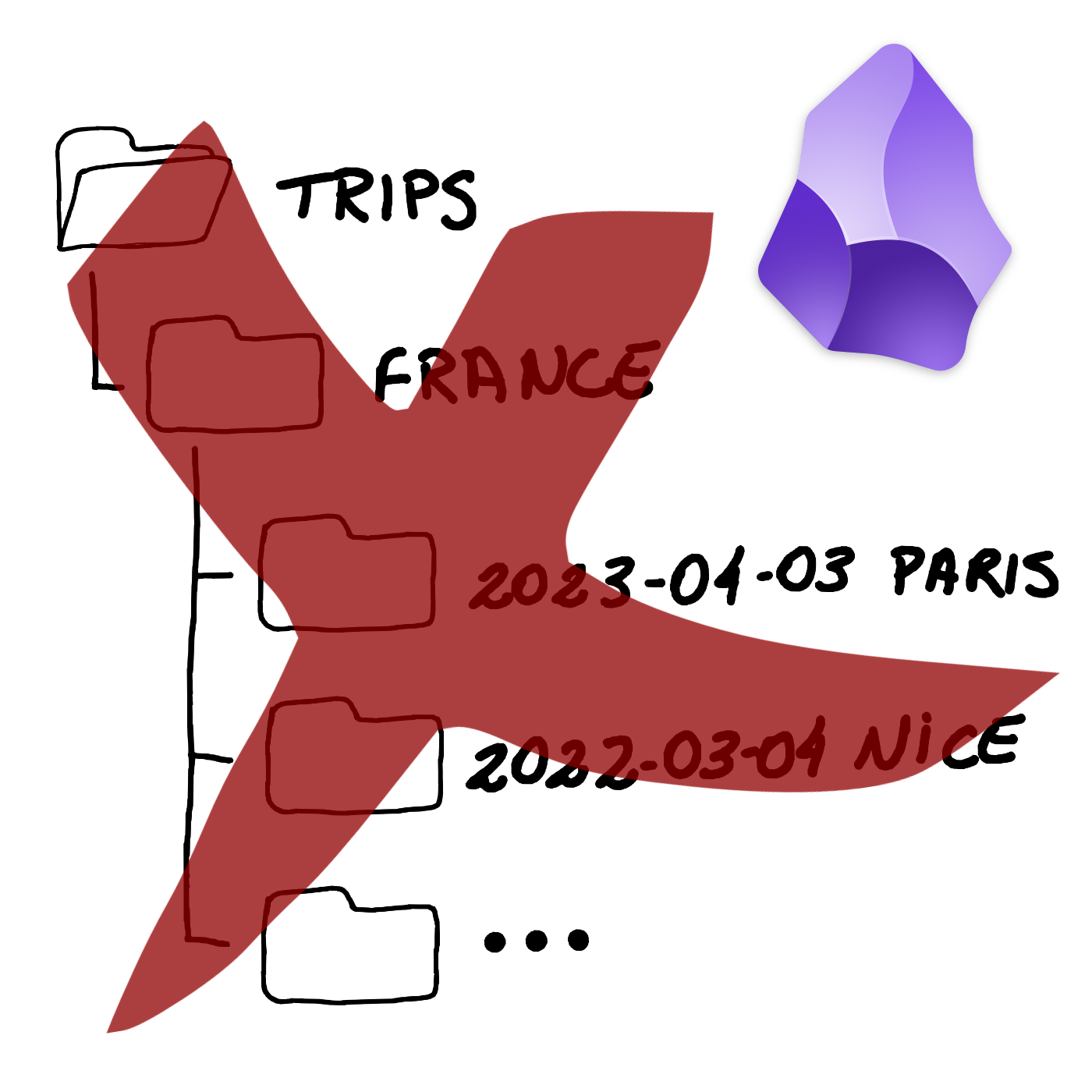
As you can see, I created a hierarchy of folders, which, by the way, is something I really don’t like. But it’s quick, and it gets the job done.
My goal now is to dismantle all that by moving PDFs and other files to the Files folder, explained in the first video of this series. Regarding the Itinerary note, which contains all the trip information and links to the files, it will be moved to the Timeline.
However, the first step is to date everything, including YYYY-MM-DD in each note’s title. I also explained the reason for this in that first video:
The Itinerary note also has the word “Itinerary” in the “type” property, and all the tags and geolocation coordinates to make it appear in the Map View plugin. By the way, I’m very excited about how cool that map will be when all of my relevant memories become a dot there.
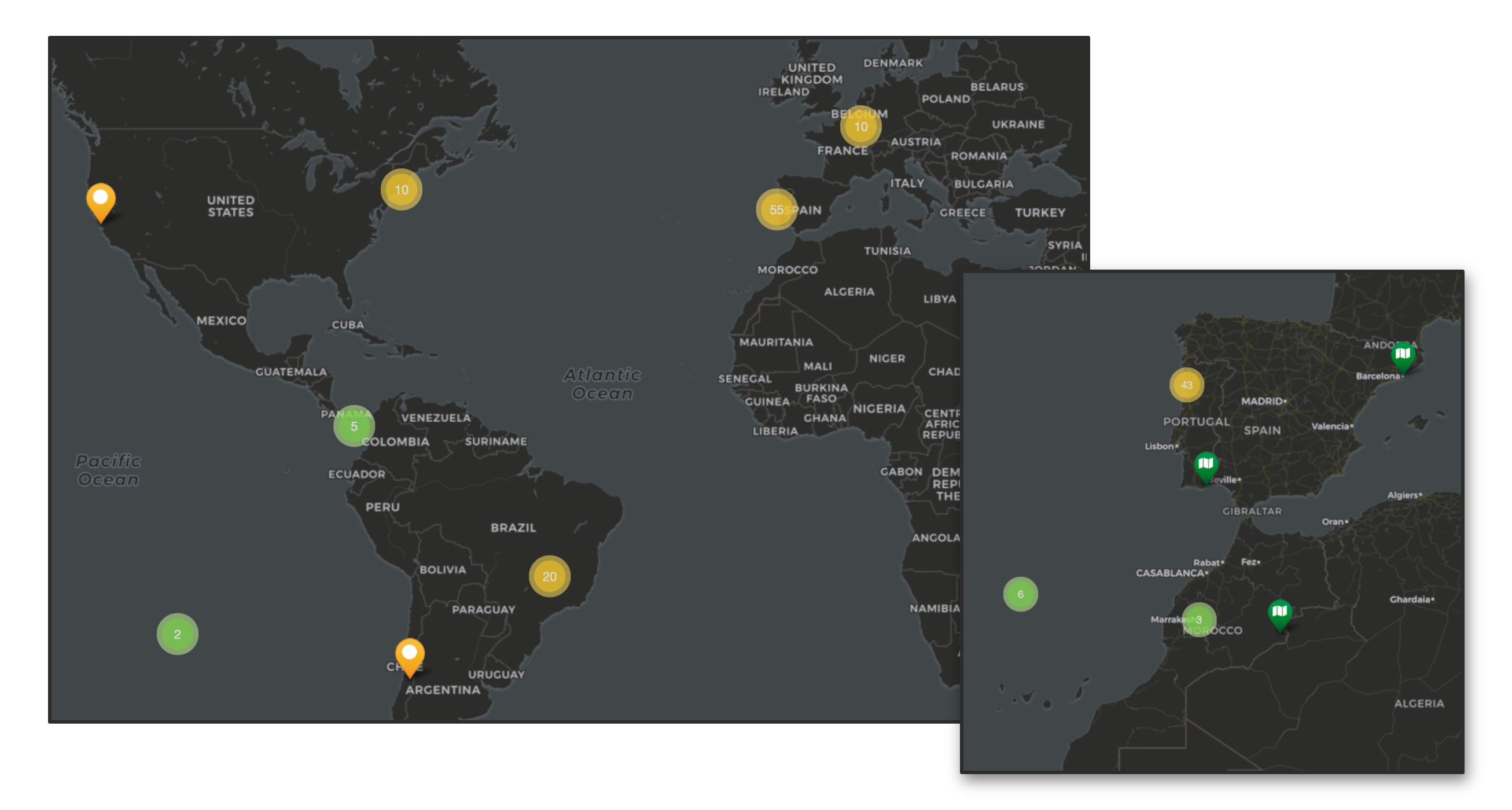
With all that done, I can start removing all files from the Trips folder, leaving only my next trips there. In other words, it will be converted into an Action Container. Meaning that whatever is inside is in progress. The final touch was to create the search below and save it as a bookmark to easily filter all my old Itinerary notes.
[type:Itinerary]
To learn how to create a search like the one above and to better visualize all the explanations in this article, please watch the video below.
Before I go, there’s actually one more thing. Remember my Photos folder? I came up with the idea of using it to save some precious photos from each trip and drag them to the correct position in the Itinerary note. And the same works for blog posts. I’m also dragging the ones I wrote while on a trip, creating this captivating snapshot of the entire journey.
And it doesn’t stop there. Anything in the Timeline related to the trip is also being added to the Itinerary notes, creating a mini journal inside a larger journal: the Timeline. I’m so overjoyed with it that I’ll definitely produce a video to show you how it works and how to build something like this.
It rained for a couple of hours early in the morning, but it was enough to bring Porto’s sky and sun colors back to normal. Concerning the wildfires, I’m not an expert and have no idea how effective the rain was in reducing or extinguishing them. The only thing I can say is that the map on fogos.pt shows a significantly smaller number of ongoing fires plotted. But let’s not forget that firefighters are the real heroes here. They work hard to protect us. I greatly appreciate it, guys. Thank you!
😞 The sun is still covered with a red hue, as it had been yesterday. Thankfully, rain is expected within a few days. I’m hoping it will help put out the fires.
Wildfires in Portugal
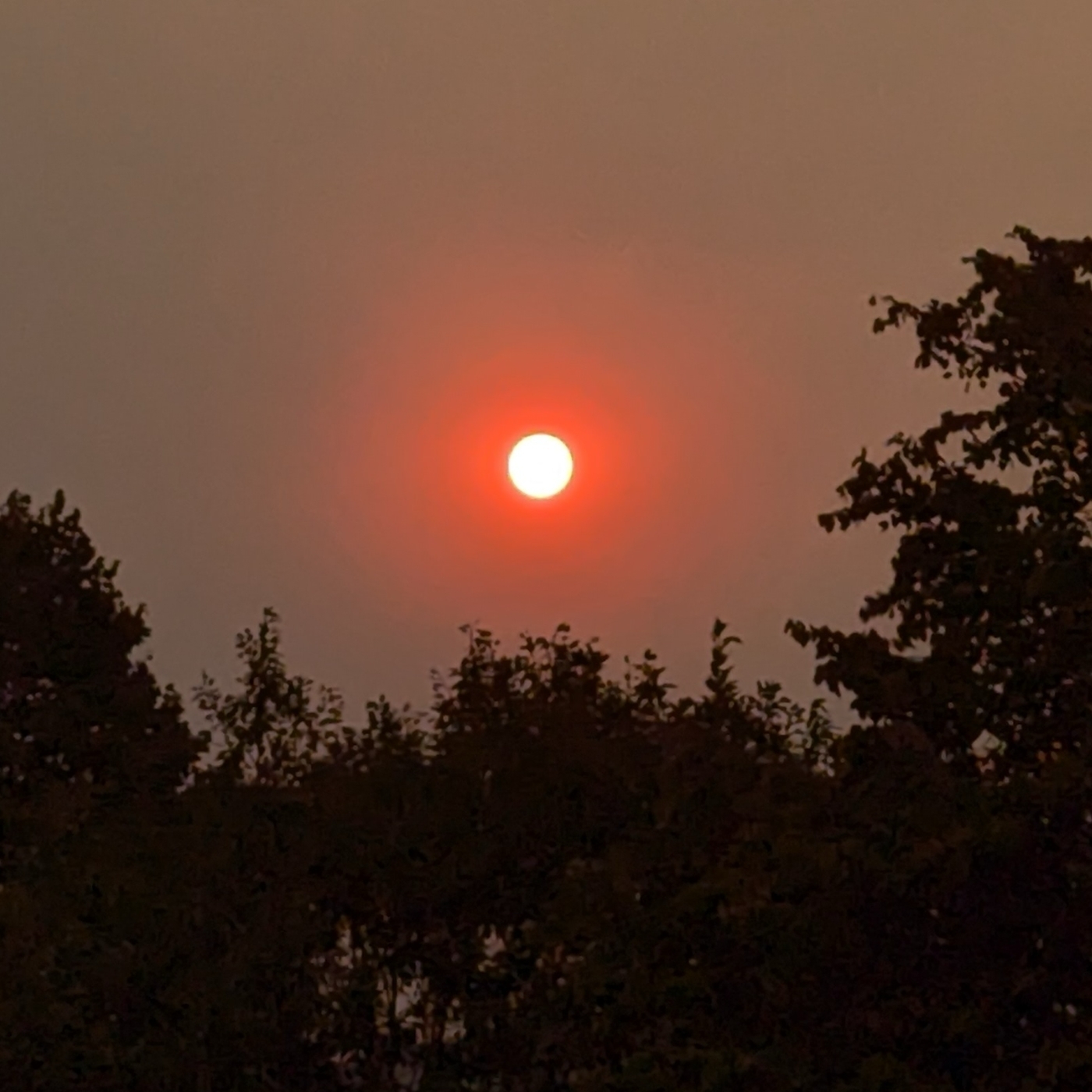
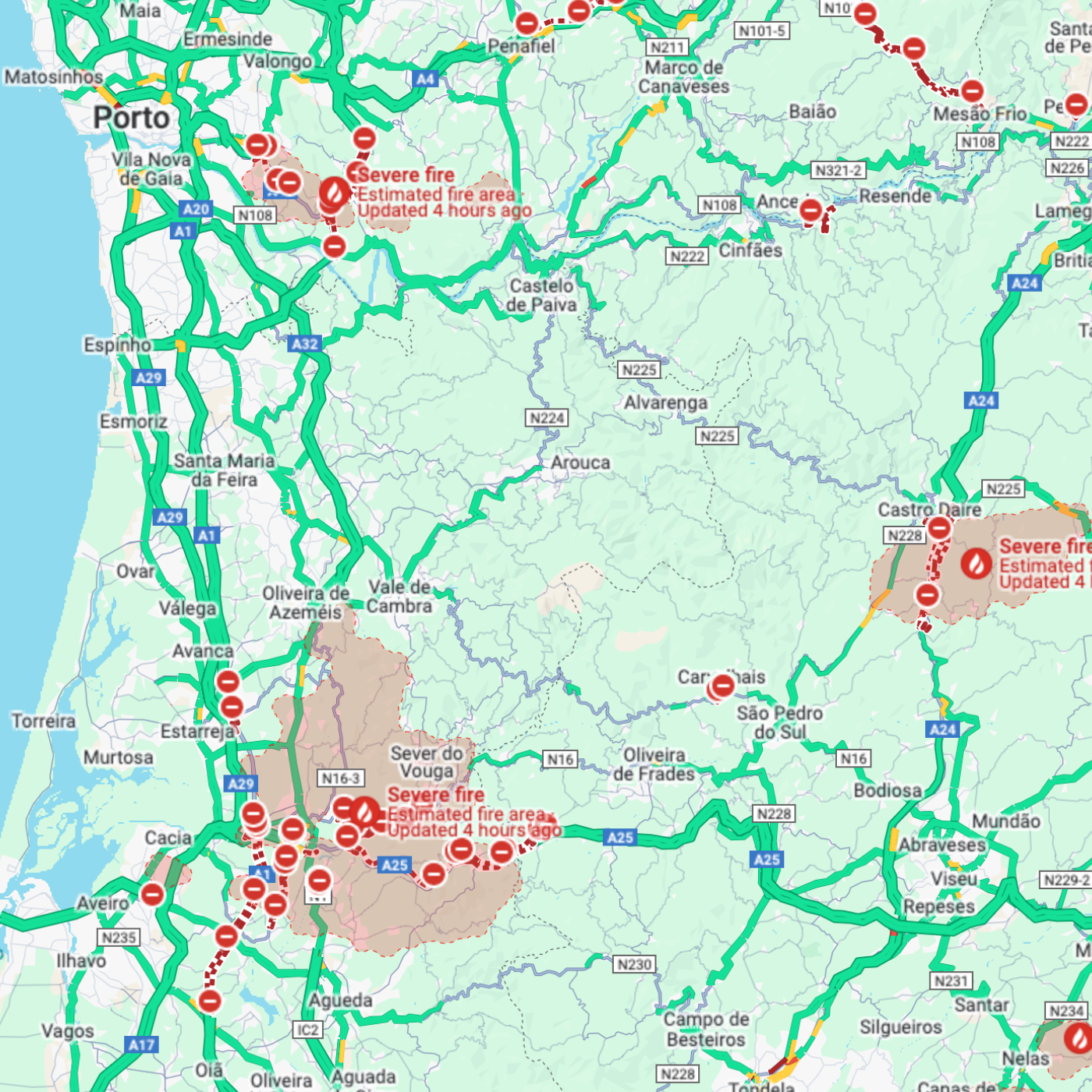
I took the picture below this morning at around 8:30 a.m., and, so far (5 p.m.), there have been no visual changes. The sky has been this unusual orange hue since yesterday because of the wildfires that have burned an estimated 38 square kilometers in the central and north regions of Portugal 😞, according to Google Maps. Even the moon appeared red last night.
Some are close to us here in Porto, but the Aveiro district has the most area affected. Seeing the devastation on the news is heartbreaking. My thoughts are with the firefighters and everyone impacted by this disaster.
Voicenotes describing my goodbye picture
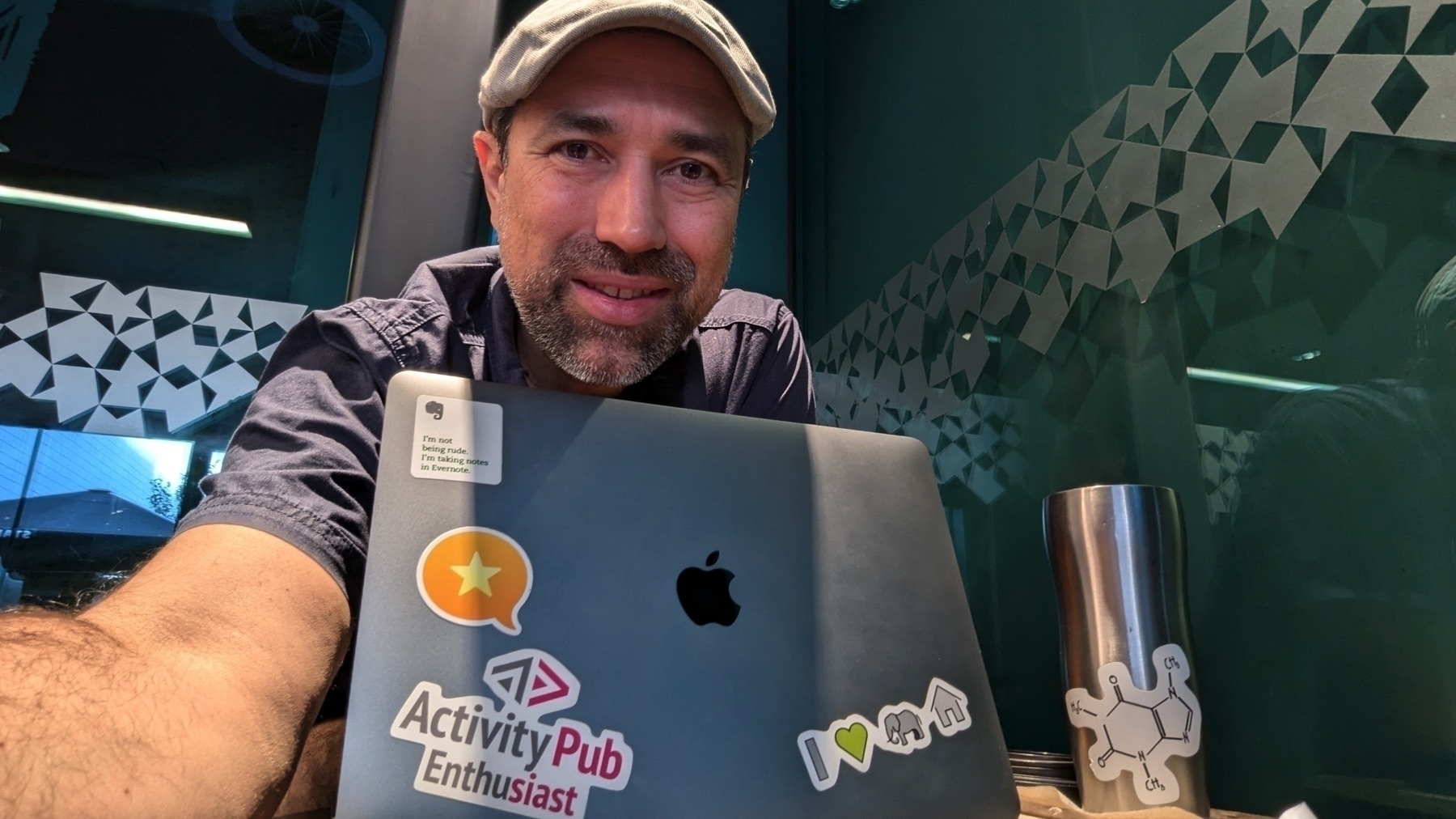
When I asked Voicenotes to describe the picture shown in today’s video, I wasn’t expecting so many details.
As you can see below, it got very few things wrong. For example, the “I❤️🐘🏠” (I love Evernote Home) was hilariously converted to “I ❤️ 🦛”. As for the chemical structure, it is indeed caffeine, but the sticker is on my tumbler, not the laptop.
The image shows a person smiling at the camera, sitting in front of a laptop with several stickers on it. The background features a decorative wall with a geometric pattern and a window showing outside reflections. The laptop stickers include ‘I’m not being rude, I’m taking notes in Evernote’, a star icon inside a speech bubble, ‘ActivityPub Enthusiast’, ‘I ❤️ 🦛’, and a chemical structure, possibly caffeine. There is also a stainless-steel tumbler with the same chemical structure sticker.
As a side note, that is a goodbye photo. On that day, I was told that the Starbucks would be closing for a period of 18 months. Like what happened when I lived in Boston, it took me a few weeks to find the best Starbucks in Porto to take breaks from working at my office.
This one had a fairly evenly split number of local and international customers. It was never full of tourists, and, at the same time, that peaceful feeling of listening to people speak so many different languages was still present. Then there were the enjoyable conversations with many baristas who started talking to me because of the sticker with a caffeine molecule on my tumbler. One even asked me if I was a chemistry professor 😄
I’ll now have to go on a new quest to find another similar fun place. Maybe it’s the Universe’s way of reminding me that change can bring unexpected positive outcomes.
Have a lovely week, Vlad.
My client didn’t show up, so let’s use that time to record another video. This one is about Evernote, as I really want to discuss a recent tweet from Federico.
From just a few days ago, when I recorded yesterday’s video about the changes I’m making on Obsidian, to today, my setup remodeling has already evolved significantly. My Maker Dashboard, for example, has been greatly improved.
Remember that I said in the video that I am constantly trying to find ways to make things have multiple purposes? The logos inside each Canvas group in the image below are there to help me quickly navigate to a specific topic, but they are also resources I can use on my video thumbnails.
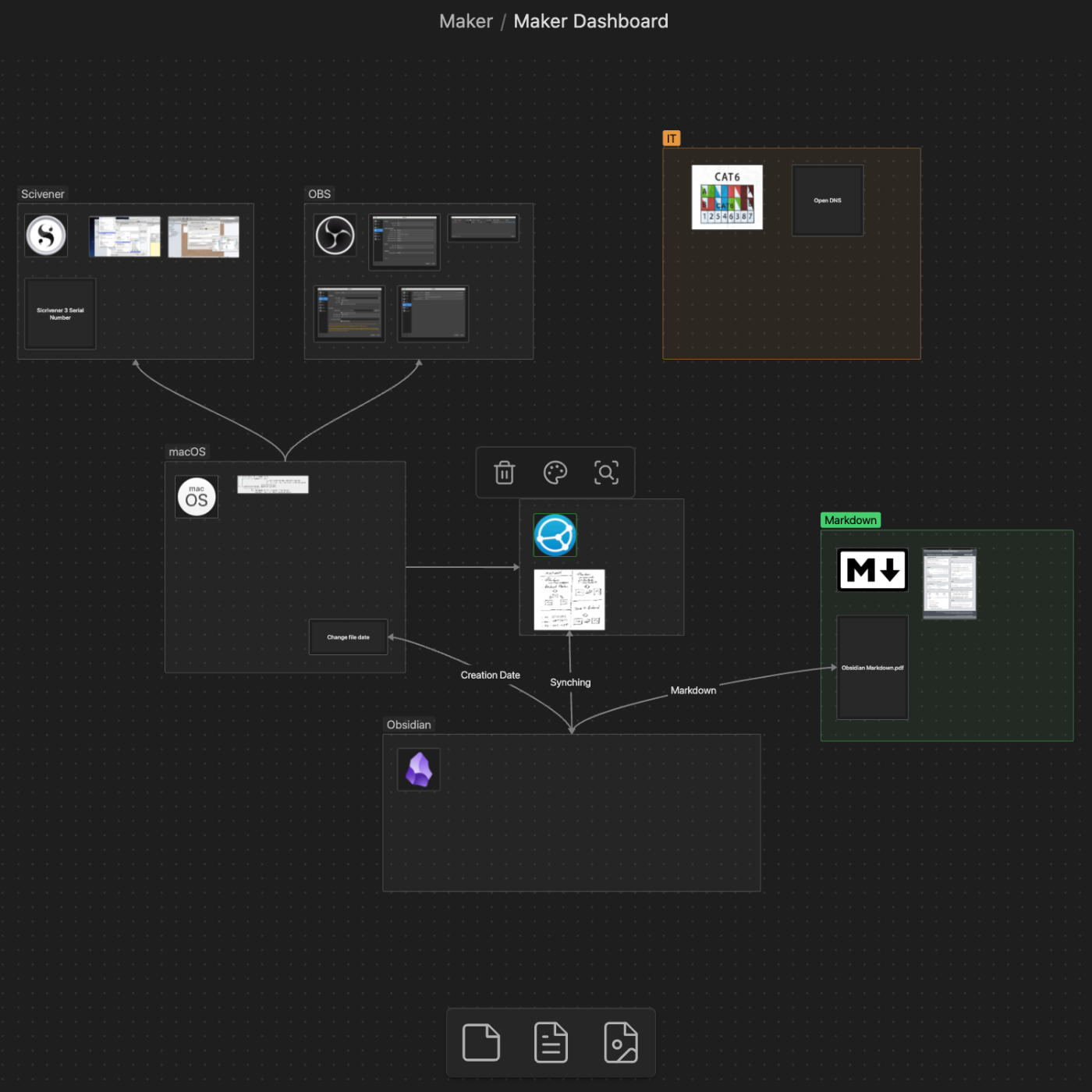
I have a “Logos” folder in my Obsidian, and that folder is also a shortcut on my Mac Finder. However, it is not the only one. Many other Obsidian folders are shortcuts that make files easily accessible from other apps.