From a dead 2012 Kindle rescue to the Supernote reclaiming its throne. All thanks to KOReader.
2026-05-24 14:30
As you may know, Amazon recently made many older Kindle devices obsolete.
Thank you for being a longtime Kindle customer. We're glad our devices have served you well for as long as they have. Starting May 20, 2026 — 14 to 18 years after their initial launches — we are discontinuing support for Kindle devices released in 2012 or earlier. Here's what this means for you:
- You can continue to read books already downloaded on these devices, but you will not be able to purchase, borrow, or download additional books on them after that date.
- If you deregister or factory reset these devices, you will not be able to re-register or use these devices in any way.
Affected devices include Kindle 1st and 2nd Generation, Kindle DX and DX Graphite, Kindle Keyboard, Kindle 4, Kindle Touch, Kindle 5, and Kindle Paperwhite 1st Generation.
That made me pull the trigger on jailbreaking my 2012 model and installing KOReader. At first, I thought that would be a cool weekend project, but to my surprise, it opened my Kindle to an impressive number of features that I never thought would be possible on such an old device.
I was so happy with all the features and possibilities that, for the first time since I started using it in 2024, I left my Supernote at home and started bringing the old Kindle with me.
For several weeks I read many books, tweaked the unbelievable number of settings available, installed dictionaries, exported highlights and notes to Obsidian, and much more.
Wow! How come I never tried KOReader before?
KOReader on my Supernote
Although I first installed it on my Kindle, the list of compatible devices is long, including an app for Android, which brings us to my click moment. I was so focused on the Amazon enshittification that I completely forgot the Supernote is an Android device.
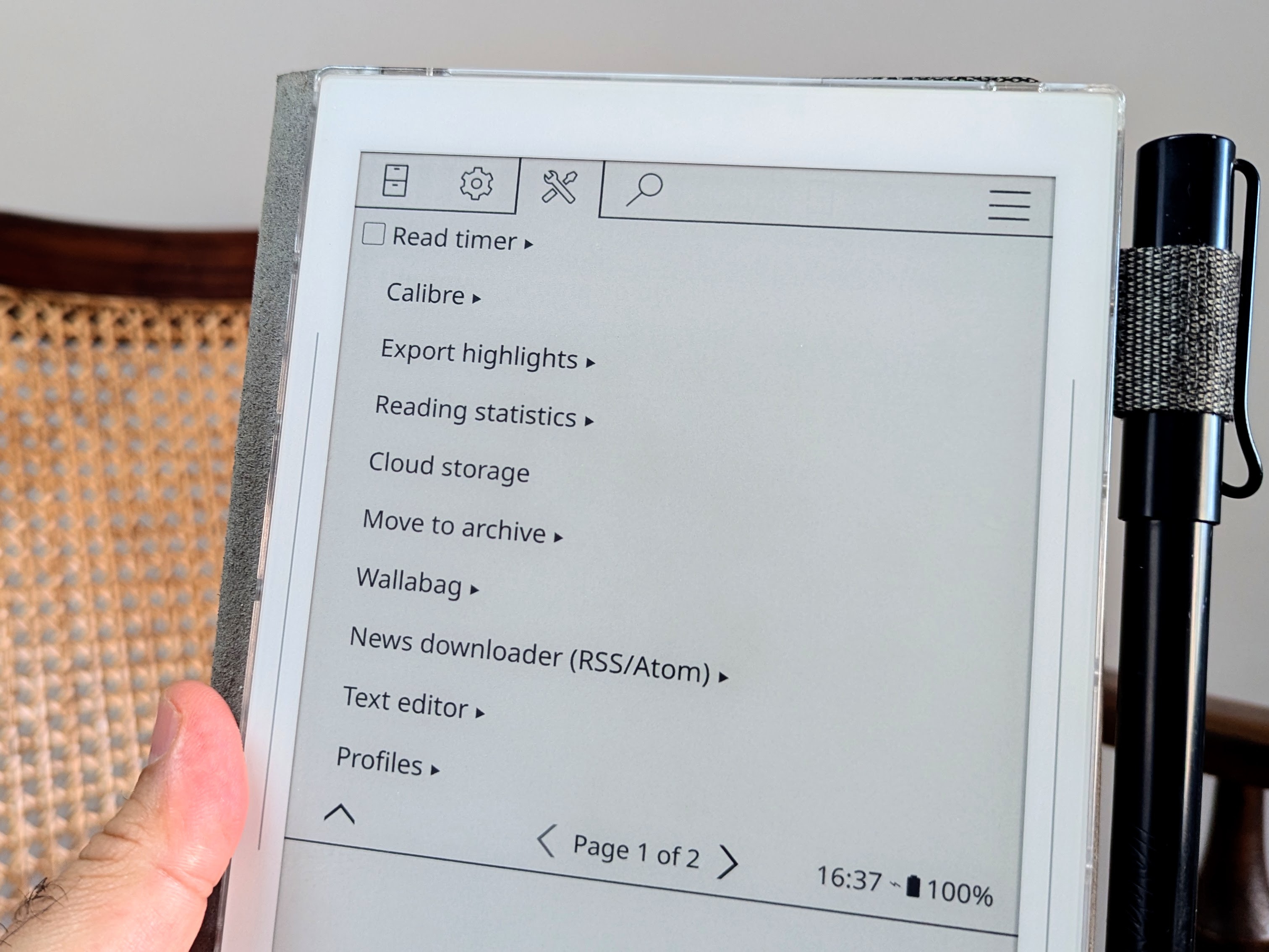
First, using the Android Sideloader, I installed the `koreader-android-arm64-v2026.03` APK file on my Nomad. That in itself blew my mind! When I saw the exact same app working on my Supernote, I couldn't believe my eyes. I know, I know, I'm late to this game, but at least I'm here.
Next, I needed to move my ebooks and all the associated metadata to the Supernote. However, I wanted to use the SD Card to store all that, and no matter what I did, I couldn't see the card from the KOReader file manager.
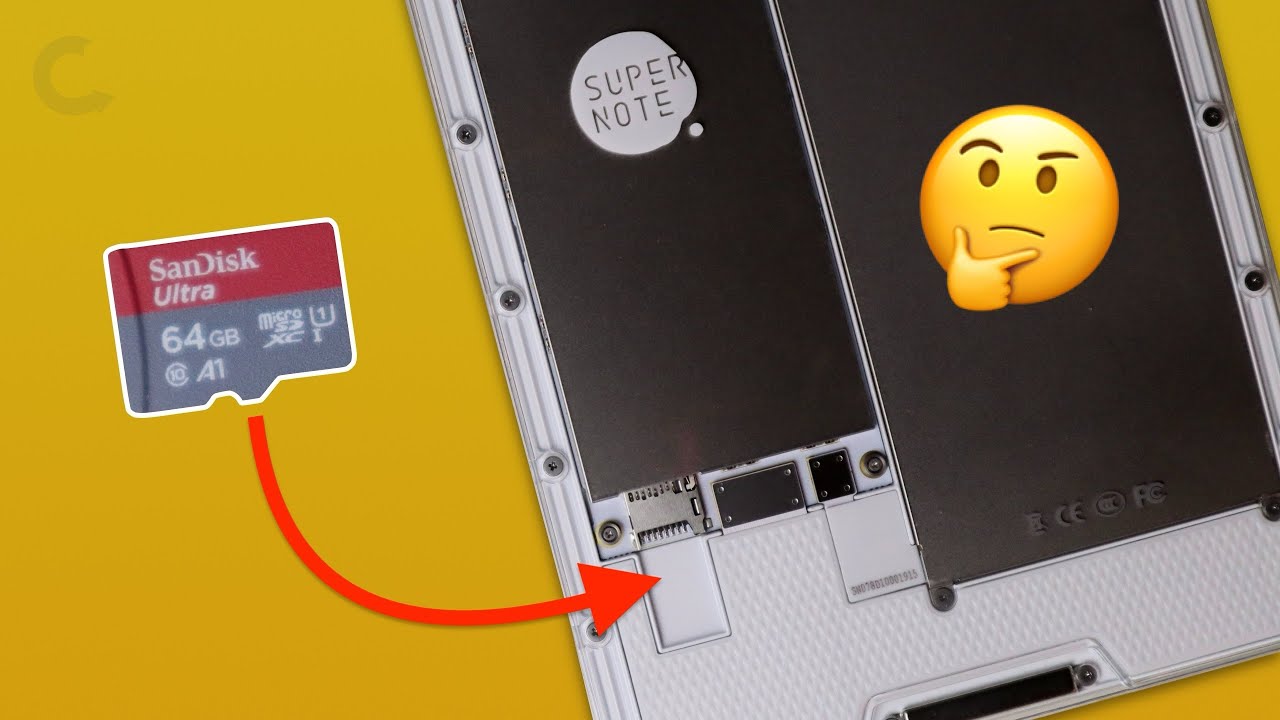
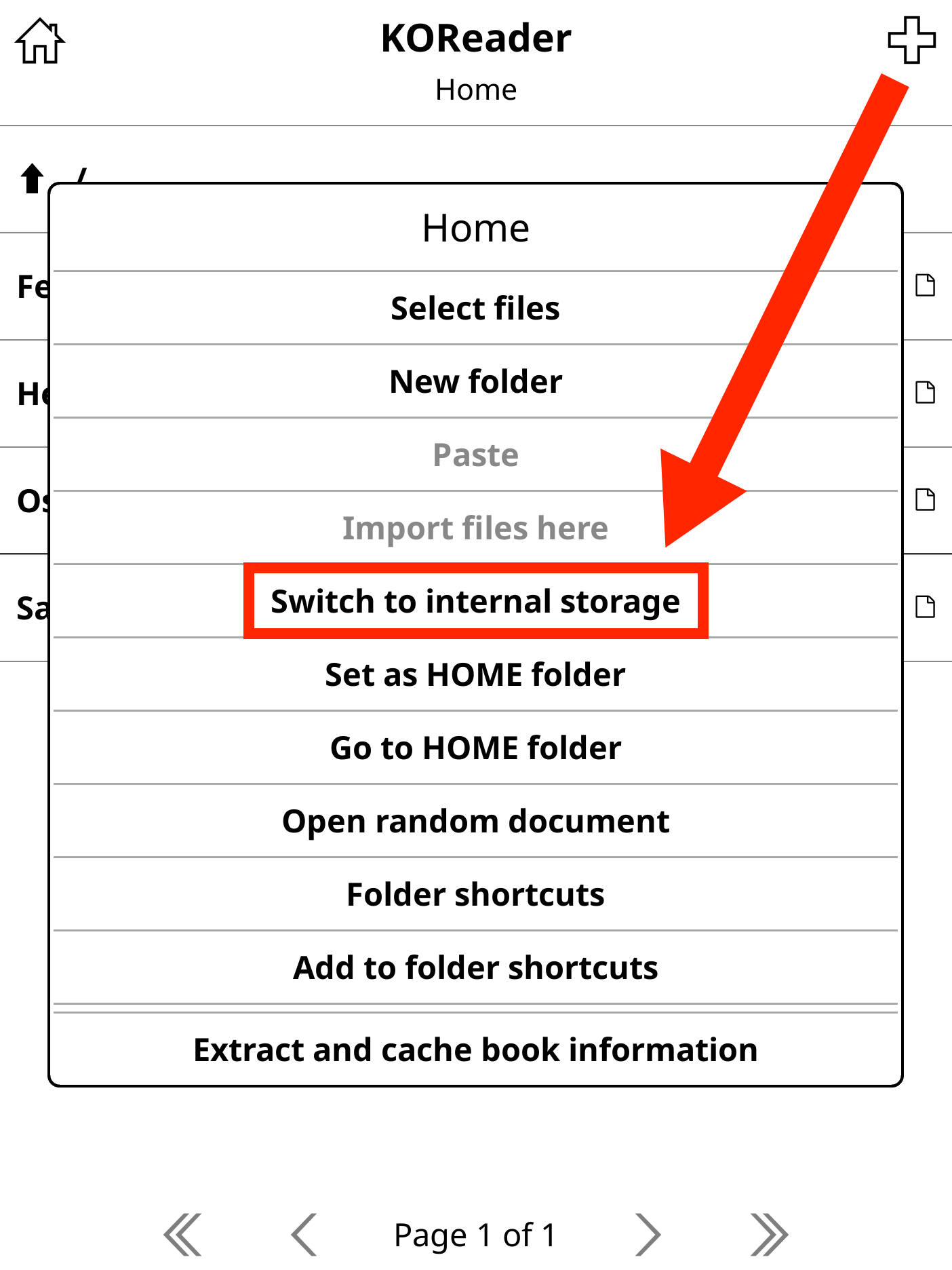
The solution was hidden in the plus (+) menu. Where you see `Switch to internal storage` in the image below, you'll originally see the option _switch to the card_ (or similar wording).
Once you do that, the card folders will be visible and you can use one of the available folders for your library, or create a new one like I did. In my case, I created `eBooks` and set it as my Home folder.
After that, I imported the books and their metadata from my Kindle. This couldn't have been easier. I connected the Kindle to my Mac, navigated to my books folder, and copied them to the computer. If you are doing this, remember to also copy the `.sdr` file for each book. That's where the metadata is kept.
To have access to the Supernote folders from my Mac, I used OpenMTP, navigated to the library folder, and moved the `.ePub` and `.sdr` files there. And that's it! The books and everything else related to them are now on my Supernote exactly as they were on the Kindle. Reading position, bookmarks, and everything else is there. Amazing!
I then downloaded the dictionaries I use and adjusted the font sizes, margins, and other details to better fit the Supernote screen size.
I really enjoyed bringing my Kindle back to life, and if that's what you have, I encourage you to take a look at KOReader. But, from today on, my beloved 2012 Kindle is going back to the shelf, as the Supernote just reclaimed its place in my everyday bag.