EN
Blog
I usually create an email for each service I subscribe to. That’s how I know that the fake McAFee invoices I’ve been getting are from an address I used to create a MyFitnessPal account back in 2015. You are free to use this information however you wish 😉
The first time I used an e-Ink screen device to write an article.
I’m torn. Part of me wants to make this work because that screen is so good, but at the same time, the writing experience is not as convenient as opening my MacBook Air and starting to type.
My obsession with how simple it is to sit down anywhere, open a lid, and start typing began with an 11-inch MacBook Air back in 2012. I loved that computer. It traveled with me around the globe, allowing me to write books, articles, and blog posts wherever I was. Furthermore, its size was perfect for trains and plane tray tables.
It was eventually replaced by the M1 Air, which is a little bigger, but I still carry it with me to far too many places. Regarding the small screen of both computers, it was never a problem since I always had an external display at my office.
And, yes, I have tried an iPad, but, regardless of what Apple claims, that’s not a computer. Mostly because of iPadOS limitation. Anyway, I quickly stopped using it because, more often than not, I had to also pack my laptop for the non-writing work. So, why bring two devices with me if I can do a much better job with just the MacBook Air.
Enters the Supernote
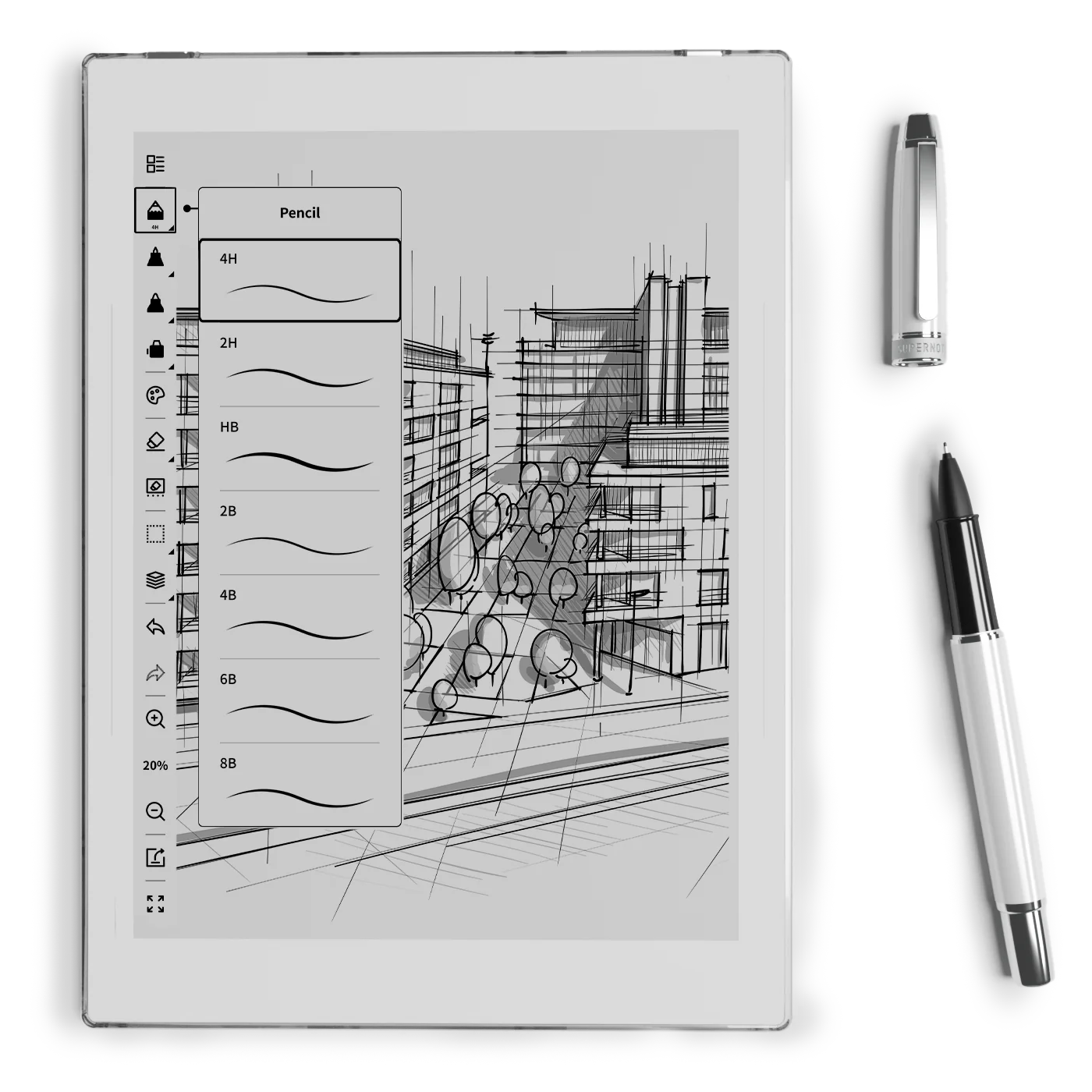
The Nomad, which is the one I have, is a little bigger than a Kindle, but much smaller and thinner than an iPad. It has an e-Ink screen and the Kindle app. And talking about reading, I love my Kindle and keep it in my bag all the time. Can you see where I’m going with this? But before that, let’s talk about my first attempt to organize my notes in the Supernote (video below).
I’m trying my best to document and share my learning process, but inevitably the videos about the Supernote will always be a few days and many features behind my real-life experience. So, what I showed in the video above has already evolved to a system that I’m thrilled with.
I’m easily capturing and organizing my ideas like never before. There’s almost no friction and, of course, I’ll publish a new video about it in the following days. Anyway, what I’m trying to say is that with the above solved, I thought I could probably give the Nomad an extra job.
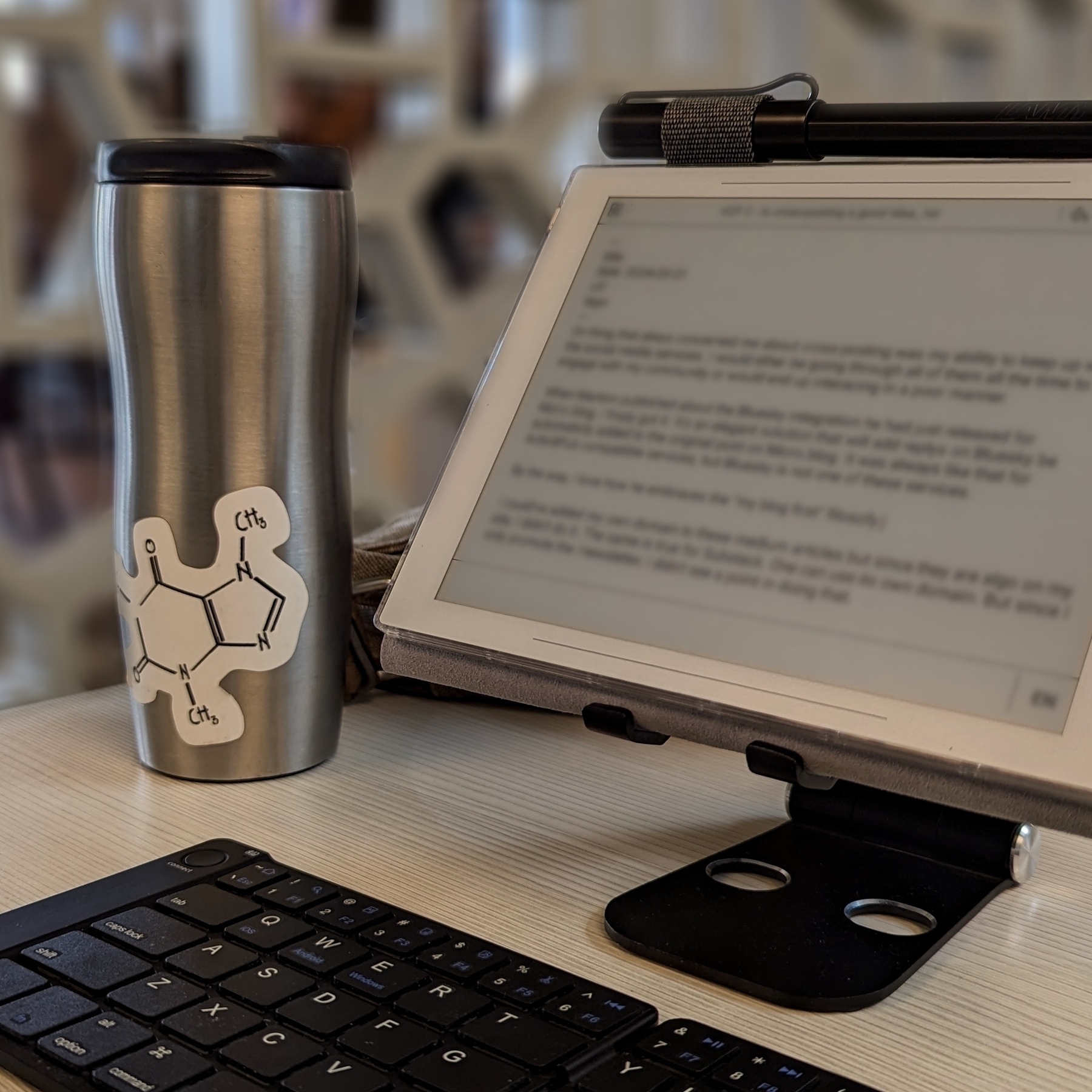
Yesterday I packed a generic foldable Bluetooth keyboard and a tablet stand and went to a coffee shop. Writers tend to spend far too much time looking at screens, and that combined with the time I spend editing videos has taken a toll on my eyes. So, the first thing I felt when using the Supernote to write was an immense relief. The comfort is almost indescribable. What a gorgeous screen to look at.
However, before that, I had grabbed the Supernote pen, navigated to the article, unfolded a keyboard, unfolded a stand, and only then start typing. Arguably, there are also many steps when using a laptop, but it is a single piece of equipment and there’s no need to lift the hands off the keyboard and trackpad to get to the app and start writing.
Extra gear and fewer features
Using the Kindle app on the iPad was never an option because of the screen, but I can now leave my beloved Kindle behind, and make room for the Supernote.
However, if my goal is to write long texts when away from my home or office, I’ll have to always carry that keyboard and stand with me. I’ll also miss some useful tools, like LanguageTool. Not to mention that I have already expressed my negative thoughts about devices like this.
Fortunately, I’m already old enough to understand that only the fool never changes their minds. Maybe less strain on my eyes and a more mindful writing experience is what I need for a while.
The only way to know it for sure is by trying, and if this extra job I’m giving the Supernote ends up failing, I’ll be fine with it. Like I mentioned above, this lovely device has already become my quick go-to notepad for jotting down and organizing ideas. In other words, it’s already in my everyday bag, coming with me everywhere.
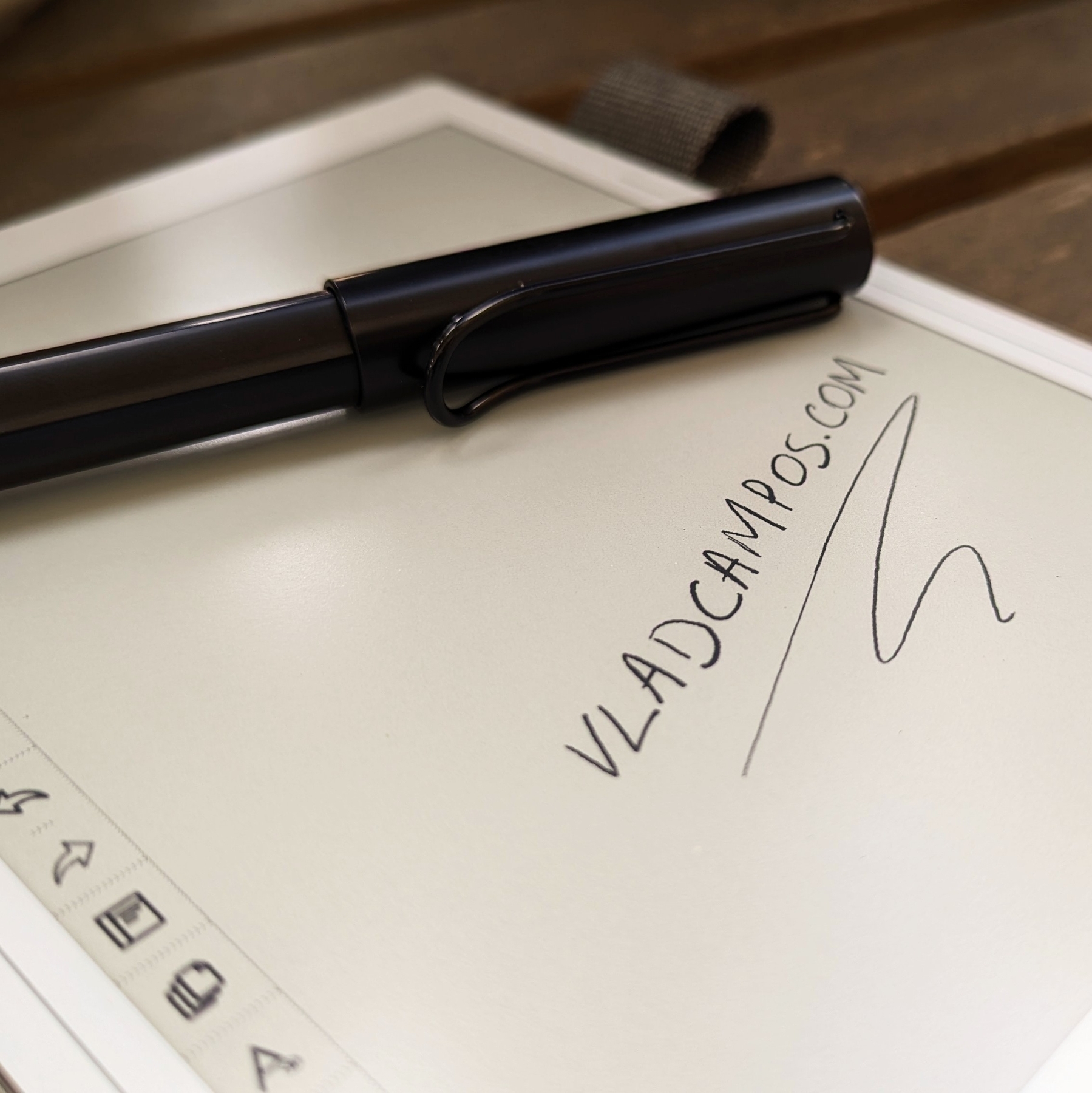
First note on my Supernote.
It doesn’t feel exactly like paper because, well, it’s not paper. But wow, the friction is similar to writing with a harder pencil, and it’s so good.
A Supernote is expected to arrive at my office on Monday.
Some people keep journals, I jot notes down multiple times a day. Together, they form a digital timeline I’ve been crafting since 1999, when I picked up a Palm IIIx. Now, a Supernote is being added to my note-taking workflow.
I first learned about it on cam shand’s YouTube channel, and immediately noticed it checks so many boxes on what I had in mind for a device like this.
Firstly, it is user-serviceable, and as you already know, I like to make, adapt, and fix things myself. Then, there’s the e-Ink screen, the type I prefer on my devices. They not only make reading comfortable, they check another box on my list: battery life. Like my watch and Kindle, I’m expecting the Supernote’s battery to last for a long time between charges.
Have I told you there’s no need to charge the stylus?
I have many ideas I would like to explore and numerous experimental projects I plan to do, such as connecting it to Obsidian. I’m not sure how many of them I will be able to accomplish, but you are joining me on this journey. We’re going to learn how to use it as we creatively push it to its limits.
If this is a topic you are interested in, please subscribe to my YouTube channel and stay tuned. The first video about the Supernote will be released next week.
Have a wonderful weekend!
Two Web Clipper solutions I use to send information to Obsidian.
Collecting information is an important part of my learning process, but Obsidian doesn’t have something as powerful as the Evernote Web Clipper.
To find a solution, I tried different ideas until I came up with one that works well for me. I use two different tools, and I hope that they will inspire you to create your own system.
There are two types of clippings I do.
Sometimes, I need to preserve the page format, and even Evernote’s Web Clipper is not always good at that. This is the reason why I began using the print to PDF function and then dragging the PDF into a note in Evernote. You can see how I do it by watching the video below.
For this specific type of clipping, I am doing the same on Obsidian. But, since there’s nothing there similar to the ‘forward email to Evernote’ feature, I’m also ‘printing to PDF’ the emails I what to keep. However, like I explained in a recent video, I’m not creating notes for PDFs anymore. I’m simply saving them as files in the related folders.
The other type of clipping I do is text. Most of the time, all I need is the information, the text, and Evernote’s Web Clipper was always excellent at that. As for Obsidian, here’s where Steph Ango amazing solution was super helpful.
Like other Obsidian features and plugins, there are many options and a different one may be more suitable for your needs. In my case, I am enjoying the Web Clipper created by the CEO. A post on his blog even provides instructions for customizing it, which I did. How cool is that?
His post has everything you need to understand how to install, use and customize the Web Clipper. And in my video below, I share my reasoning for doing what I do and how I customized his solution to better work with the Proprieties I use in my Obsidian notes.
Focusing on content creation.
As you may already be aware, I am passionate about learning and sharing what I have learned. What you may not know is how much work that is. It takes me a lot of time to learn new things, try things out, and produce a video or article to help you.
Many of you are supporting all this work through Patreon, By Me a Coffee, and YouTube memberships, and I cannot thank you enough for that. However, because of the benefits I added to some of these platforms, they ended up creating an uncomfortable situation.
I’m a one-man show creator, and working on the perks, diverts my attention from content creation. However, when I don’t do that, I feel bad. Not to mention that keeping you as a supporter and bringing new backers is essential.
After much consideration, I decided to ditch all the perks and focus on creating free content. I will not produce exclusive videos anymore, and the Medium members articles are also open on my blog. Your help is as important as it has always been, but I will fully understand if this new arrangement does not work for you.
Among the three platforms mentioned above, you’ll find options that start from buying me a single €5 coffee or supporting me monthly from as low as €2.
It was not an easy decision, but I have to stand up for what I believe in, and at the end of the day, it’s all about sharing and building a community.
Thank you, Vlad.
The new Obsidian Canvas is another step in the right direction.
A couple of years ago, I tried Obsidian Canvas and was drawn to its simplicity and potential. Nonetheless, it had never been incorporated into my workflows. Until now.
Obsidian is not for everyone, but if you prefer to write as close to simple text as possible and to keep your notes in an open format on your computer, you may fall in love with it.
It was designed to give users control over their files, but that almost changed with the introduction of Canvas in December 2022. At least, that was my sentiment at that time.
Obsidian notes are formatted in Markdown, meaning that I can open them anywhere, even if the app ceases to exist tomorrow. Unfortunately, the same was not true for the Canvas feature. It had its own format, which is why I was always reluctant to use it to create content. If you don’t know what Canvas is or how to use it, you can learn all about it in the first part of the video below.
Fortunately, that recently changed with the announcement that the Canvas file format is now called JSON Canvas, which, in turn, became an open file format. That’s a huge step in the right direction. It means that other people and companies can create compatible apps. And as you can see in the second half of the video below, there are already some compatible apps available.
In other words, we no longer have to worry about our Canvas files becoming locked inside an app. Thank you, Obsidian!
The best productivity and organization books in my library (not what you think)
People often ask me for book recommendations on topics such as productivity and organization, but I can never think of anything to suggest. Instead, I tell them that the books that help me are usually not the traditional ones explaining methods or techniques.
We are all unique and have different needs. Furthermore, we are exposed to such diverse environments. How is it possible that a single method will be effective for everyone? Some authors even claim that, although their method is excellent if fully implemented, you are free to use the parts and processes that best fit you. How convenient is that?
Containers
The way I organize my information is through what I call containers. I have notebooks in Evernote or folders in Obsidian that let me quickly switch from one project or reference material to another whenever I need to or want to do so. And by the way, there’s no archive in my system. Everything is always exposed because that’s where creativity feeds from.
For example, if I’m working on something and have an insight for another project, all I have to do is open the other notebook or folder, take some notes, and then go back to what I was doing before. The cmd + j (Mac) or Ctrl + q (Win) commands on Evernote make it a breeze. Unfortunately, I am still looking for something as efficient on Obsidian.
But if what comes to my mind is entirely new, I will create a new container and decide what to do with it in the future.
I have a video on my organization system coming soon. For now, I suggest you watch the one below to give you an idea of when a new container is created and how it evolves.
When I have reached my limits working on a topic and need a moment or two to relax, switching to another personal or work-related project is what helps me.
I can leave and work on another container because I have all the information and progress in each one. So, when I arrive at the subsequent container or revisit a previous one in the future, everything will be there exactly as I left it.
The Best Books
Let’s get back to the books. The best ones usually have nothing to do with productivity or organization. The more I read about different topics, the more it seems like every book has something that can help me become more efficient. Every so often, it’s a single sentence; other times, a paragraph or two from a 600-page book.
I’m currently reading the biography of Louis Mountbatten, and I came across two strategies that I’ve been using for a while and that I’ve seen mentioned repeatedly in the oddest books and articles.
My System
I learned very early on that I had to take notes to make sure I didn’t forget something. It took me a long time to figure out a system, but when I stopped looking for external solutions and focused on my needs, it all came together.
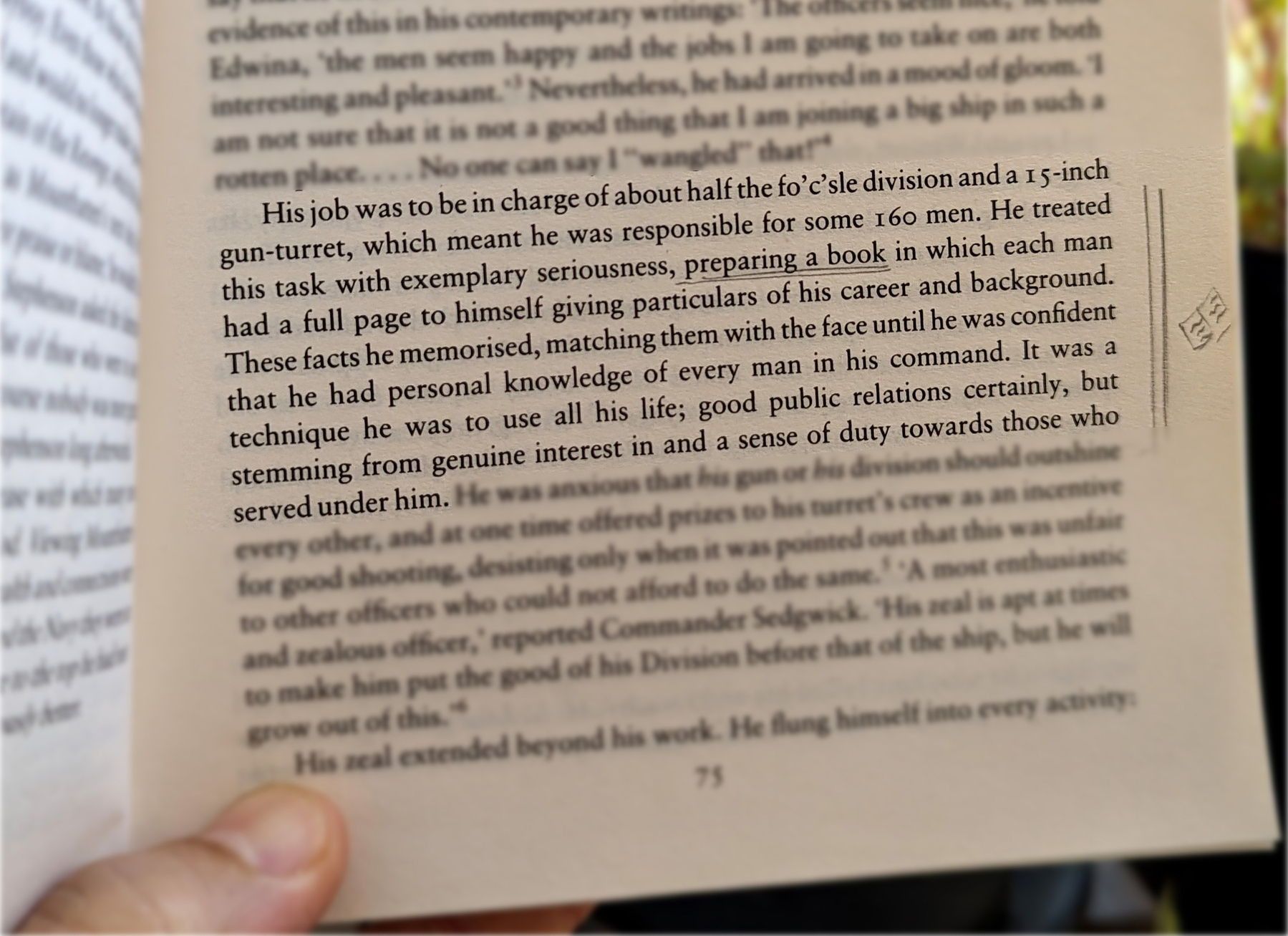
Creating my own version of a basic CRM with notes about everyone I met was the first thing I did. This happened before Evernote, so I used the description section of each contact on my Palm Pilot to take my notes about the person and each meeting. It was both simple and extremely helpful. People were always amazed at my memory. And every time I told them about my secret, they were even more impressed.
I have never stopped doing it, and the system evolved when I moved to Evernote and then to Obsidian. But what if I told you this idea is as old as time? Take a look at the passage below. Mountbatten was doing the exact same thing in the 1930s.
Do you remember my containers with information? Those were also born on my Palm Pilot, but they were in the Memo Pad app. The topics were organized so that I could easily add or find information.
However, it was only when I started using Evernote that I was able to create containers that would allow me to switch from one project or topic to another when I needed to escape exhaustion. Once again, I will soon release a video detailing my approach to managing all the information I keep in these containers. For now, let’s take a look at the other strategy used by Mountbatten.
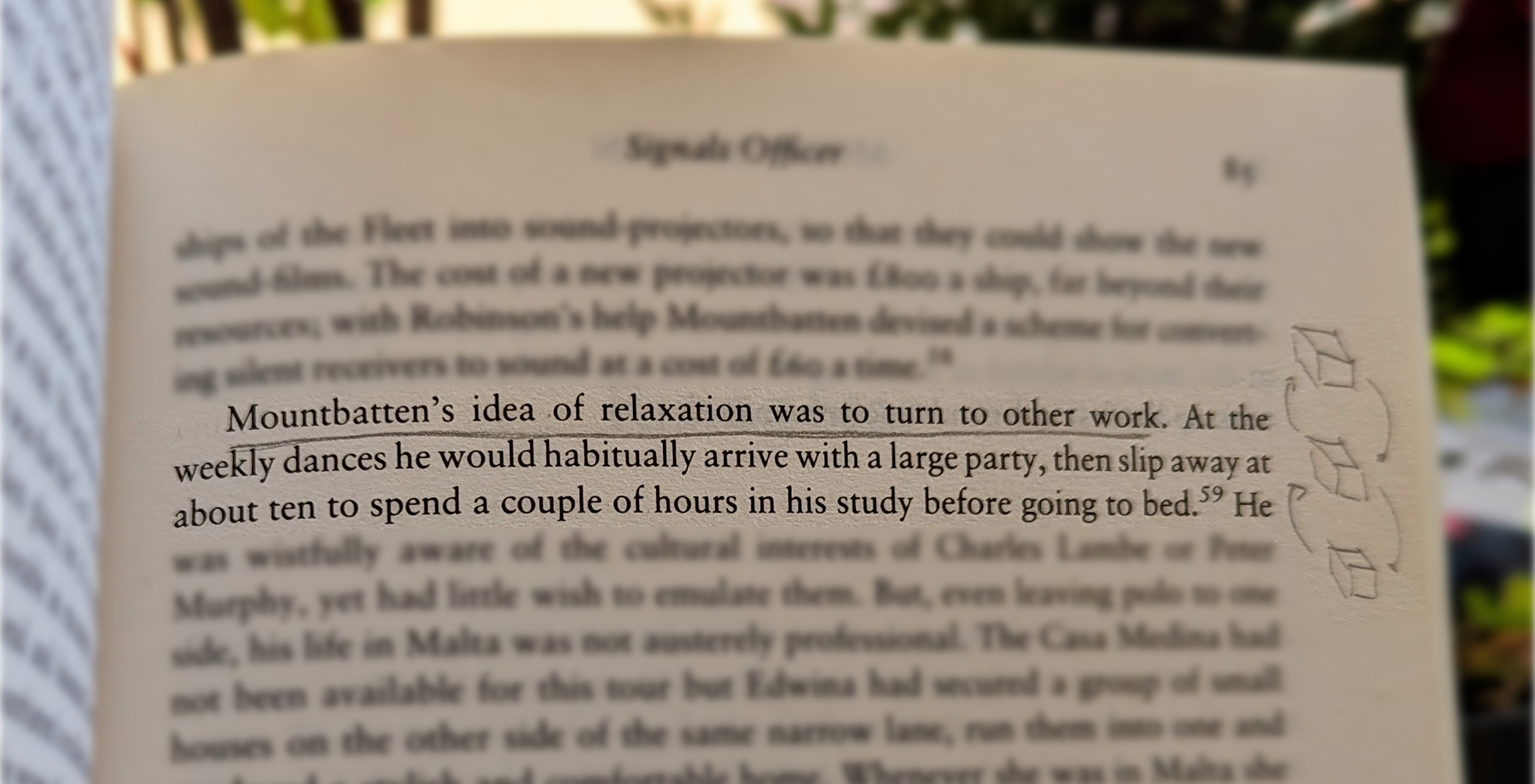
When he needed to relax, he would turn his attention to another project. Isn’t that cool?
Now, who is Mountbatten, you ask? A last-century specialist in organization and productivity? Far from it, but I’ll let you do your investigation on that.
Is Evernote becoming an everything app?
There are many changes coming to Evernote. I don’t see any problem with the app becoming more feature-rich, but I do have concerns about how it is done.
Two recent tweets from Federico Simionato, the product lead at Evernote, have led me to believe that the app is on track to become something different. There is currently a space for files being built, and many new features for Tasks are being discussed. Additionally, he told me in a recent conversation that he sees potential for Evernote to become a personal hub.
I don’t see any problem with the app becoming more feature-rich, but I do have concerns about how it is done. Evernote has a very intuitive structure. Notes, inside notebooks and tags to filter notes in a notebook or across many notebooks. That’s how simple it is to understand and use.
Thus far, each new feature that has been incorporated is layered upon this framework. Here’s an example: tasks and calendar entries are always connected to notes. And thankfully, it doesn’t look like the proposed Files feature is trying to compete with Dropbox, Google Drive, etc. It seems to be just another way to interact with the files we already have in our notes.
Out of Place
But based on the recent image shared on Twitter, it seems like the ‘new Tasks’ will not be aligned with Evernote’s framework anymore. It feels to me that it doesn’t belong there, as if an existing task management app has been implanted in Evernote. If this is the case, it may create some problems.
Some of the new ideas, such as ‘Projects,’ may introduce a new layer of classification and categorization of information, which may break the simple structure that makes the app so intuitive.
The Spaces feature on Evernote Teams is a great example of what I’m trying to convey. Just like a Stack, a Space is a group of notebooks. So when should one use one or another? To further complicate the understanding of how things work there, a note can be created outside a notebook in Evernote Teams. If you are an Evernote user, please tell me if this doesn’t feel like a crime.
To be honest, Stacks and Spaces exist for different purposes and are intended for different uses. But they look the same. So much so that it takes me some time to help my clients understand and assimilate the differences between a Stack and a Space.
There’s no other way to say it: Evernote Teams is not intuitive at all. If you have never used it, I suggest you watch the video below to see how confusing things can get.
Another Tasks App
Evernote was never a task management app. Tasks were elegantly incorporated, respecting the note-notebook system, and that’s what makes Evernote Tasks unique.
To be clear, I’m not questioning the need for or use of “Projects” or any other possible new feature like “Priority”. However, adding them has the potential to create distraction, since Evernote will have to compete with well-established task apps. Think about it: how many new features or variations of a feature are enough? How many colors of Flags do you need? How many types of Priorities? What about “Subprojects” or other ideas people have in the future?
Users will never be fully satisfied because there are too many ways to do things. They’ll start to compare Evernote Tasks to dedicated apps like Things, Todoist, etc. In other words, this will constantly create pressure on the development team to catch up.
Evernote is already lacking basic options and settings for features like Templates, Calendar, and even the editor. The situation is the same when we look at other apps that try to do everything. It’s like the old saying: try to do everything, and you won’t be good at anything.
I believe that using the simple, yet powerful framework of the app would allow people to create whatever innovative tasks system they come up with without having to wait for Bending Spoons to release the desired features.
Notebooks names could be used as a filter for grouping tasks inside a notebook, instead of introducing the new “Projects” layer. And if tags could be added to tasks, it would mean another filter option allowing each person to create their own priorities, flags, and anything else they want. This would make Evernote Tasks a space for users to create their own systems instead of complaining about Bending Spoons not working on new features.
Unfortunately, I believe the short-term easy option will prevail. They’ll just give the users another Tasks app like so many out there and hope for the best. Which seems to me like opening a can of worms. I can even imagine it leading to a dedicated task app. After all, there’s no way to compete on equal terms if your tasks are inside a notes app. It takes far too many steps to create a task.
Can you see how this can lead to an uncontrollable situation?
Loosing Focus
The current simplicity of Evernote results in limitations that serve as boundaries, and as a result, numerous non-tech-savvy individuals can efficiently organize their lives. People frequently tell me Evernote’s simple framework helps them with focus. This is not a small group of people, but they are silent on social media. So, I am trying to be as loud as possible for them.
However, I’m just one voice, and we may be already witnessing the birth of an entirely new experience with many new features and layers upon layers of configurations and categorizations. An Evernote that unfortunately has the potential to make many people’s lives much harder.
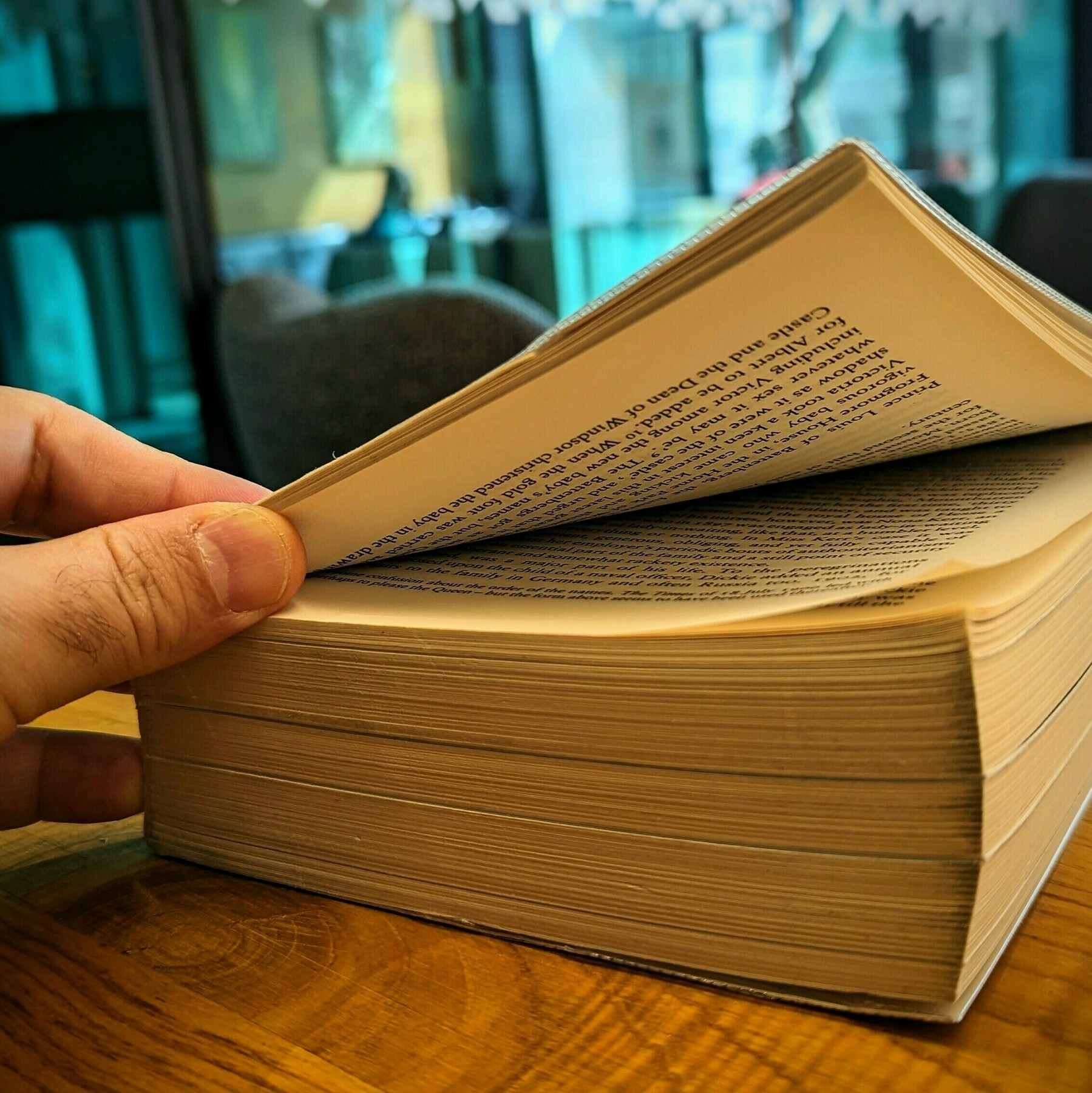
677 pages to go...
677 pages to go… Every journey starts with the first step, right? Are you looking for inspiration for your next literary adventure? Check my library to see what I am currently reading and some of the books I have read.
Coincidentally, or should I say incidentally 🤔, a few days ago I started writing my next book.
What was the Local Notes feature on Evernote?
Before the release of Evernote 10, it was possible to set a group of notes to remain unsynchronized with the Evernote servers. The Local Notes as they were known, were kept and could only be accessed on the computer where they were created.
At minute 11 of the video below, Federico mentions that Evernote will not bring back the Local Notes feature. I had to explain this because I have a sense that people may think he’s talking about offline notes.
As for offline notes, as long as you have the Evernote app installed on your computer, all of your notes are accessible, even if you do not have Internet access.
I knew this day was coming.
My studio is between two other offices that were the only ones empty on my floor. They’ve been vacant for the last 3 years, so it was only a matter of time before people started moving in.
In December of last year, a renovation was started on one of them. As far as I can tell, whatever they were up to is over. However, there are now loud noises coming from the other side.
It is not an option to stop producing my videos, so expect some strange noises here and there, as well as some home-office recordings.
Google Tasks is just too convenient not to use
I had already moved my Evernote tasks to Obsidian with the help of the Tasks plugin, but I found out that Google Tasks was a better fit for my needs.
Even though I don’t like tasks, if you check out my videos about Evernote Tasks, you’ll see that I had a system in place for birthdays, bills, and other paperwork for my company. For everything else, I always use Kanban boards.
Similar to many other journeys I shared with you in the past, this one is also about experimenting and finding the best option for my specific needs. As I always say, it’s more important to create a good system that works for you than to try to find a magical app.
Did you know?
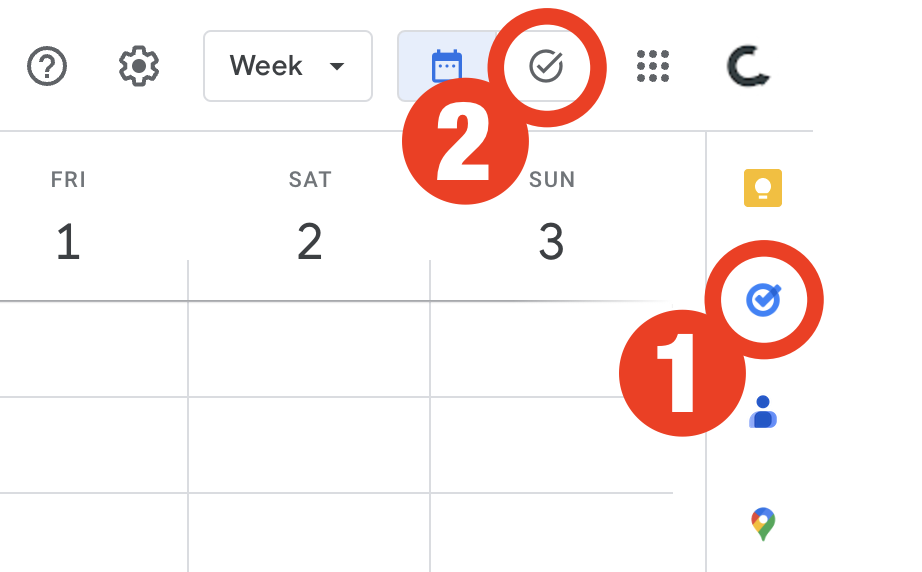
Although the Android and iOS apps were available from the very beginning, it used to be that the task drawer (1) was the only way to interact with your to-dos in a browser. That changed a while ago. You can also use Tasks as standalone application by clicking the icon at the top of the screen (2) or visiting tasks.google.com.
All the features are identical, but the dedicated page is more visual. You can reorder lists or move tasks to different positions in a list or to different lists. It behaves more like a Kanban board, but that’s not the reason I switched to Google Tasks.
Another important piece of information to keep in mind is that it doesn’t matter how many lists you create or delete; the first one provided by Google will always be the default list. You can rename or reorder it, but there’s no way to delete the default list. More on that later.
Why have I switched?
There are many reasons. Let’s start with the fact that I have Google Assistant devices all over my home and office, and that makes it super easy for me to create tasks hands-free. There is a caveat, though. All tasks created this way will be saved in the default list. And because of this detail, I had to make a small modification to my system. We’ll get there.
Another convenient feature is seeing my tasks on the Hub Max. It recognizes my face when I look at it and shows my upcoming calendar entries and tasks. And that’s not all. I can even use the touchscreen to see more tasks and mark them as completed.
Then there is my Android phone, where I can also interact with the assistant using voice commands, even when I’m jogging. And, of course, I can use the widget to see what tasks are coming up.
These features are too convenient to ignore.
My system
I only have two lists. The first one is called Activities and it’s all about recurring dates. To understand it, I invite you to watch the video below, even if you are not an Evernote user. That’s the exact system that I have transferred to Obsidian and am currently using on Google Tasks. Including the emojis 😉.
Regarding the other list, it is the default list, even though it is ordered as the second one in my system. Everything I need to buy, from groceries to items for woodworking and other similar projects, goes on that list. It must be the default list because, more often than not, I ask Google Assistant to add items there.
I don’t know why, but at the time of writing this article, there’s no way to make another list the default one. I have learned this the hard way, but you don’t need to. Plan ahead and figure out what kind of tasks you’ll be asking the Assistant to add more often. That should help you with your default list.
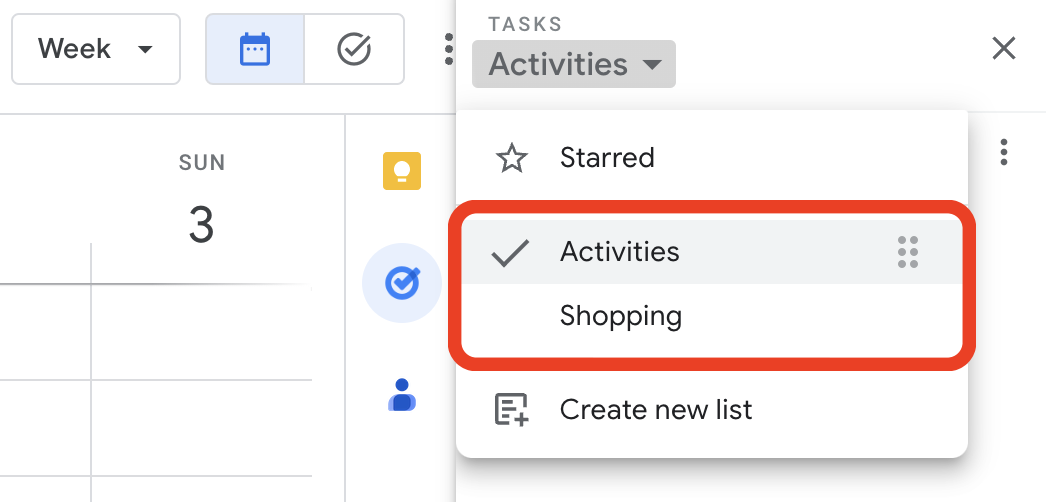
Activities is the list I want to always keep an eye on, and that’s why it’s the first one. Every time I open the calendar, I see it. As for the other one, I only need it when I’m shopping and can easily open Google Tasks on my phone to check the items.
But what if I told you that I never open the Tasks app on my phone? Each list has its own widget, which allows me to view the tasks, mark them as completed, and even create new ones. Again, Google Tasks is too convenient to ignore.
One thing I’m always trying to do is remove potential complications from my systems. In the past, I tried splitting shopping items into a grocery list and a projects list, but that only added more friction to the system, as I had a third list to deal with. Since I rarely have a lot of items to buy, my human brain is capable enough to easily tell what is what on the Shopping list.
Naturally, the number of items that have been completed on this that will increase exponentially, but that’s okay because they go to a collapsed space when marked as completed. However, if you really want a spotless list, the ‘Delete all completed tasks’ option will delete only the completed items on that list. So I can easily clean up my Shopping list without messing with my Activities list.
That’s it. As I said before, I manage everything else using Kanban boards because they give me a much better view of the status of each project. But that’s a story for another day.
Thank you to all 5K of you! 🎉
A few days ago, my YouTube channel reached a milestone of 5K subscribers. That would never be possible without you. Thank you so much!
My first channel, in Portuguese, has already crossed 100K subscribers a good while ago, but what keeps me going on both channels is always the community.
You are absolutely amazing and I hope you’re still here at 10K.
Heads up! Evernote Legacy is no more.
Are you still using Evernote legacy? I suggest you read this post on Evernote’s blog because all versions before 10 on macOS, Windows, and Android will stop working on March 23, 2024. The iOS version has already been decommissioned. Jon Tromans also wrote a great article about it.
The other day, the YouTube algorithm led me into a rabbit hole about devices where we can only do one thing: type. Most of them have a small screen and a keyboard. That’s it. After watching more videos about this topic than I should have, I couldn’t stop thinking about how different people are.
That would never work for me. I frequently [[vladcampos.com/Timeline/Blog/2020s/2022/2022-05-02 Getting away from the problem for a while often leads to new insights|need to escape from my writing when I’m stuck]]. And if I’m being honest, I’m always escaping, regardless of what I’m doing. Distractions are an integral part of my creative process. I need them!
Okay, time to get back to the article I was working on 🫣
Digital archeology.
After a lot of digital archeology using the Way Back Machine, I found the first episode of my first podcast, published on May 10, 2005 😮. It was my first episode ever, so it’s obviously not good at all. But, honestly, it is not as terrible as I expected 😊.
How the Vision Pro caught my attention despite my skepticism
It looks like Apple did it again!
No, I haven’t purchased one and do not intend to do so anytime soon, but this is the first device of this type I would ever buy. Confused? Go with me for a moment. It will make sense, I promise.
Even though the Vision Pro isn’t the only Augmented Reality device out there, I always felt like all the others were made for gamers. It might be because of how they are promoted. I don’t know. But since I’m not a gamer, buying a virtual or augmented reality headset simply never crossed my mind.
It’s a computer
From the very beginning, Apple was clearly positioning the Vision Pro as a consumer device, but because of my gaming perspective and the price tag, it was never an item on my radar. Then I watched Casey’s video about it, and something clicked for me. This is definitely not for gamers. It’s not a gimmick for geeks, either. It’s for everyday people who prefer or have to use computers to do their work.
I’m still putting off buying a US$4,000 (after taxes and some accessories) first-gen gadget, but that video sent me on an endless journey on YouTube. Many people are showing it being used as a computer with several giant screens. In other words, one can use it to “work on a computer” with practically no desk space. All that real-world usage really spoke to me. Well, “real-world” might not be the best choice to describe it, but I think you got it.
I could never use the iPad as a Mac replacement. Despite Apple spending a fortune trying to promote it as a computer, it is not a computer. The restrictions imposed by iPadOS make my work much more challenging. The Vision Pro, on the other hand, can be connected to a real computer, and that makes all the difference.
So many Apps
However, a computer is only as good as the software library available for it. And as far as I could understand, everything that works on macOS will work when a Mac is connected. Which kind of brings us back to the old debate about touchscreen Macs, but I digress.
Then there’s visionOS, which has the potential to unleash a wave of new ideas, much like iOS did a long time ago.
And, of course, the younger generation that prefers mobile devices was not left out. Thanks to Scott Forstall’s advocating for the App Store on the iPhone, there’s now an abundance of Apps already available for Vision Pro.
Why not buy it?
Well, first there’s that price tag. Then there is the fact that it is a first-generation device. I waited until the 3GS to buy my first iPhone, and in hindsight, I should probably have waited until the 4S.
There is one thing for sure: Apple won again. I can clearly see myself purchasing a smaller, lighter, and much, much cheaper version of the Vision Pro in the future. And if it makes the Apple stock go up enough, I might be able to score one for free by selling some of what I own to buy its “4S” generation.
He was very close to locking himself out of Evernote
This is the story of how I helped him save his notes
Evernote, like many other companies, lets us use two-factor authentication. This means that, once you enable this function, you’ll always need to use a randomly generated code in addition to your password to gain access to your account. I see it as a good security feature that we all should turn on in every App where it’s available.
It’s usually activated by scanning a QR code with a so-called Authenticator App, which then starts generating random numbers. But here’s the catch: if you lose access to that App, you are in trouble because no one else has those codes.
As a last resort, there is always a list of one-time-use numbers that can unlock the account in case of an emergency. But not everyone saves that list, despite being instructed to do it every time we turn on two-factor authentication in an App.
The Problem
This unique combination of problems is beyond my comprehension, but criticizing him for not having the printed list of codes would not help. The facts are that this person only had Evernote logged in on his iPad, and he lost access to the Authenticator App.
I don’t believe the support team at Evernote or any other company would be able to help someone in this situation. After all, the codes are generated on the person’s device.
The suggestion
Before anything else, I asked him to try something that would probably not work on the iPad, but who knows? I’ve heard that some people have disabled the authentication layer by accessing the Evernote settings on the computer App. Unfortunately, as expected, it didn’t work on his iPad.
Time for a more drastic approach.
The plan was to move all his notes to a new account. On the iPad, he would have to go to each notebook and share it with the new account. On the new account, he would then create a local notebook and move the shared notes to it.
An important detail to remember is that one can only move 100 notes at a time, and there’s no way to select multiple notes on mobile clients. So, the easiest way to do everything on his new account is on a computer with Evernote’s App installed.
How can you prevent this from happening?
First, you should remember to take care of the Authenticator App you are using and to print the one-time-use numbers list. By the way, a good place to put this list is wherever you keep all your personal documents.
A password management App is another option. Many of them can read the original QR code and generate the authentication codes. As they are synchronized with the cloud, you will still have access to the information, even in the event of losing or permanently damaging your phone.
However, if you don’t like this type of Apps, you may want to also print the first QR code you have to scan when you create the code generator for that account. That QR code can be used to recreate the code generator on a different Authenticator App. Just be extra careful with where you keep it because anyone with that QR code can recreate the code generator.
Will I be able to automatically save my Android photos to Apple Photos?
Even though I adore Google Photos and the endless slideshows on the Google displays I have at home and work, I wouldn’t entrust my memories to any one company. That’s why, for a long time, I’ve been using Google Takeout to download a copy of the photos from the previous year to add them to Apple Photos as a backup. The system works, but it’s too manual and prone to mistakes.
Maybe you don’t know this, but even when you use Google Photos to manage the pictures you take, Android will keep a copy of them in the DCIM folder on your phone. And as far as I know, they will not be automatically deleted. To free up space, you must use the cleanup option or manually delete them. But what if I told you that this inconvenience could work in your favor?
The other day, I had one of those click moments that helped me see this issue as a blessing in disguise. Here’s what I’m currently trying to do as I write this post.
Remember Syncthing? I set it up to synchronize the DCIM folder on the Pixel with a folder I created on my Mac. If you don’t know what I’m talking about, please watch the video below explaining how to do it. On it I’m demonstrating how to sync Obsidian, but don’t worry about that. The steps are the same for the DCIM folder.
I am optimistic that this plan will address two issues. The first one is having an easier way to back up my photos, but it will also help me with cleaning up the images that are constantly piling up on my phone. To give you an example, early today, when setting the system up, I discovered 23 GB of old photos and short clips stored on my Android.
It will take a while for all that to be copied to the computer, but the beauty is that Syncthing works both ways. Once the files that have been synchronized with my computer are transferred to Apple Photos and deleted from the folder, they will be automatically deleted on the phone.
This is the very first test I’m doing to make sure Syncthing is correctly transferring everything to the Mac and then deleting the files on the phone when I delete them on the computer. If everything goes well, the next step will be to create an automation to replace the manual process on the Mac side.
This is all for now. When I have further updates about this idea, I’ll publish part two of this article.