The TLSp sidebars are full of surprises (I didn't see this coming)
2026-07-11 15:48
It’s been a few weeks since I started porting the Timeline System to a paper notebook (TLSp), and the most important thing about this experiment is that I’ve gone completely all-in. I’ve been managing all my activities and taking my notes strictly in it. In other words, I'm forcing myself to find workarounds for the various inconveniences of the analog world.
Anyway, the plan for today is to share some new ideas I had for the sidebars, because they have been way more useful than I ever could have imagined.
Before we get into it, though, I thought it would be interesting to share a quick backstory. The very first page of my notebook doesn't even have sidebars, because the only rule I set at that initial moment was to write everything down in chronological order.
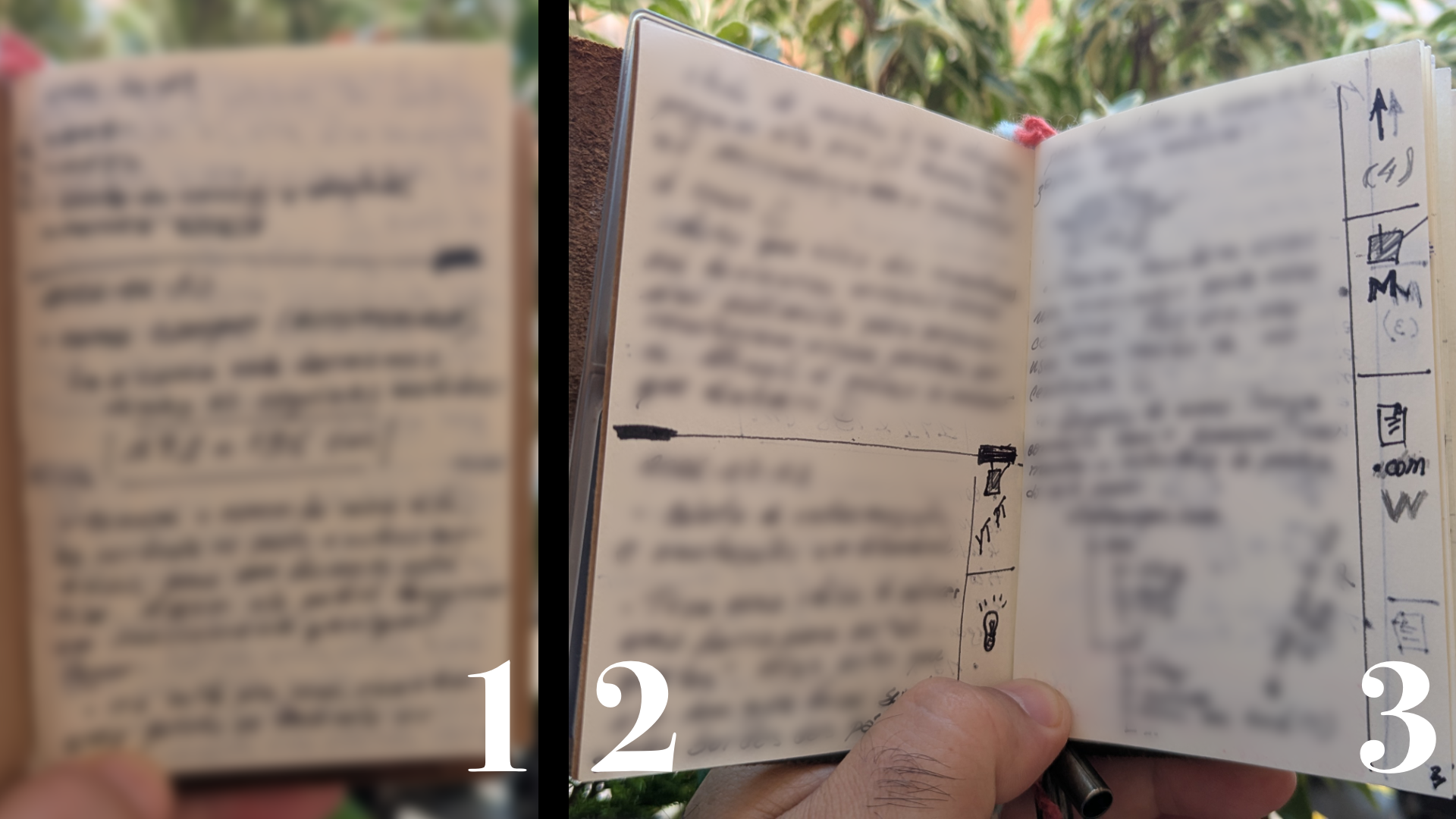
What's interesting is that by the middle of page 2, I was already looking for a way to categorize things. You can see in the image above a rudimentary first version. By page 3, it had already taken its current form.
Something taking shape that fast felt almost as inevitable — and it probably was. When I started reflecting on where this idea came from, it occurred to me that I’ve been doing this for years and years. Decades, actually!
The physical books I read don't just have notes on the margins; I also draw small icons that help me find specific notes just by glancing at the drawings as I flip through the pages.
The Action Symbol
One thing that I was missing was a way to distinguish between an activity I gave up on and one that is actually completed.
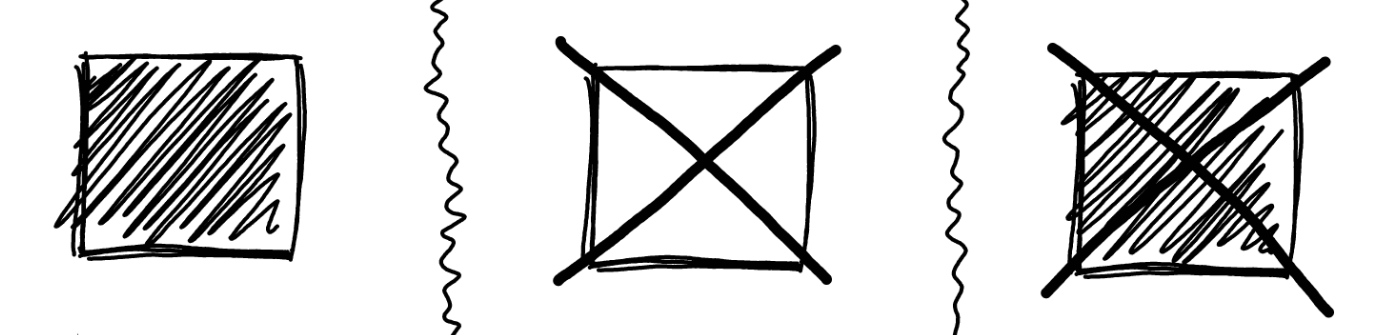
The system I came up with works like this. If I shade the entire box in, it means it's done. An `X` indicates that I abandoned it. That way, if, for some reason, I end up working on an abandoned activity in the future, I can just shade right over the `X`.
More Freedom
On page 15 of the first booklet, I was writing a long text about an idea when it struck me. One of the sentences I was writing was actually related to something I had to do, and I instinctively drew an Action box next to that sentence in the sidebar. Further down that same page, I needed to link another specific sentence to something from the past. That link was also placed in the sidebar.
In the second article of this series, I explained that I was adding the links within the sentence itself, but it occurred to me that I can also use the sidebar area near that sentence. After doing it a few more times, I realized it made the information much easier to find, so I adopted it as a practice.
Linkbacks
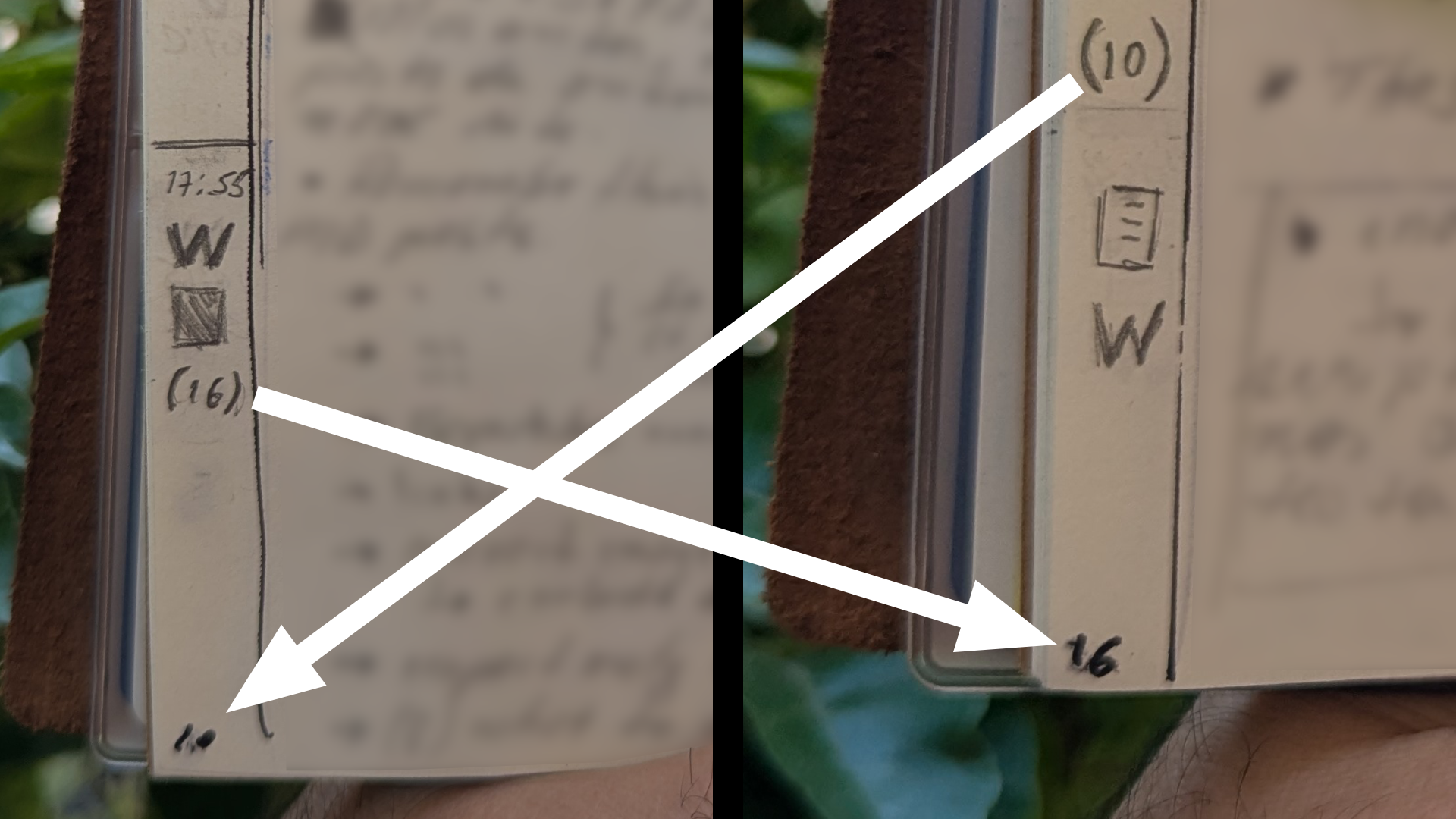
And speaking of links, I decided to also create linkbacks. If I write a reference (10) on page 16, I'll go back to page ten and write (16) in its margin. This allows me to easily jump back and forth between these analog hyperlinks.
This whole thing reminded me of the book Weaving the Web by Tim Berners-Lee, the creator of the World Wide Web. When he explained the concept of hypertext, he used a dictionary as an example of something with self-contained hyperlinks.
According to him, every single word used in a dictionary essentially has a link. If you think about it, it's true. There is a definition for the very words used to explain the word you looked up in the first place. I think that analogy is pure genius.
Post-its
Another idea I had for the sidebar was using square Post-its, which I'm folding right along the sidebar line.
I've been using the TLSp heavily over the last few days to manage everything I need to do for my website's migration project, and the system is working incredibly well. However, at one point, I realized I needed a dedicated spot to jot down random minor things I had to adjust on the site before releasing the new version. Things I was noticing while doing something completely different.
I needed to remember to work on those small details, but I didn't want to stop what I was doing and interrupt the respective notes I was taking about it at that moment. So, I stuck two Post-its on the sidebar right where I was writing my main note and folded them outward along the sidebar line. I kept writing my longer note, and in parallel, I used the sticky notes for those quick reminders.
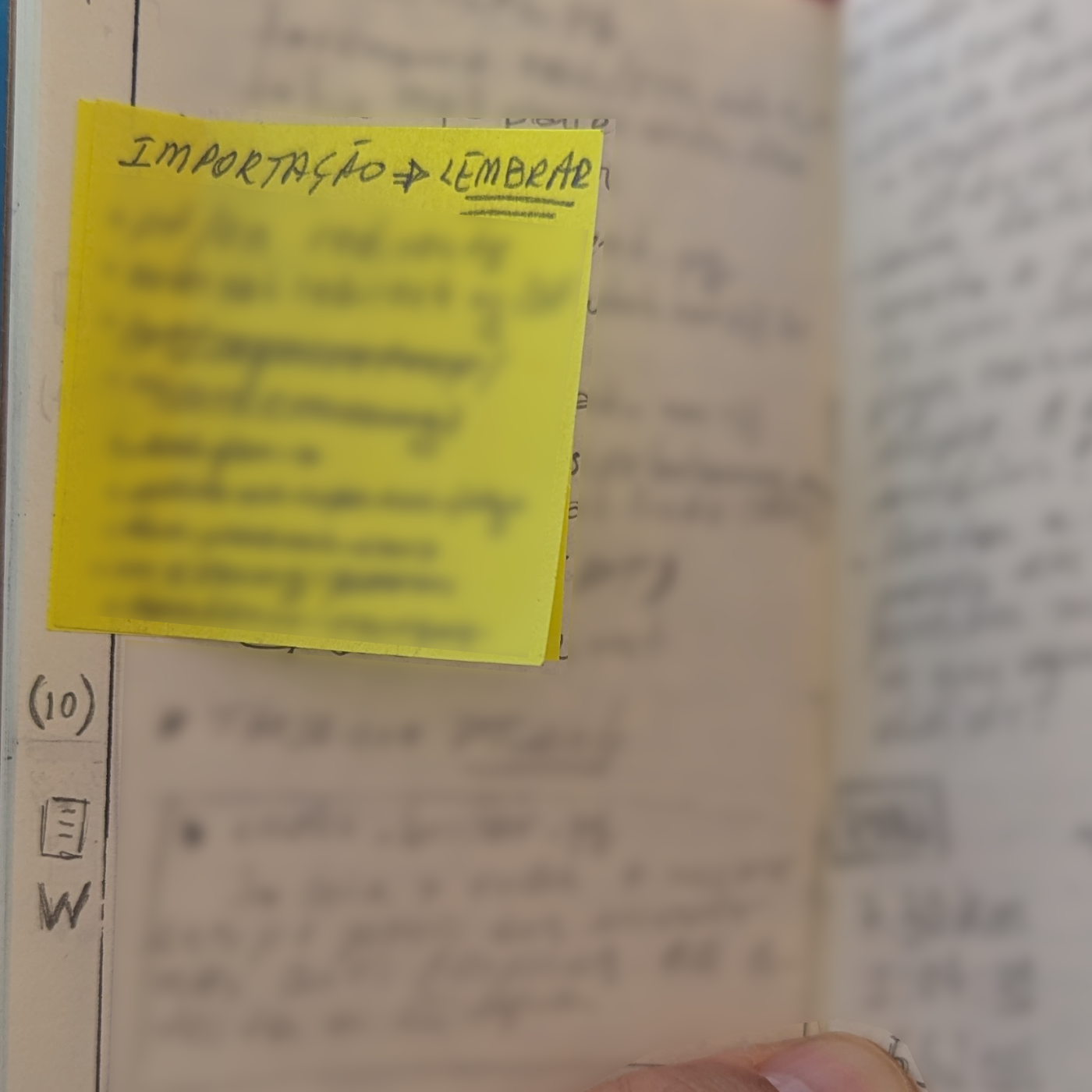
Once I moved on to the following pages, I left the Post-its behind as a historical marker of when I started writing on them. But, of course, nothing stops you from moving them to the next pages to simplify those quick notes.
Pencil vs. Pen
I absolutely love that I recently switched from pen to pencil. However, I quickly realized that it was best to keep using a pen for the sidebar lines and page numbers as it creates a clearer separation of notes and symbols.
By the way, since using paper is so new to me, I can't really tell if the lead that came with the mechanical pencil was really terrible, or if the new one I bought based on a recommendation is just incredible.
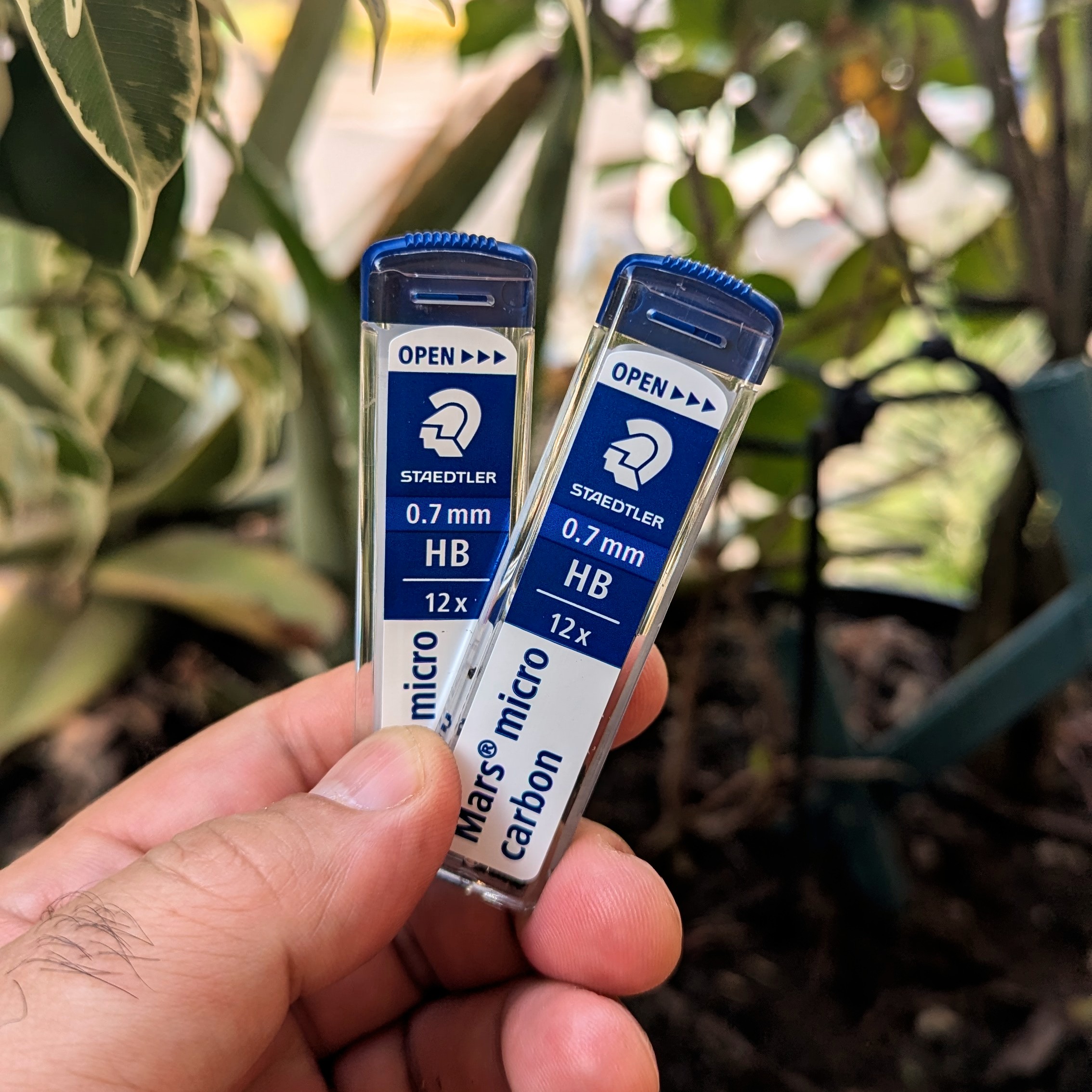
Of course, it could easily be both things at the same time :-D. The fact is, I noticed a massive improvement in the writing quality. It's been days, and I'm still using the same first lead, which, by the way, has never broken once. The previous one, on the other hand, snapped constantly.
More to Come
There are a few other new features I’ve added and that I am currently testing, but for this post, the plan was to stay focused on what I’ve been doing with the sidebars. I'll share those other updates soon.